Combine filters
When your audience has more than one filter, the way you join them decides which records it selects. "People who earn £60k or more and booked a package holiday" is a much smaller audience than "people who earn £60k or more, or booked a package holiday". The filters are the same in both, and only the logic between them differs.
This page explains how filters combine, so you can build an audience that matches your brief. To add a single filter, see Build an audience.
Narrow or widen your audience
Every filter after the first is joined to the ones before it with AND or with OR. The label above each filter shows which:
- AND: A record must match both sides. Adding a filter with AND narrows your audience, so the count goes down or stays the same.
- OR: A record can match either side. Adding a filter with OR widens your audience, so the count goes up or stays the same.
Tip
Check your audience's count after you add each filter. If adding a filter with OR makes the count jump far more than you expected, you've probably added it in the wrong place.
Groups
Orbit draws a box around filters that belong together, and indents each box inside the one it belongs to. Orbit works out the filters in a box first, then treats the whole box as a single filter. A box works like brackets in a sum.
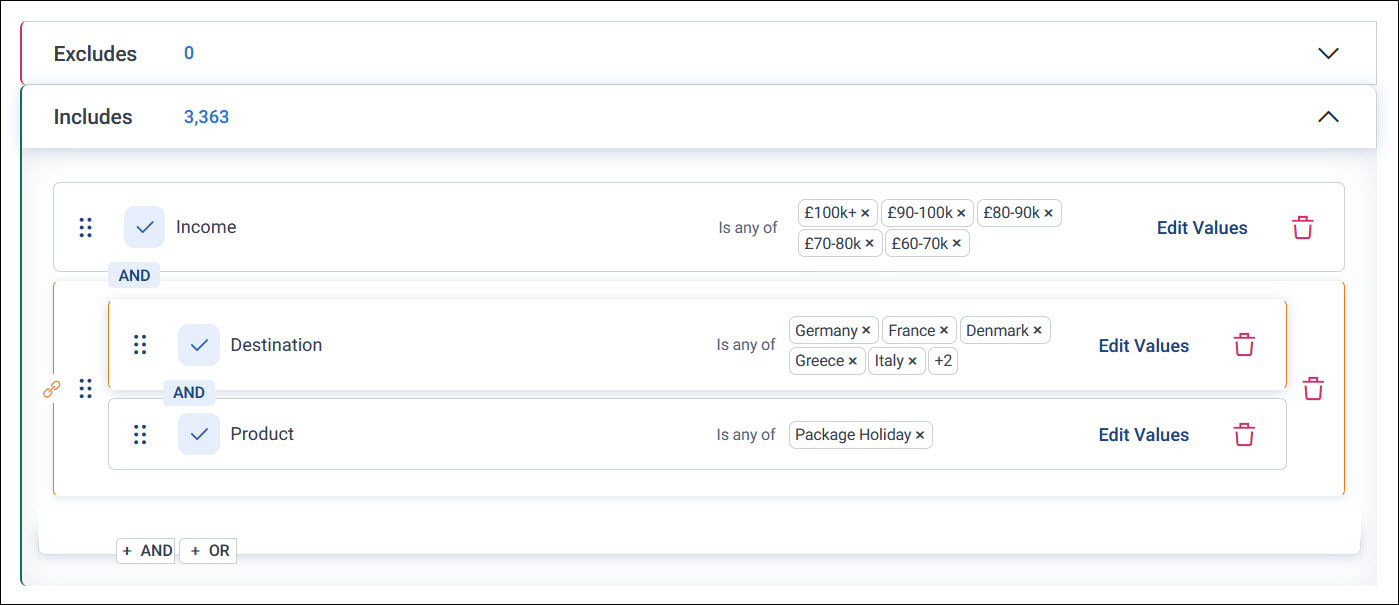
This audience reads as Income AND (Destination AND Product). It selects people who earn £60k or more and who booked a package holiday to one of the chosen European destinations.
Choose where to add a filter
Below the last filter in a group, you can add the next filter at three positions. Each position joins the new filter to a different part of your audience:
| Position | Joins the new filter to | Example result, adding Cost with OR |
|---|---|---|
| Inner | The last filter only, in a new box around the two of them | Income AND (Destination AND (Product OR Cost)) |
| Middle | The whole box that the last filter is in | Income AND ((Destination AND Product) OR Cost) |
| Outer | Everything above it, at the top level | (Income AND (Destination AND Product)) OR Cost |
To add a filter at a position:
-
Show the + AND button and the + OR button for the position you want:
-
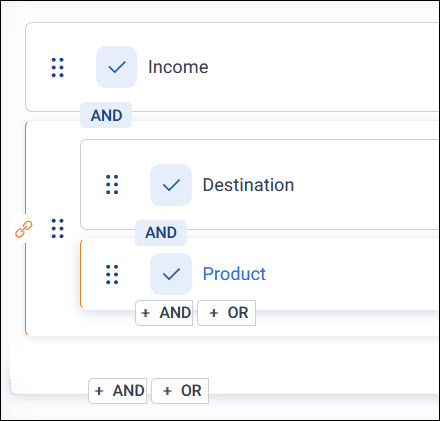
Inner: Hover over the last filter. The buttons appear just below it.
-
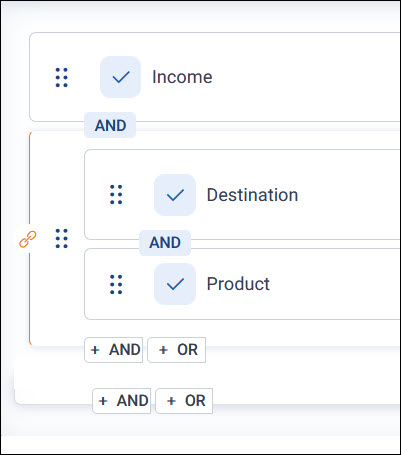
Middle: Hover over the bottom edge of the box the last filter is in. The buttons appear below the box.
-
Outer: Use the buttons at the bottom of Includes or Excludes, which always show.
-
-
Select + AND or + OR, then select + Add Filter.
-
Choose what to filter by in the data picker, choose its values, and select Apply.
One filter, three positions
The audience above has 3,363 people. Here's what happens when you add Cost greater than or equal to £2,000 with OR at each position.
Orbit puts Product and Cost in a new box. The audience selects people earning £60k or more who booked a package holiday, or a holiday costing £2,000 or more, to the chosen destinations: 3,370 people.
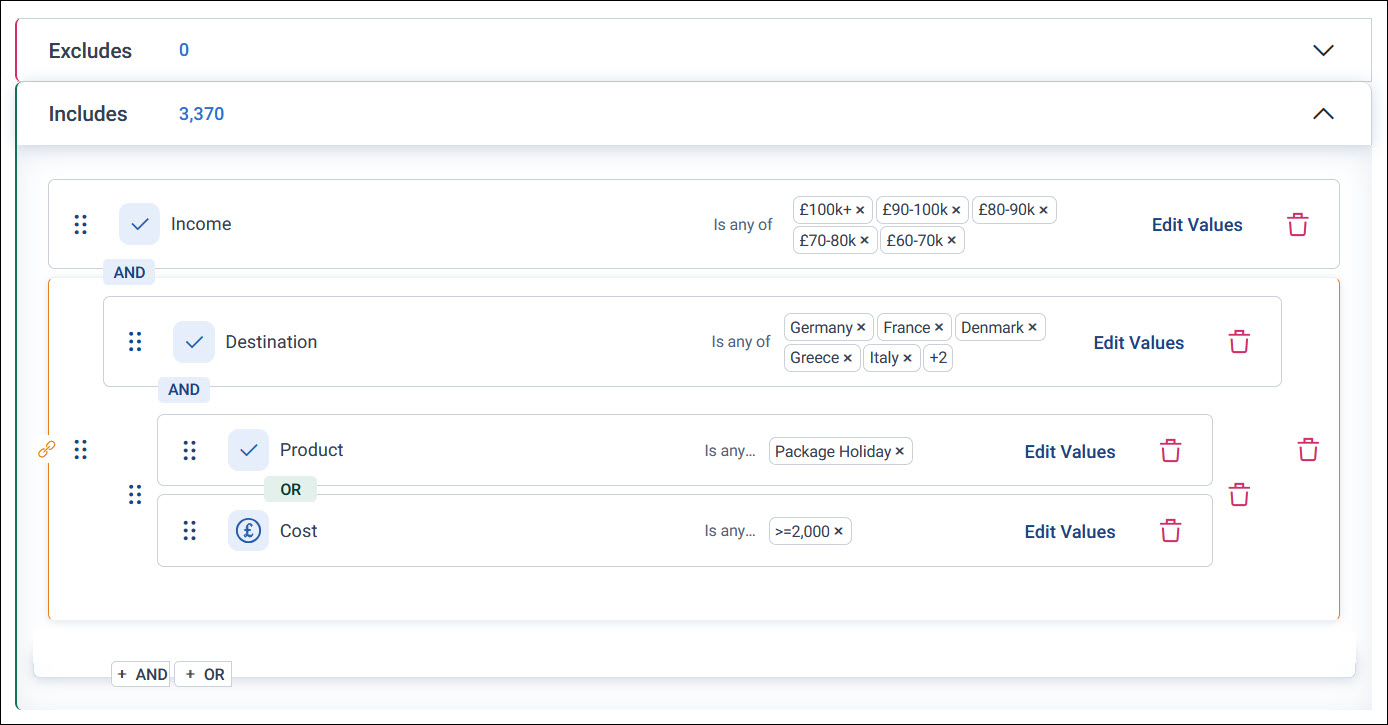
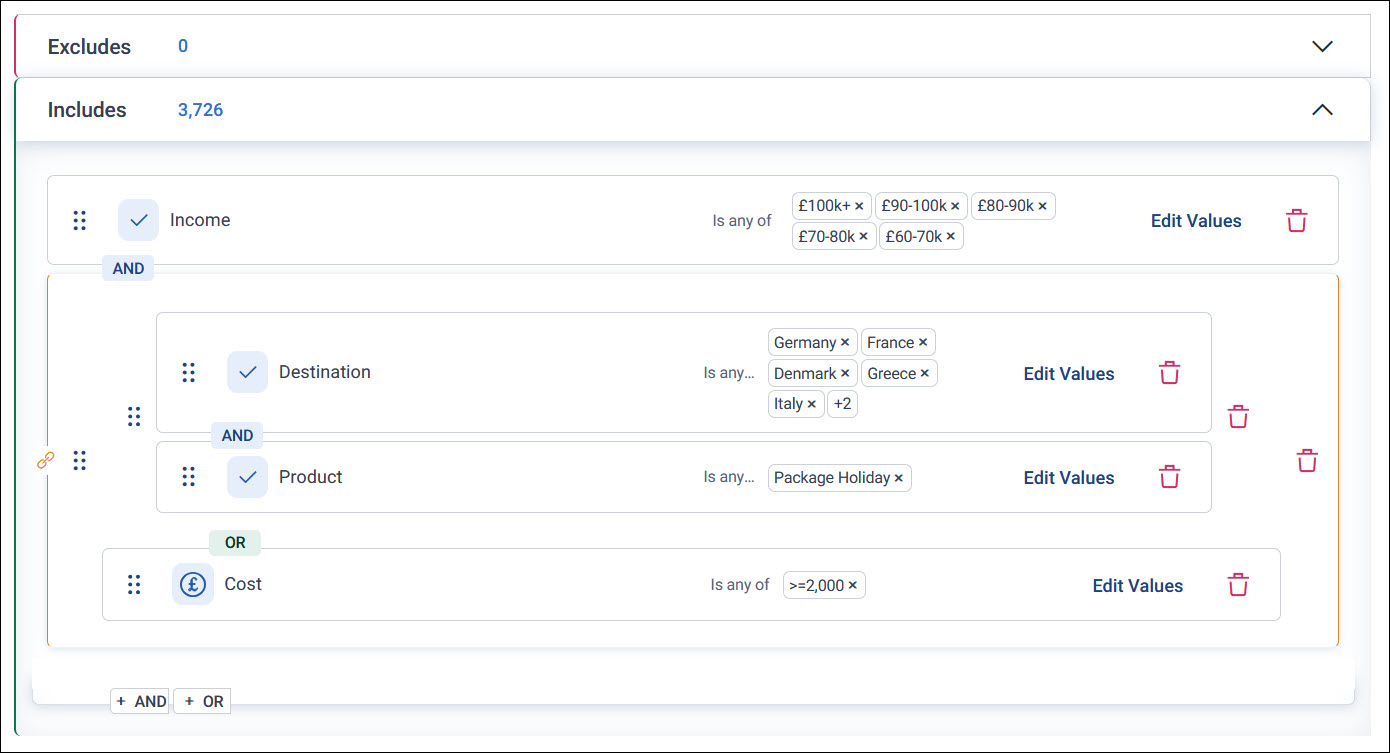
Cost joins the Destination and Product box. The audience selects people earning £60k or more who booked a package holiday to the chosen destinations, or a holiday costing £2,000 or more to anywhere: 3,726 people.
Orbit puts all the earlier filters in one box and joins Cost to it. The audience selects people earning £60k or more who booked a package holiday to the chosen destinations, and anyone who's booked a holiday costing £2,000 or more, whatever they earn: 52,708 people.
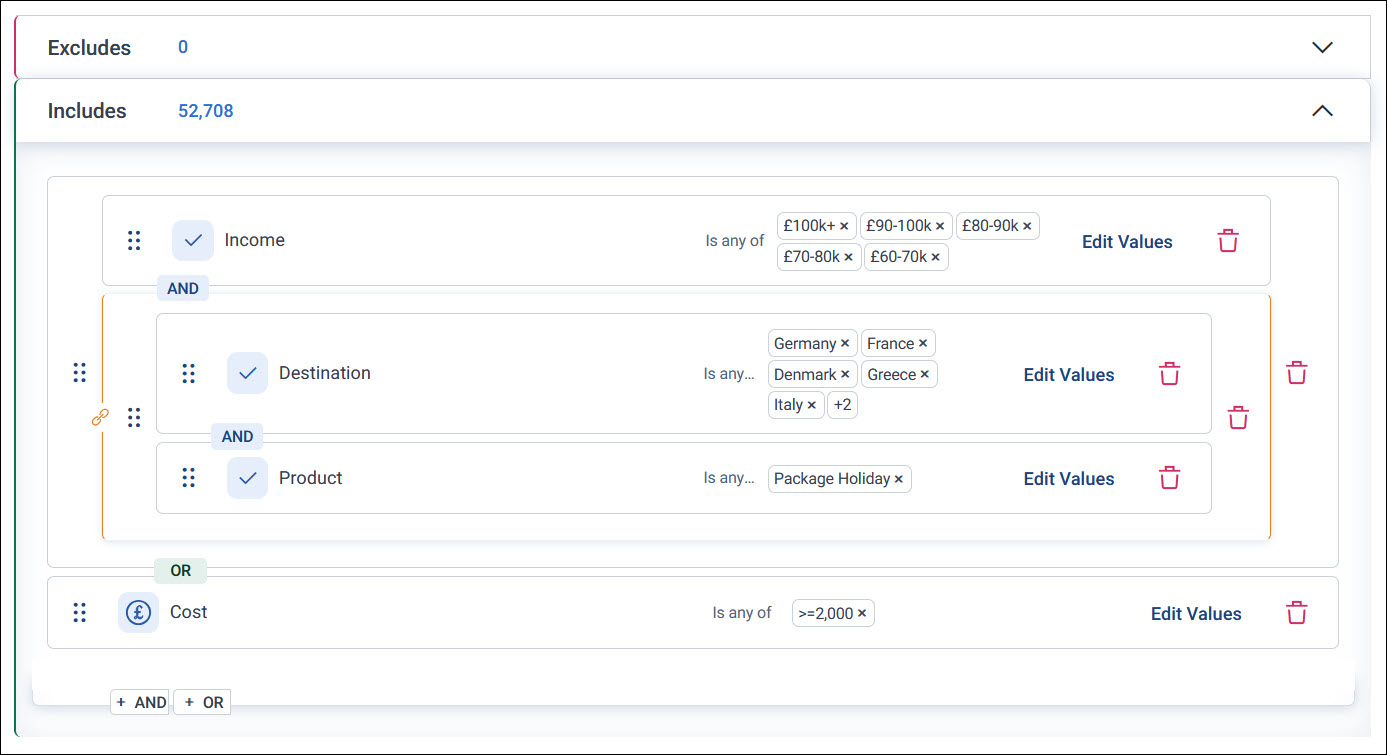
The outer position gives by far the largest count, because Cost is no longer tied to income or destination.
Change or insert a join
When you hover over a filter that has another filter after it, the join between them shows AND, OR, and +:
- Select AND, or select OR, to change how the two filters are joined
- Select + to add a new filter between them
Changing a join can change your audience a lot, so check its count afterwards.
Tip
When you turn a brief into an audience, look at what each "or" in the brief applies to. If it starts a new, independent group of people, it's the outer position. If it's an alternative to one condition, it's an inner or middle position.
Linked filters
A person can have many bookings, so two filters on the Bookings table could describe one booking or two different bookings (see Tables). When you add filters from the same transaction table one after another, Orbit links them, so a record must match them all on the same booking. A link icon to the left of the filters shows the link, called the golden link.
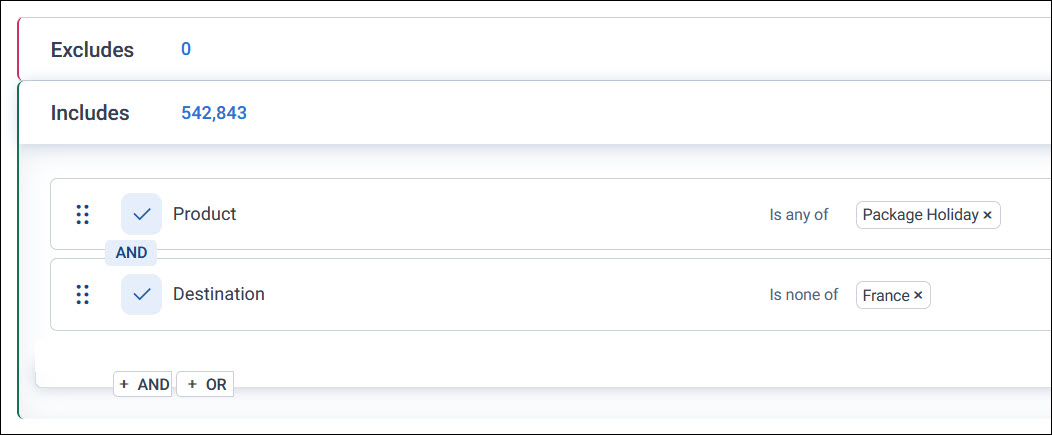
For example, Product is any of Package Holiday linked with Destination is none of France selects people who booked a package holiday to somewhere other than France, on the same booking.
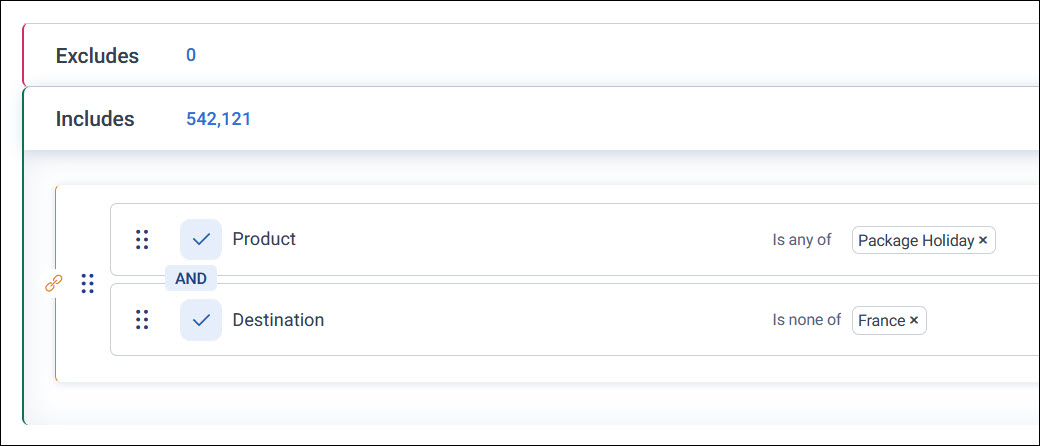
If you want the filters to match on any of a person's bookings, not necessarily the same one, unlink them.
To unlink filters:
-
Select Edit Values on the second filter.
-
Under Linking, select Unlink.
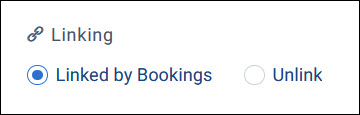
-
Select Apply.
Unlinking usually widens your audience. In the example, it also selects people who booked a package holiday to France, if they made a different booking to somewhere else. The count goes from 542,121 to 542,843.
Caution
You can't link filters again once you've unlinked them. To get the link back, use Undo or Reset, or remove the filters and add them again.
Leave records out
There are two ways to leave records out of an audience, and they give different results:
- Is none of (or Has none of) in a filter is a NOT. It applies only to the filter it's in, inside its own group and link. See Selector and multi-response variables.
- Excludes removes every record that matches its filters from your whole audience, whatever the Includes select. See Add a filter.
Example
Compare these two audiences:
- Product is any of Package Holiday, linked with Destination is none of France, selects people with a package holiday booking that isn't to France. Someone who's also booked France on a different booking is still selected.
- Product is any of Package Holiday under Includes, with Destination is any of France under Excludes, selects people who've booked a package holiday and have never booked France at all.
How Orbit calculates your audience's count
Your audience's count comes from its parts, in this order:
- Includes selects the records that match its filters. The count next to Includes is how many that is.
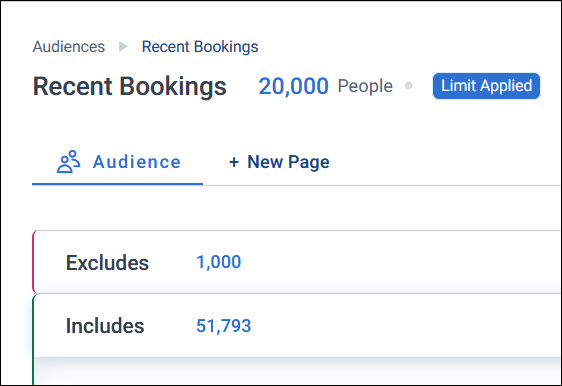
- Excludes removes any of those records that match its filters. The count next to Excludes is how many records match the exclude filters, not how many it removes from your audience.
- A limit, if you've applied one, reduces what's left. A Limit Applied label shows next to your audience's count.
The count next to your audience's name is the result.
Example
In the audience above, Includes selects 51,793 people. The exclude filter matches 1,000 people, but only 69 of them are in Includes, so removing them leaves 51,724. A limit then keeps 20,000 of those.
Example: build an audience from a brief
Here's a brief, and how it becomes an audience one filter at a time. Your audience's table level is People.
Audience brief
Select people with 5 or more bookings who either booked a package holiday to somewhere outside Europe, or bought any type of insurance cover in 2019. Also select directors, managers, and professionals who've spent over £5,000 on bookings. Leave out anyone in the existing Income and Occupation audience.
| Step | Brief | Filter | How you add it | Count |
|---|---|---|---|---|
| 1 | "people with 5 or more bookings" | Number of Bookings, greater than or equal to 5 | + Add Filter under Includes | 54,508 |
| 2 | "booked a package holiday" | Product is any of Package Holiday | + AND at any position. With only one filter above, they all give the same result | 53,817 |
| 3 | "to somewhere outside Europe" | Destination is none of the European destinations | Inner + AND under Product, so it joins Product in a box, linked to the same booking | 50,675 |
| 4 | "or bought any type of insurance cover" | Cover, with every category ticked | Middle + OR: an alternative to the booking, but still for people with 5 or more bookings | 52,500 |
| 5 | "in 2019" | Policy Date from 1 January 2019 to 30 December 2019 | Inner + AND under Cover, so it joins Cover in a box, linked to the same policy | 50,690 |
| 6 | "Also select directors, managers, and professionals" | Occupation is any of Director, Manager, Professional | Outer + OR: a separate group of people | 149,913 |
| 7 | "who've spent over £5,000 on bookings" | Total Spend on Bookings, greater than £5,000. This is a value behaviour that adds up each person's booking costs. | Inner + AND under Occupation, so it applies to the occupation group only | 51,793 |
| 8 | "Leave out anyone in the existing Income and Occupation audience" | The Income and Occupation audience, with In | + Add Filter under Excludes | 51,724 |
The count jumps at step 6, because the outer OR adds a new group of people. It drops again at step 7, once that group is narrowed down to the people who've spent over £5,000.
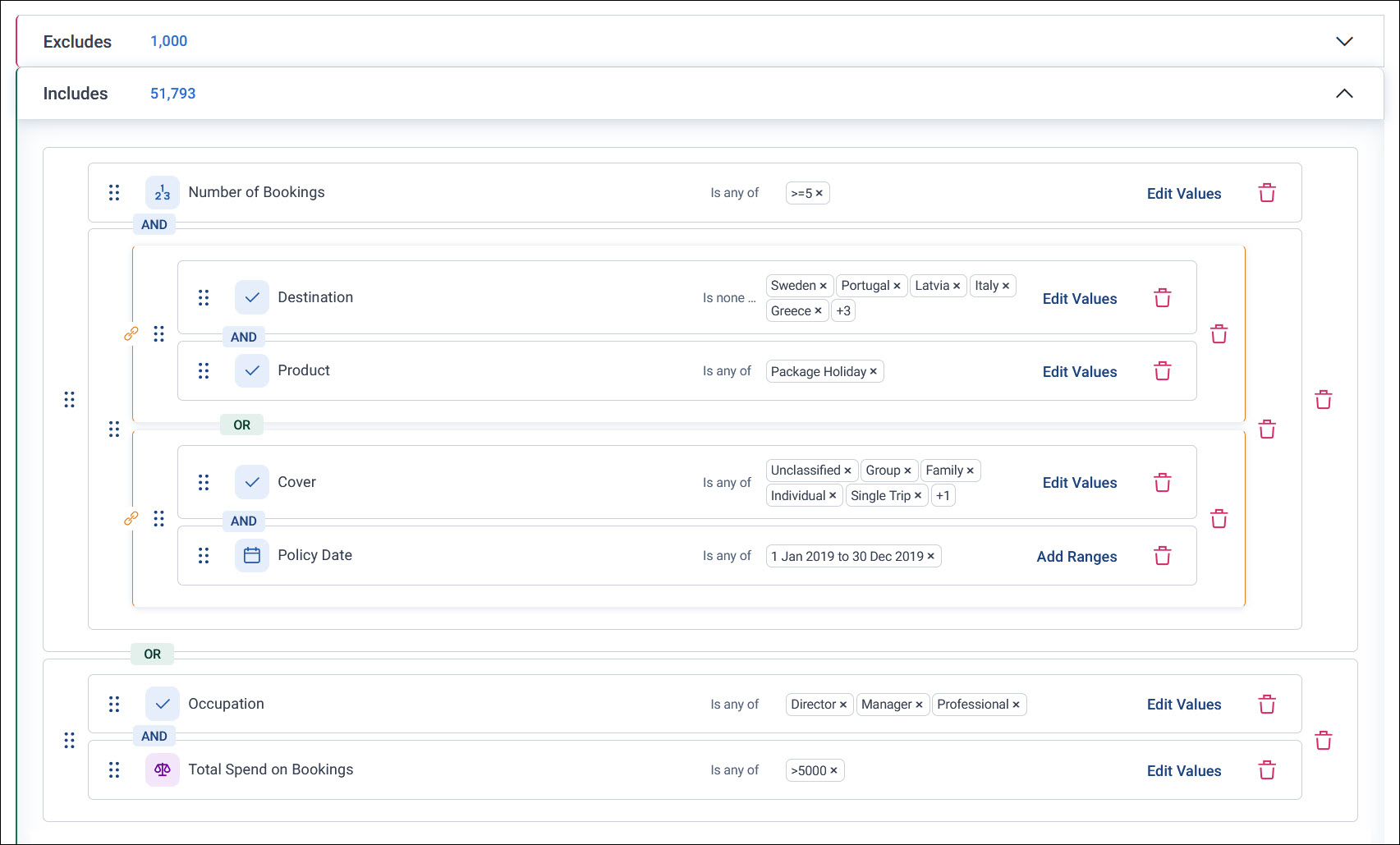
To check that the right people are selected, add a Browse Data page with the variables from your brief as columns. For any record that seems wrong, its values show which group it matched. For example, a person with fewer than 5 bookings must be in the occupation group.