Scheduling an export
Instead of exporting an audience manually every time, you can schedule an export to run once in the future, or repeat on a daily, weekly, monthly, or other recurring basis.
Note
To schedule an export, your organisation must have the Analyser bundle or above.
For Public File Server Folder or Private File Server Folder exports, an administrator must also enable the relevant setting in Application Settings > Audience Settings: Allow Export to File Server (Public Folder) or Allow Export to File Server (Private Folder).
You must also have permission to Export the data you're exporting, plus access to the FTP site or file server folder you export to.
Scheduling is available when you export to an FTP site or file server folder.
Set up a scheduled export
- In your audience, select + New Page.
-
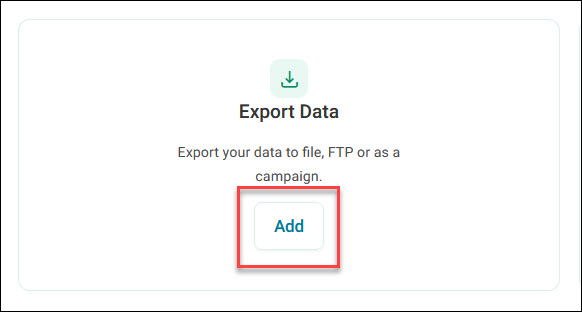
Under Export Data, select Add.
Note
You can also create a data grid to export using the Browse data solution. Both methods create the same kind of data grid.
-
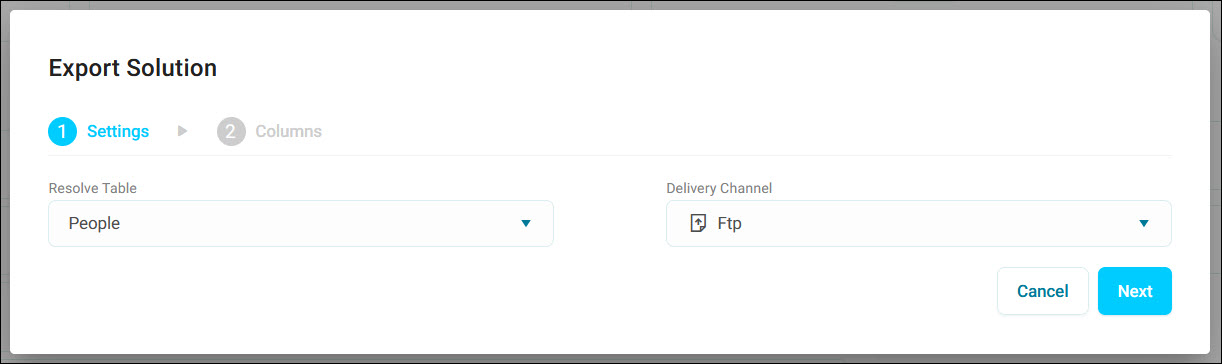
Choose the Resolve Table and Delivery Channel, either File Server or FTP, then select Next.
-
Choose your columns from the data variables, then select Add.
- Open the data grid page's option menu, then select Export.
- In Export Options, set Export Type to FTP, Public File Server Folder, or Private File Server Folder.
- Enter a File Name, choose a File Format, and set any CSV or ZIP options. See Exporting an audience.
- Next to Publish, select Edit.
-
In the Schedule Export dialogue, select Specific Time under Publish.
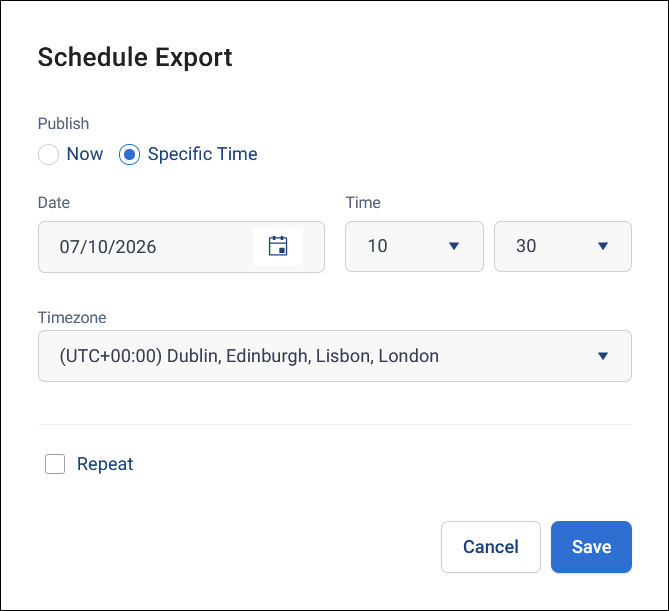
- Choose a Date, Time, and Timezone.
- Select Repeat to make the export recur, then set how often it repeats (for example, every 1 Week) and, for a weekly schedule, which days it Repeats On.
- Under End, choose Never or At Date.
-
Select Save.
-
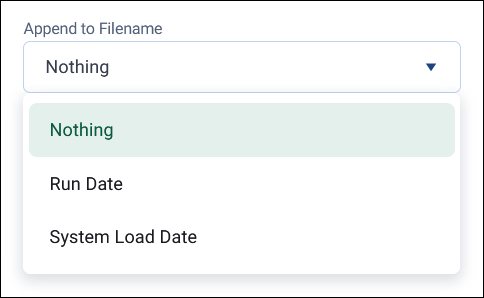
Optionally, set Append to Filename to Run Date or System Load Date and pick a Date Format. The default is Nothing.
Note
The user-defined custom date format available for scheduled tasks in FastStats (see User-defined appended date formatting) isn't available for Orbit scheduled exports yet.
-
Select Export.
Note
Scheduling for Now runs the export once and doesn't create a scheduled task. Choosing Specific Time creates a scheduled task that stays in place until you delete it. It recurs if you select Repeat, or runs once in the future otherwise.
View schedule status
Once you've set up a scheduled export, a Scheduled Export indicator appears in the data grid page header, with an edit (pencil) icon beside it.
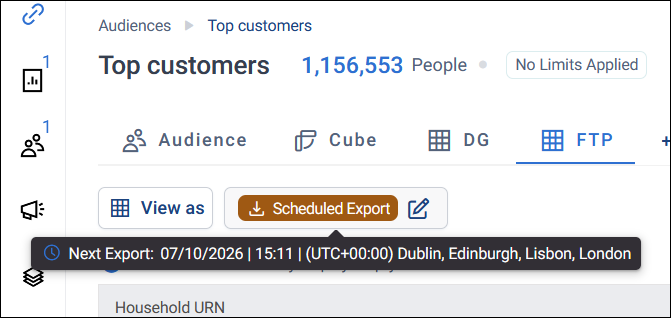
Hover over the indicator to see the next scheduled run or whether the last run succeeded or failed.
You can only have one scheduled export per audience. If a scheduled export already exists, select the edit (pencil) icon next to it to change it, rather than trying to set up a new one.
Tip
Audiences with a scheduled export are also flagged in the main Audiences list, so you can spot them without opening each one.
Note
A scheduled export doesn't run against a frozen copy of the audience. Each run always uses the latest saved version, so save any changes before the next scheduled run to make sure they're picked up.
Edit a scheduled export
To change a scheduled export:
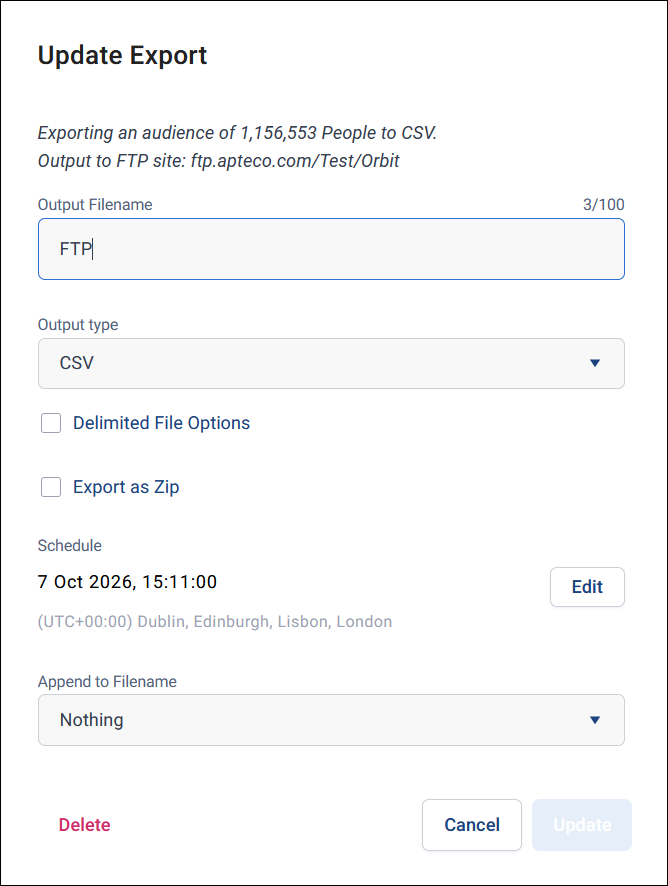
- Select the edit (pencil) icon next to the Scheduled Export indicator.
-
Update the file name, file type, schedule, or other export options as required.
-
Select Update.
Run a one-off export without changing your schedule
If an audience already has a recurring scheduled export configured, open the data grid page's option menu and select Export to run a one-off copy. This always runs immediately, with no schedule option, and doesn't overwrite or cancel the existing recurring schedule.
Warning
Don't use the edit (pencil) icon next to the Scheduled Export indicator to run a one-off copy. Selecting Edit next to Schedule there and choosing Now reschedules the recurring export's next run instead of creating a separate one-off.
Delete a scheduled export
- Select the edit (pencil) icon next to the Scheduled Export indicator.
- Select Delete.
- Confirm the deletion.
Once deleted, the scheduled task stops running and can't be recovered. Set up a new schedule if you need one again.
Note
Deleting the audience itself also deletes any scheduled export associated with it.
URN files
In addition to choosing URN as your output type, you can tick a checkbox to output a separate URN file alongside your main scheduled File Server export (for example, alongside a CSV).
Note
This option isn't currently available for scheduled FTP exports. Support is planned for a future release.