Building a system
Once you have defined a system, you can build it. To start a build:
- While editing your system, select Build System on the System Diagram or Folder Structure tab. This saves any unsaved changes before building.
- On the System Builds page, select Build on your system, or open its option menu and select Build.
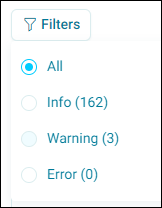
Orbit Connect takes you to the Build Progress page, which refreshes automatically. To limit the messages shown, use Filters to choose Info, Warning, or Error.
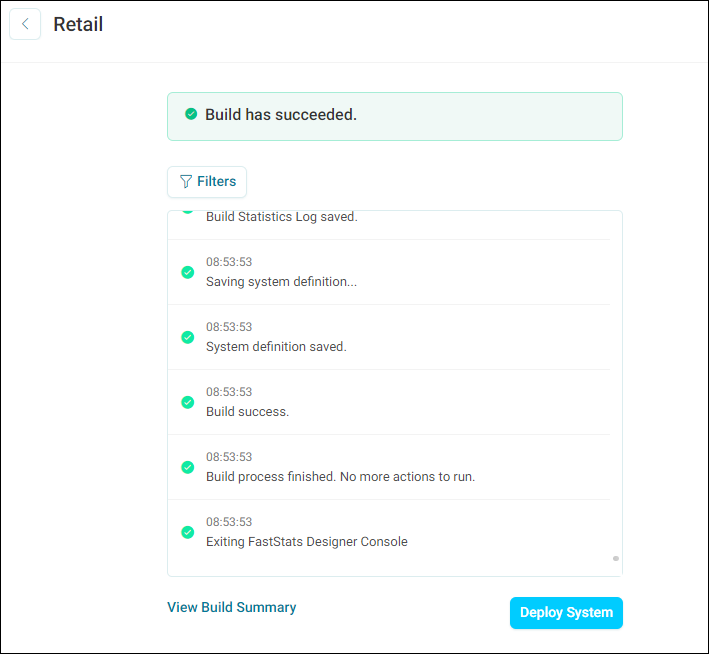
When the build is complete, a green success message appears, with options to View Build Summary or Deploy System.
Build summary
The Build Summary page lets you check your system has built as intended.
The left side lists the tables in your system. Expand a table to see its variables. Each variable has a status flag to show whether Orbit Connect detected any issues. The right side shows a preview of the source data.
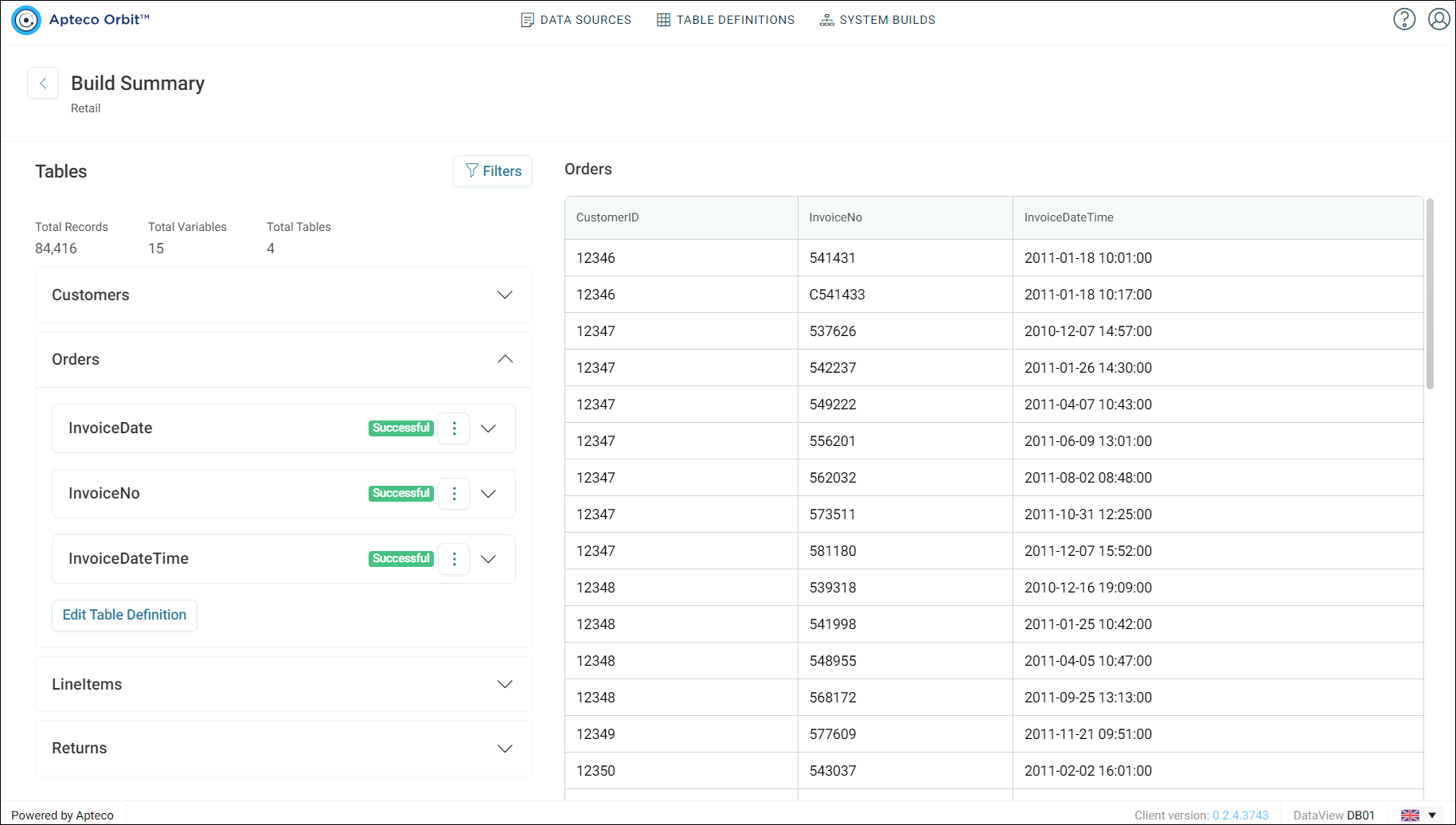
In this example you can see:
- The total number of records loaded
- The total number of variables loaded
- The total number of tables in the design
- The Orders table expanded, with every variable marked Successful
Check for warnings
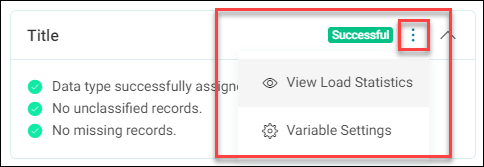
Orbit Connect warns you about a variable if:
- It has no data type assigned
- It has unclassified records
- It has missing records
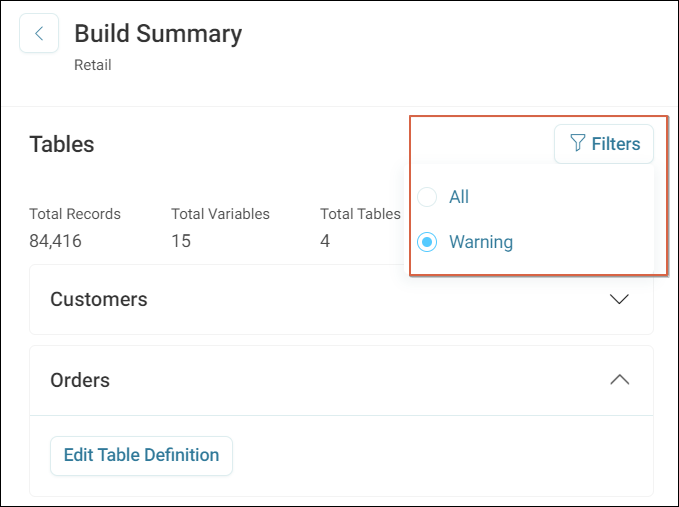
To show only the variables with warnings, select Filters, then select Warning.
Open a variable's option menu to:
- See its statistics, using View Load Statistics
- Fix an issue with the variable, using Variable Settings
To fix issues across a whole table, select Edit Table Definition under the expanded table.
Note
After you make changes, rebuild and redeploy your system before they're visible outside the system build pages.