Defining a system
A system definition sets out which tables your Orbit system contains and how they relate to each other. You build it on the System Diagram tab, adding tables and the relationships between them. Once your tables are in place, you can use the Folder Structure tab to arrange how their variables appear in the built system.
Create a system definition
To define a system:
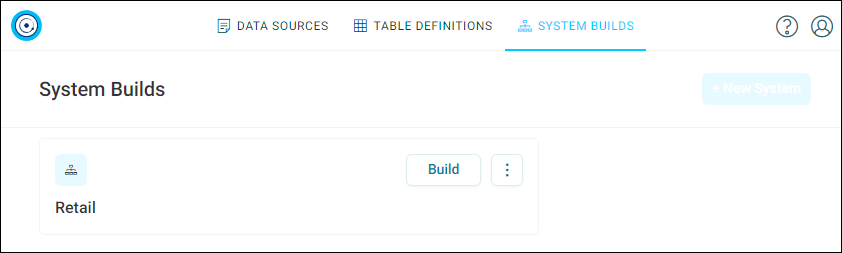
- Go to System Builds.
- Select + New System.
- Enter a System Definition Name, then select Create.
-
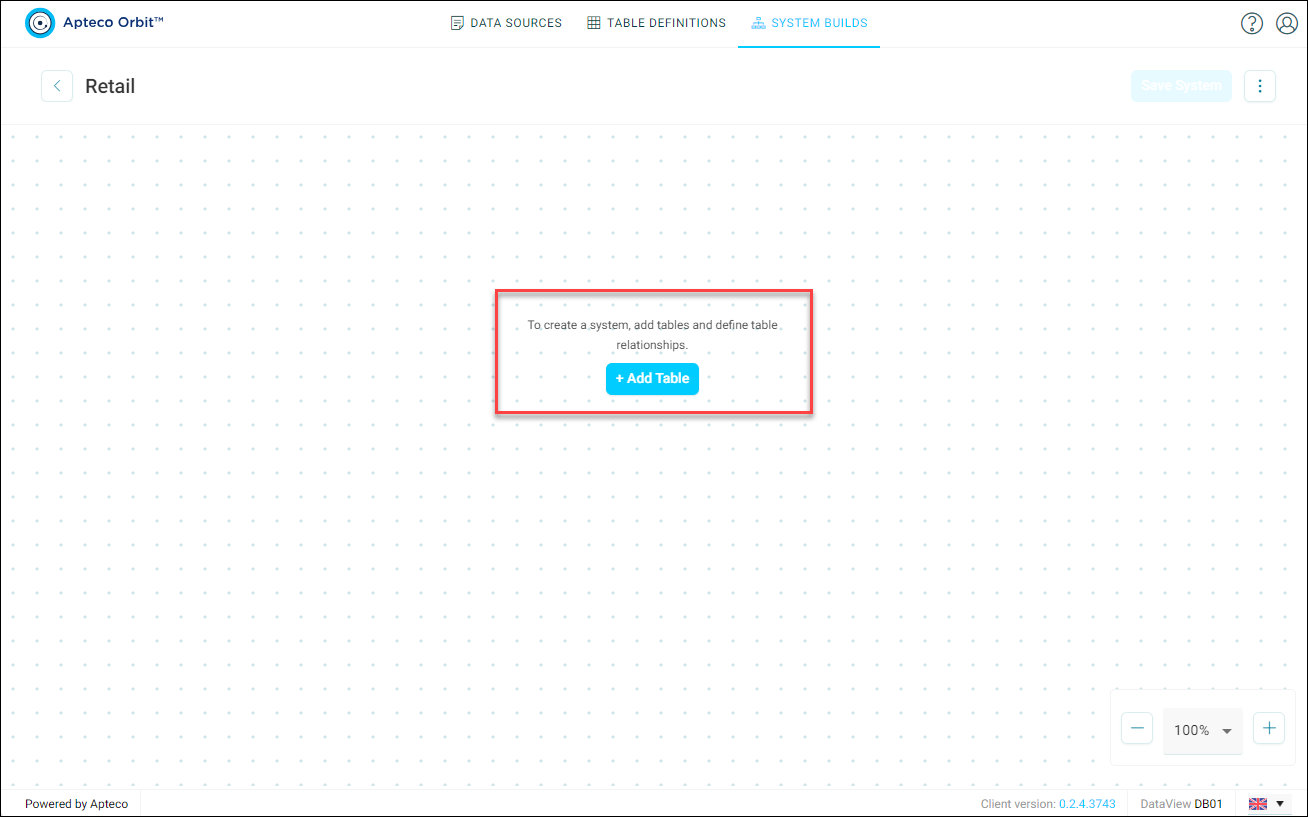
On the System Diagram tab, select + Add Table.
-
Select the table to add it to the diagram. If there are many tables, use Search Table to find it.
Note
When you create a new system build using Apteco CDP data, you can add all mapped CDP tables and defined transaction tables along with their relationships.
-
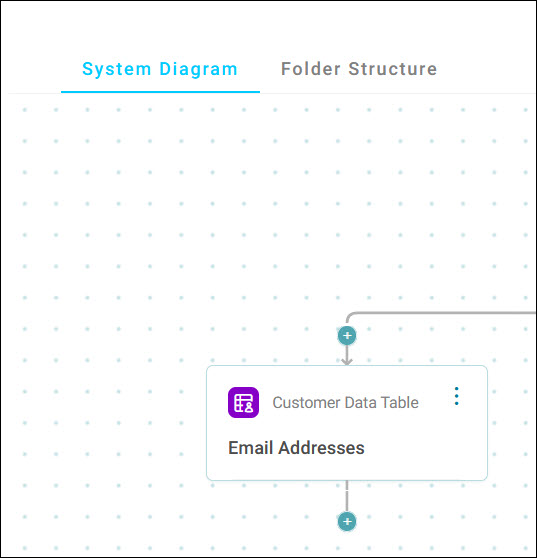
Your chosen table appears in the diagram.
-
Select + to add another table.
-
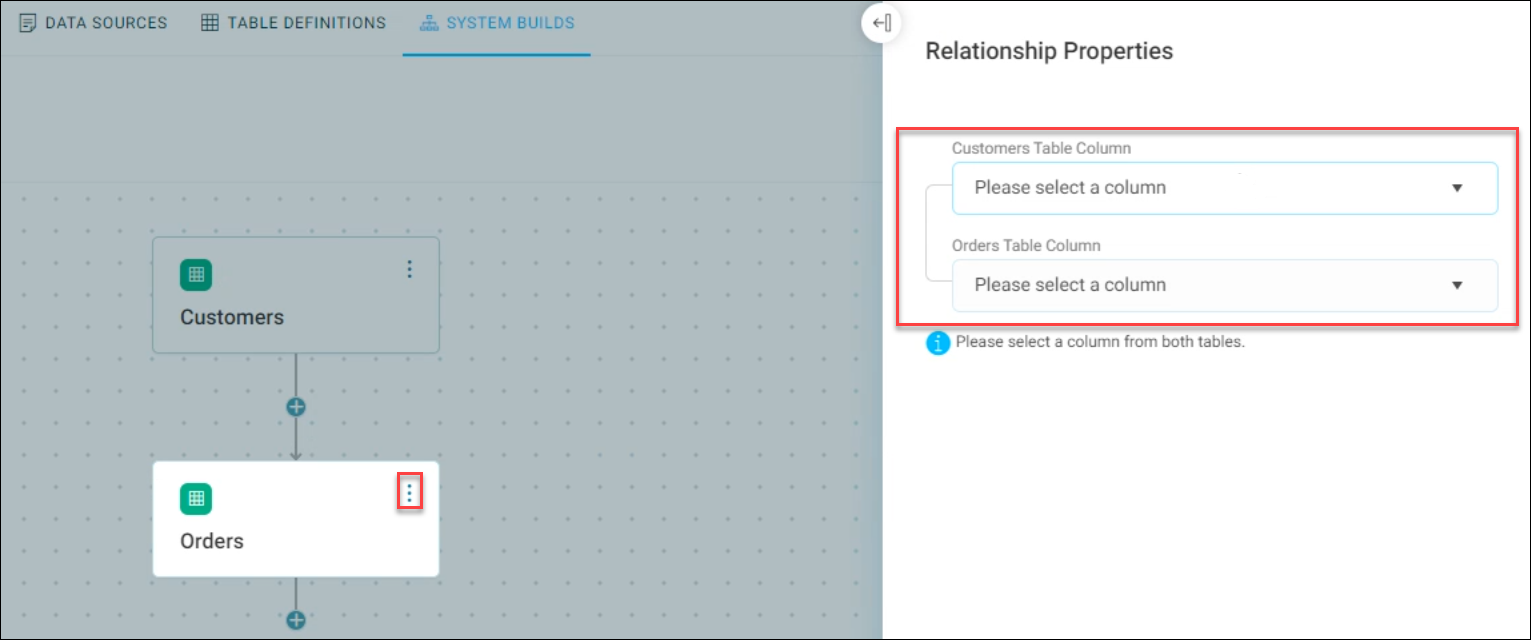
Choose a second table in the same way. A Relationship Properties side panel opens. A warning displays on any table where a relationship is missing.
-
Choose a column from both tables to use for the relationship, then select Apply.
-
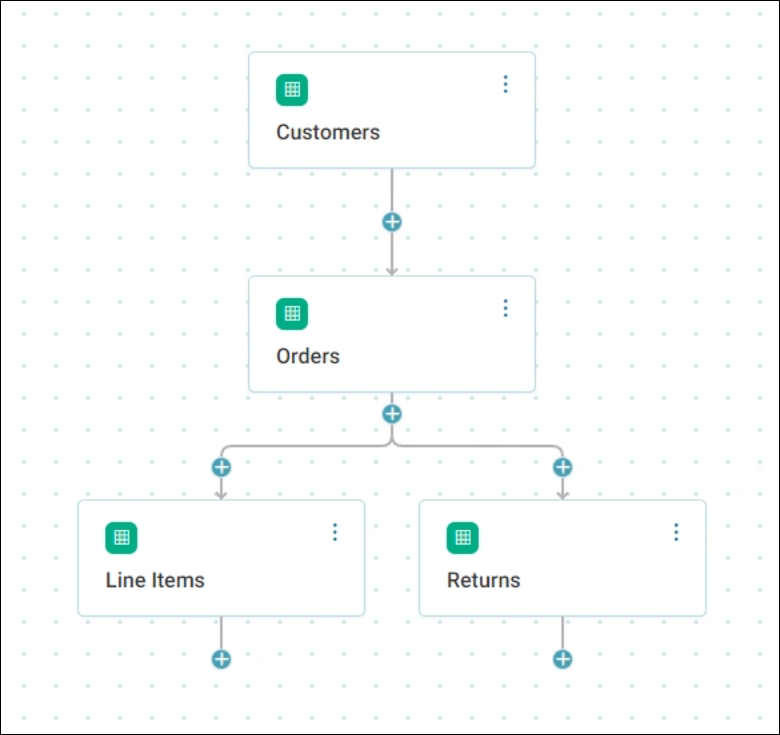
Keep adding tables in the same way. To add a sibling table, select + in the appropriate place. In the following example, Line Items was added first, then Returns, both using the + beneath Orders.
Pan and zoom
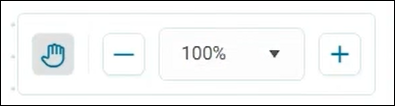
When you edit your system, you can pan and zoom around using the menu located in the bottom right of your screen.
- Select the hand symbol, then drag to pan around your system freely
- Select minus or plus, or use the drop-down menu, to adjust the zoom percentage
-
Get your system to the Campaign Ready status by defining your table properties. See Table options.
-
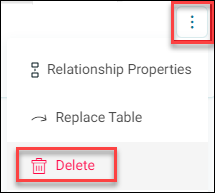
You can delete or replace tables using the table's option menu. These actions invalidate any relationships that you have already established.
-
Optionally, select the Folder Structure tab to arrange how your folders and variables appear in the built system. See Folder structure.
-
When you're happy with your changes, select Save. This saves both your system diagram and your folder structure, and takes you back to the System Builds page.