Table options
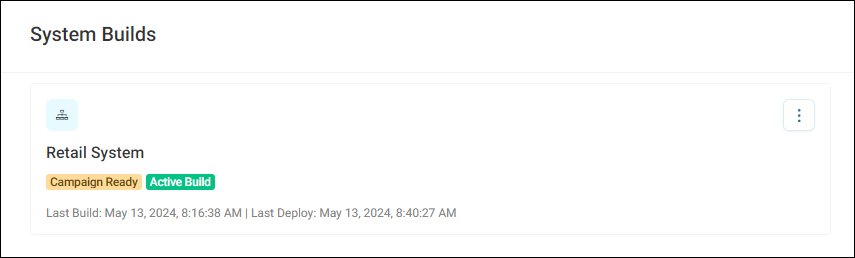
To fully realise the end-to-end campaigning capability of your Apteco Orbit system, reaching the Campaign Ready status is crucial. With this status you can start building, analysing, and campaigning, all within your Orbit platform.
Achieving campaign ready status
Once you've designated a table as contact (and optionally as response), your system achieves Campaign Ready status. This status unlocks the full range of Orbit's campaigning capabilities. Campaign history, including communication and responses, automatically integrates into your system build, allowing for comprehensive analysis within Orbit.
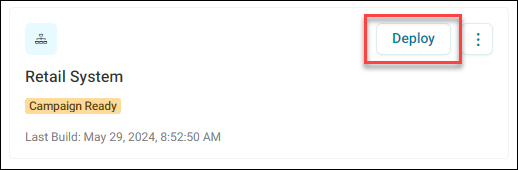
Table properties in Orbit Connect
In Orbit Connect, table properties allow you to define three important attributes and assign them to tables in your system build.
You can designate tables as:
- People: These are designated for licensing purposes ensuring accurate measurement against the licence used.
- Contact: Tables nominated as Contact are considered recipients for campaign activities, streamlining campaign management.
- Response: Nominating a table as Response enables tracking and measurement of responses to campaign activities.
The ability to specify a contact or response table means that you can now use your system for campaigning activity.
Note
This feature is only available for Apteco Email users.
Applying table properties
To apply table properties within your Connect system:
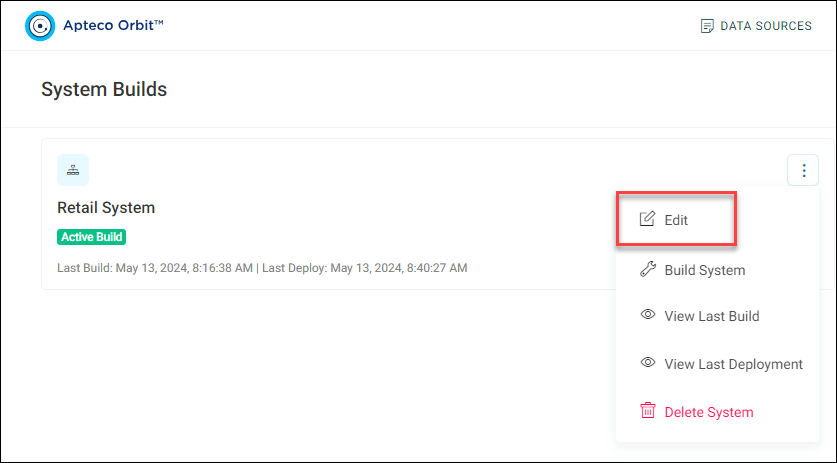
- Go to System Builds.
-
On your system, open the option menu, then select Edit.
-
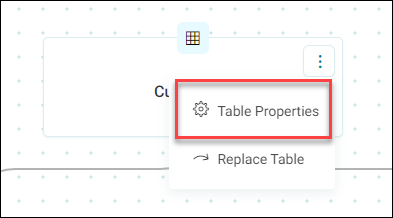
On the table you want to edit, open the option menu, then select Table Properties.
-
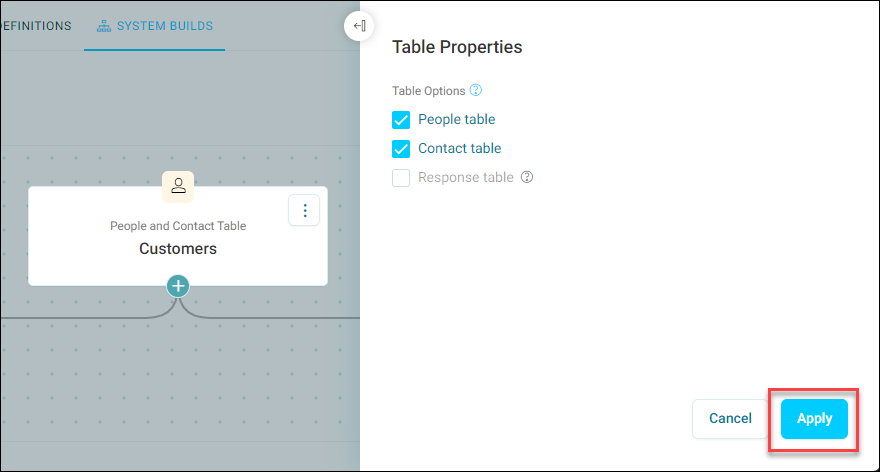
Select which table options to apply:
- People Table: Count this table for licensing purposes. Select this option if your table contains data that affects licensing metrics.
- Contact Table: Use this table as the recipients in your campaigns.
- Response Table: Track responses or interactions against this table. This can be any ancestor of a contact table.
Note
Only tables with a unique reference column can be nominated as Contact or Response tables. If a pop-up appears while you set table options, follow its prompts.
-
Select Apply.
-
Check your nominated tables. Each table shows icons for the roles assigned to it.
- Select Save.
Your system now has Campaign Ready status.
Note
Each system can have only one People Table, one Contact Table, and one Response Table.