Creating a dashboard
Create a new dashboard to start visualising and analysing your data.
Create a new dashboard
To create a new dashboard:
- In Orbit, go to the Dashboards screen.
-
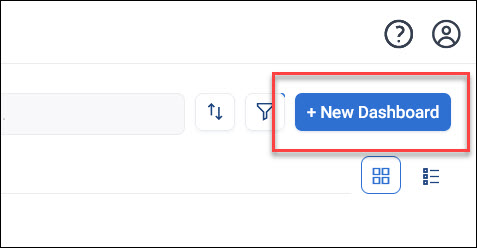
Select + New Dashboard.
-
Enter a meaningful name for your dashboard.
- Select Create.
A blank dashboard opens in edit mode.
Add your first tile
Note
If you aren't in Edit mode, select Edit in the top right corner of the dashboard.
To add a tile to your dashboard:
- Select + New Tile.
- Give the tile a meaningful name, then select Create.
-
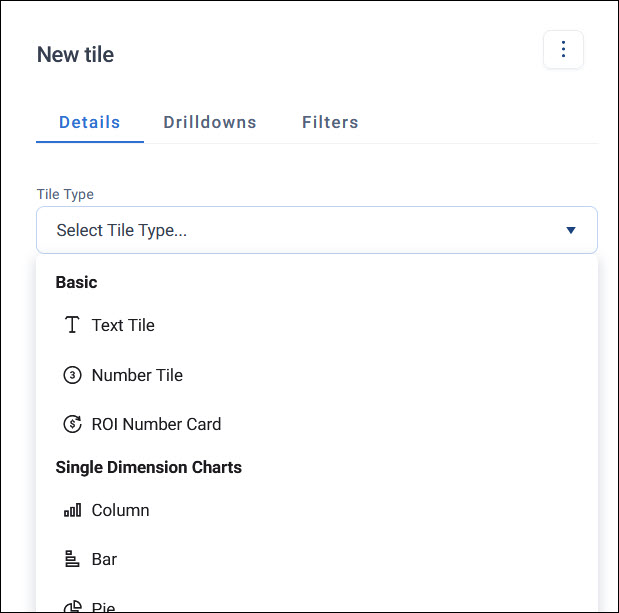
Choose a tile type, such as a chart, data grid, or number tile.
-
Configure the tile using your data.
See Tile types for the full range of tile types, and Tile editor for what each setting does.
-
Select Apply.
Example
A stewardship officer creates a "Donor Retention" dashboard. They add a number tile showing this month's lapsed donor count, as an early warning to prioritise reactivation calls.
Arrange your tiles
In edit mode, drag a tile to move it, or drag its edges or corners to resize it.
You're ready to customise your dashboard's layout, add filters, and analyse your data. See Using dashboards for how to manage and organise your dashboards once you've created them.