Using dashboards
The Dashboards screen lists all your dashboards, with tools to find, organise, and manage them.
Grid and list view
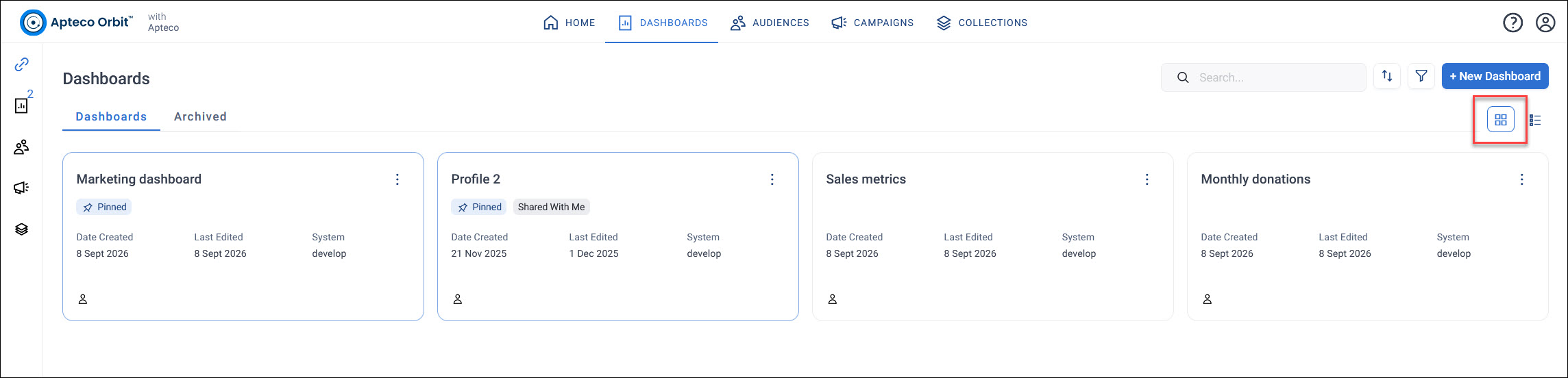
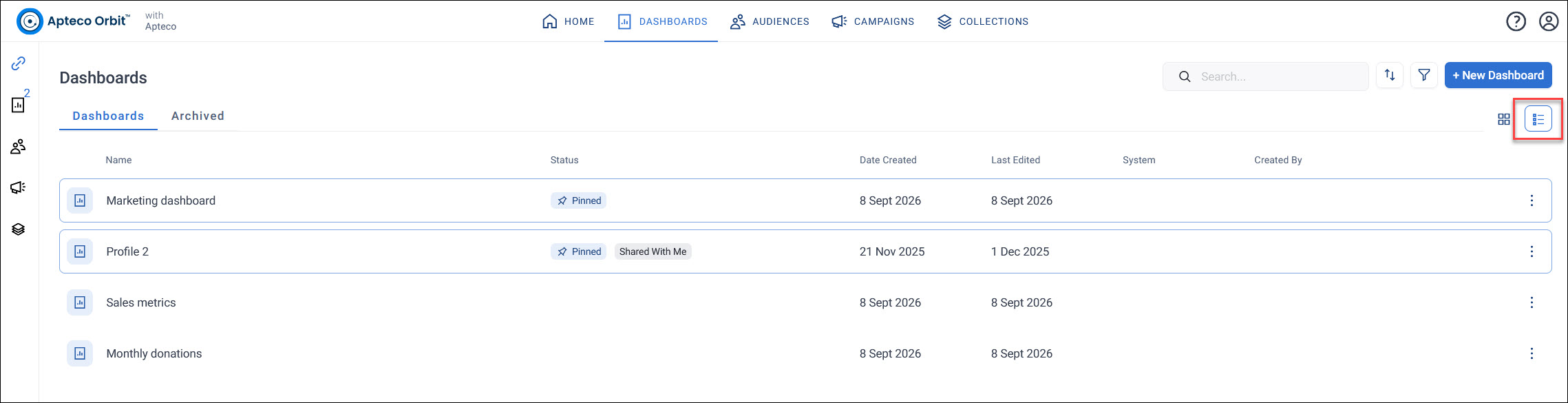
Use the grid and list view icons in the top right to switch between a grid view and a list view of your dashboards.
Note
Orbit remembers your choice the next time you visit the Dashboards screen.
Grid view displays each dashboard as a card. Each card shows its name, status such as Home, Pinned, or Shared With Me, creation and last-edited dates, and its creator.
List view shows the same dashboards as table rows instead. It adds a Created By column, so you can see who created each dashboard without opening it.
Search, sort, and filter your dashboards
Use the controls in the top right of the Dashboards screen to find the dashboard you want:
- Search: enter a keyword to filter the list by dashboard name
-
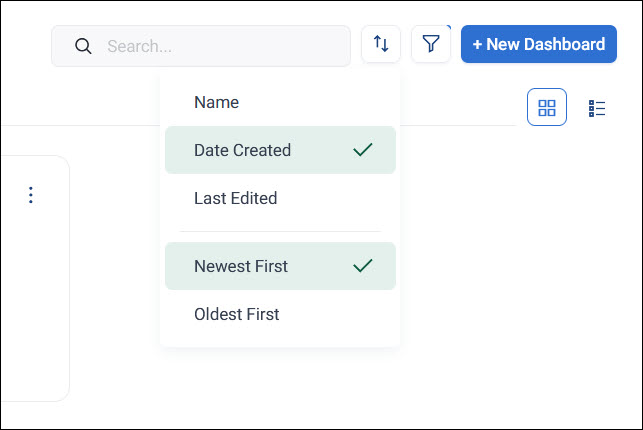
Sort: click the sort icon to order your dashboards by Name, Date Created, or Last Edited, in either Newest First or Oldest First order.
Note
Orbit remembers your last sort order the next time you visit the Dashboards screen.
-
Filter: click the filter icon to narrow the list down by shared status or creation date. Status options are All, Shared By Me, Shared With Me, or Not Shared.
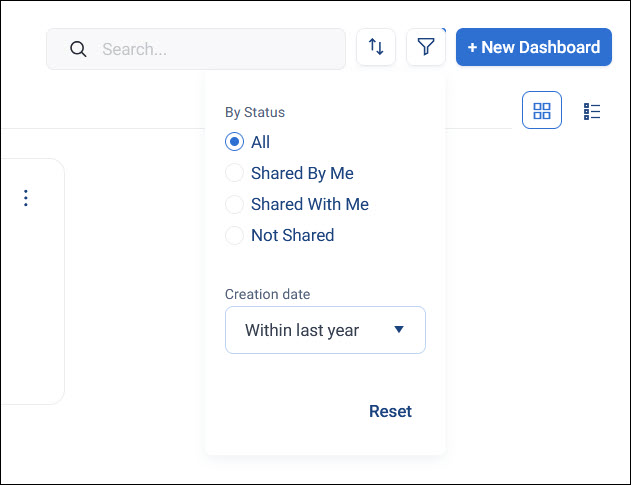
Click Reset to clear your filters.
Dashboards load as you scroll, so you don't need to page through your full list to find what you're looking for.
Manage a dashboard from the Dashboards screen
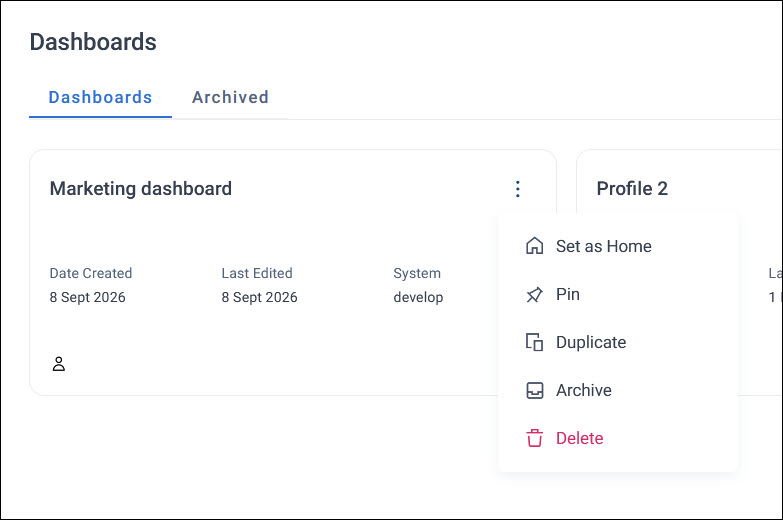
Click the options menu on a dashboard to:
- Set as Home: set this as your home dashboard
-
Pin: keep it near the top of your list, and surface it in the Pinned section of the Orbit homepage
-
Duplicate: create an instant copy of the dashboard
- Archive: move it to the Archived tab
- Delete: permanently remove it
To restore an archived dashboard, go to the Archived tab, click its options menu, and click Restore.
Select multiple dashboards
Click a checkbox on a dashboard to enter multi-select mode. With multi-select mode active, click any other dashboard to add it to your selection.
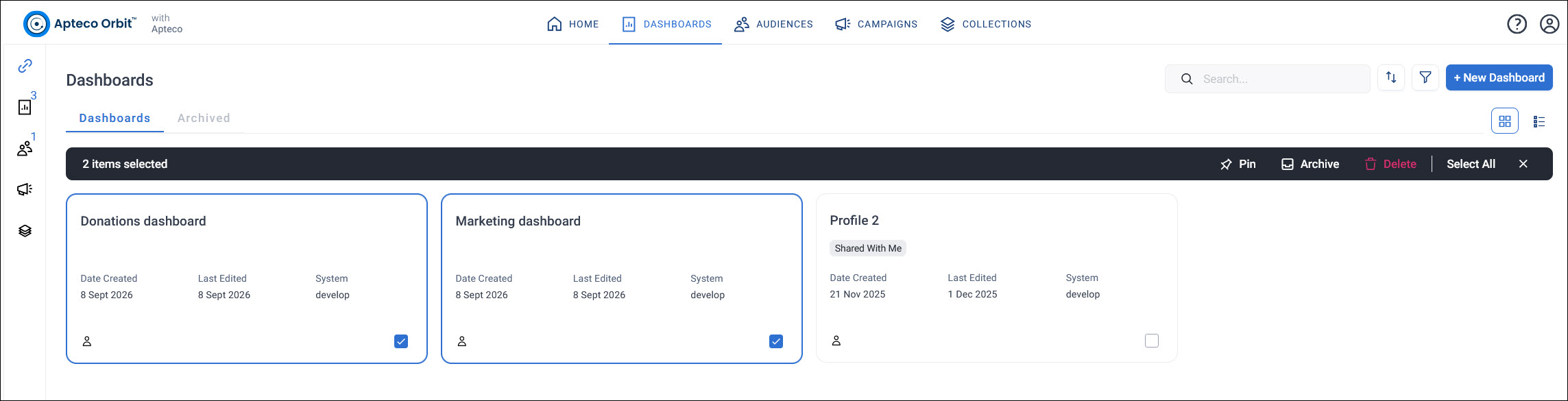
Once you've selected one or more dashboards, use the toolbar that appears to:
- Pin the selected dashboards to the Orbit homepage
- Archive the selected dashboards
- Delete the selected dashboards
Click Select All to select every dashboard in the current view, or click the close icon to exit multi-select mode.
Note
Orbit asks you to confirm before deleting a dashboard. Once confirmed, this is permanent and can't be undone.
The dashboard options menu
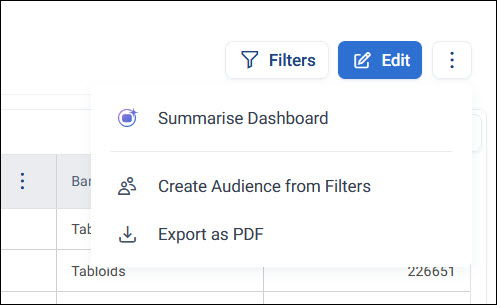
While viewing a dashboard, click the options menu to:
- Summarise Dashboard: get your AI-assistant Orin to give you a summary of the dashboard's data. See Dashboard summaries.
- Create Audience from Filters: create a marketing audience from your current drilldown and filters
- Export as PDF: export the dashboard as a PDF file. See Export a dashboard as PDF.
Creating an audience from filters
Using drilldown and filters you can create a marketing audience that can be used in a campaign, or for further analysis and reporting.
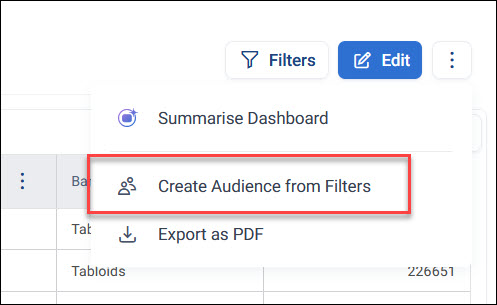
If you're an unlicensed user you can drill and filter but you won't be able to create an audience or view the data.
Note
You must be a licensed user to be able to create an Audience.