Filtering
Filters help you control the information displayed on your dashboards. You can apply filters temporarily whilst viewing a dashboard, or set up persistent filters that remain applied across sessions.
What you can do with filters
As a dashboard viewer:
- Apply temporary user filters to explore data on-the-fly
- Add categories from tiles to your filters by selecting them
- Use Drilldowns on tiles and build complex filter combinations
As a dashboard editor:
- Apply persistent filters to specific tiles
- Enable searchable filtering across the dashboard
- Filter the entire dashboard automatically
- Provide predefined filter options for viewers to use
Types of filters
Orbit offers six types of filters to suit different use cases:
- User filters: Temporary filters that any dashboard user can apply in view mode
- Tile filters: Persistent filters applied to individual tiles
- Search filters: Custom search boxes allowing viewers to search across specific variables
- Dashboard filters: Persistent filters that apply to every tile on the dashboard
- Predefined filters: Pre-configured filter variables that viewers can populate with their own values
- Analysis filters: A special filter type that only affects profile tiles
Example use cases
Appeal performance analysis
Your fundraising team wants to compare how appeals perform across regions. You set up:
- A dashboard filter to show only the current year's donations
- Predefined filters for Region and Appeal for quick comparisons
- Tile filters to highlight the top-performing channels
Team members can then add their own user filters to look at specific groups of supporters, and reset them when needed.
Trustee reporting dashboard
You create a dashboard for trustees who need high-level figures without changing the data. You configure:
- Dashboard filters to show only received donations
- Tile filters to highlight key figures
- Search filters to look up a supporter or a fund quickly
- Prevent Category Selection on key tiles, so trustees can't add their categories to filters
Trustees can still use predefined filters to view different time periods or regions, while the core figures stay controlled.
How filters combine
Several filters can apply to a tile at once. How they combine depends on the type of filter:
- Dashboard filters apply to every tile, and stay active whatever other filters viewers use, including predefined and search filters.
- User filters narrow the data further, on top of the dashboard filters.
- Tile filters apply together with the dashboard filters, and take precedence over any conflicting user filters.
- A tile with Exclude User Filters turned on ignores user filters.
- A Pareto tile isn't affected by user filters from other tiles.
- A Pareto filter, from selecting columns on a Pareto tile, applies to every other tile.
- Analysis filters only affect profile tiles.
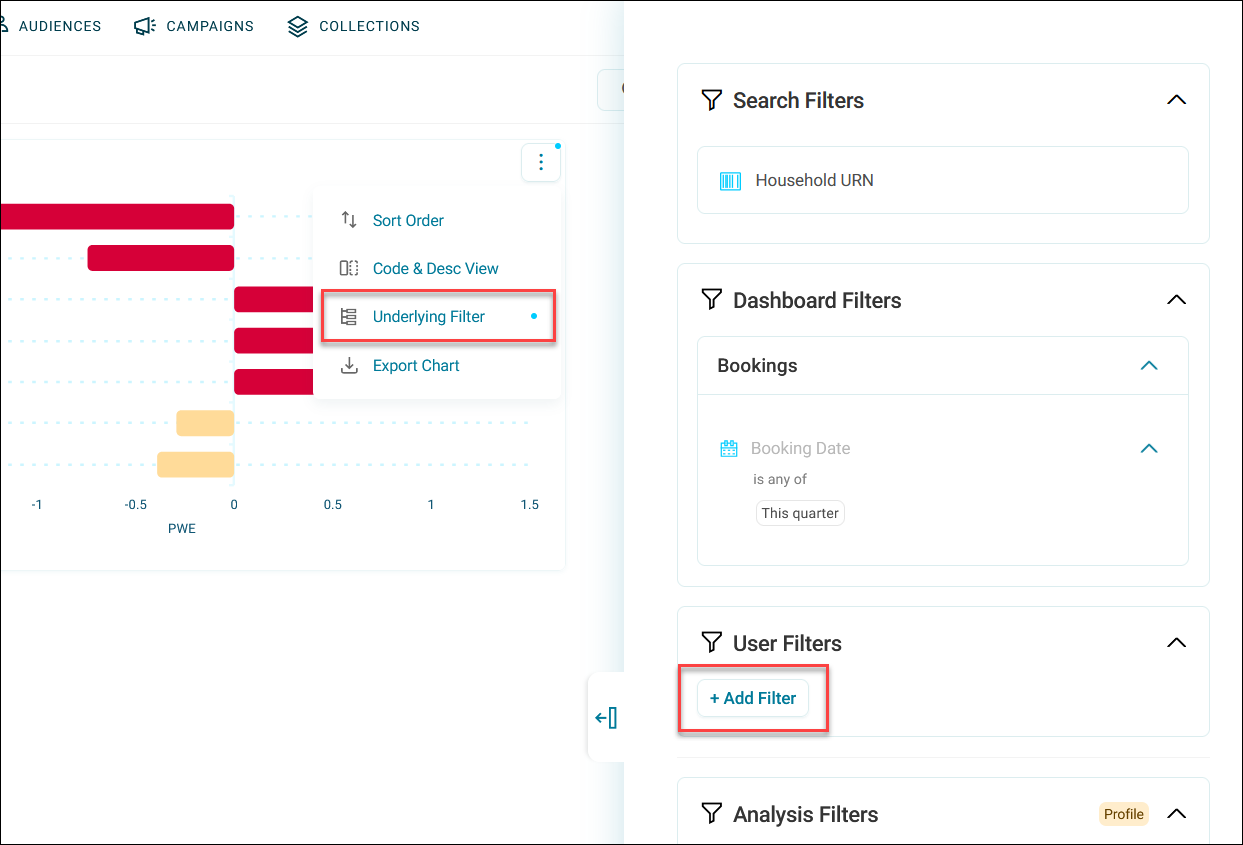
When filters come from different tables, each tile applies them through its resolve table. If a tile doesn't show what you expect, select Underlying Filter on its option menu to see every filter that applies to it. For other filter problems, see Troubleshooting dashboards.