Dimensions
A dimension splits a tile's data into categories, such as region, gift type, or year. The tile's measure then gives a number for each category. On a column chart, the dimension's categories run along one axis and the measure sets the height of each column.
Charts, tables, and cubes use dimensions:
- A single dimension chart has one dimension
- A table has one dimension, with a row for each category and a column for each measure
- A multi dimension chart has two, so you can compare categories within categories
- A cube has dimensions under Rows and Columns
Other tile types split their data in their own way, such as sets on a Venn tile or columns on a data grid, and a number tile has no dimension at all. See Sections of the Details tab.
What you can use as a dimension
You choose a dimension in the same search dialogue you use across Orbit. See Searching in Orbit.
| Dimension | How it splits your data |
|---|---|
| A selector or text variable | Into its categories, such as each region |
| A date variable | Into date bands, such as years or months |
| A numeric variable | Into bands of values, such as donation amounts of £0 to £10 and £10 to £50 |
| A behaviour | By its resolved recency, frequency, or value result |
You can't use an audience as a dimension on a dashboard tile, but you can use one as a measure or a filter.
Example
A fundraising dashboard has three charts of donations, each with a different kind of dimension:
- Region, a selector variable
- Donation Date, banded by years
- Donation Amount, split into bands of values
Band dates and numbers
Date and numeric variables need bands to turn their values into categories.
For a date variable, choose a Banding, such as Years, Business Quarters, Business Years, Month of Year, Week of Year, or Day of Week.
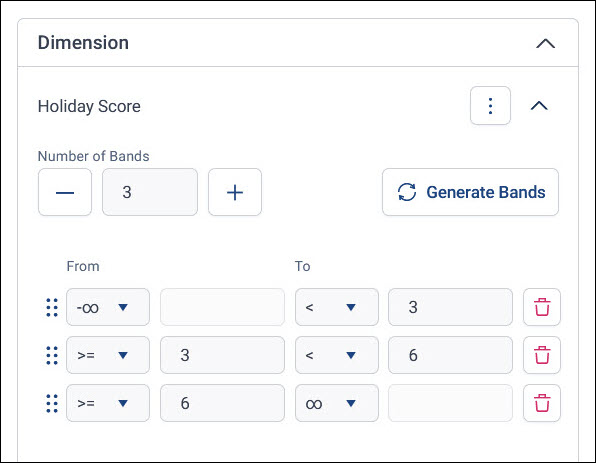
For a numeric variable, set the Number of Bands and select Generate Bands. Orbit splits the range from the lowest to the highest value into equal bands. You can then adjust each band's From and To values.
Dimensions and filtering
A tile's dimensions also affect how filters reach it, and how viewers can filter from it:
- The table a tile counts through: By default, a tile counts through its dimensions' parent table. Filters on other tables reach the tile through that table. To change it, see Resolve tables.
-
Filtering from a tile: Viewers can select a dimension's categories on a tile to add them to their user filters.
Note
This needs the Allow Filter By Dimension application setting, and doesn't work on tiles where the editor has turned on Prevent Category Selection.
-
Pairs of categories: On a multi dimension chart, each selection pairs a category from each dimension, so you can filter on pairs of values.
Dimension settings
Expand a dimension in the tile editor to change how it shows its categories, such as Display Style, Category Limit, and Display Unclassified. The settings depend on the type of variable. See Dimension settings.
Dimensions in audience workbooks
You also use dimensions in the cubes and charts in your audience workbooks. In a workbook cube, you can use an audience as a dimension. See Working with dimensions and Audience as a cube dimension.