Drilldowns
A drilldown lets you select categories on a tile and see them broken down another way, on the same tile. For example, select two postal areas on a map, then drill down to see which products the people in those areas booked. You can drill through several levels, and step back through them.
A tile you can drill into shows an orange information icon next to its title. Hover over it to see Select categories on the chart to drill into the data.
Drilling or filtering
When you select categories on a tile, you can drill into them or filter by them. The two affect your dashboard differently:
- Drilling changes only the tile you drill on. The tile shows your selected categories broken down by the next drilldown level. Every other tile, and the dashboard's filters, stay the same.
- Filtering adds your selected categories to your user filters, so every tile on the dashboard updates to match.
Example
An Income tile has a drilldown to Product. Select the £10-20k band and drill down: the Income tile now shows the products booked by people in that band, and the other tiles don't change. Select the same band and add it to your filters instead: every tile updates to show only people in that band.
A drilldown doesn't change the audience you get from Create Audience from Filters, which uses only your filters. To include a drill in your filters, see Add a drilldown to your filters.
Set up a drilldown
You add drilldown levels to a tile in the tile editor. Each level has its own tile type, dimensions, and measures.
To set up a drilldown:
- With your dashboard in edit mode, expand the option menu on your tile and select Edit Tile.
- Select the Drilldowns tab.
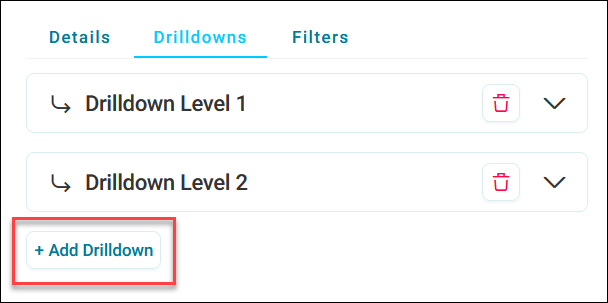
- Select + Add Drilldown.
- Select a Tile Type for the drilldown level.
- Add its dimensions and measures.
-
To add another level, select + Add Drilldown again. You can add as many levels as you need. To delete a level, select its bin icon.
-
Select Apply.
- Save your dashboard. The drilldown works only once you've saved.
Tip
Add a note under Tile Settings to tell viewers what they can drill into.
Drill down into a tile
You drill down from the categories you select, one level at a time.
To drill down:
- Select one or more categories on the tile. A selection box shows how many you've selected.
-
Expand the option menu on the selection box, and select Drilldown.
The tile shows the next drilldown level, for only the categories you selected.
-
To drill further, select categories on the new level and select Drilldown again.
-
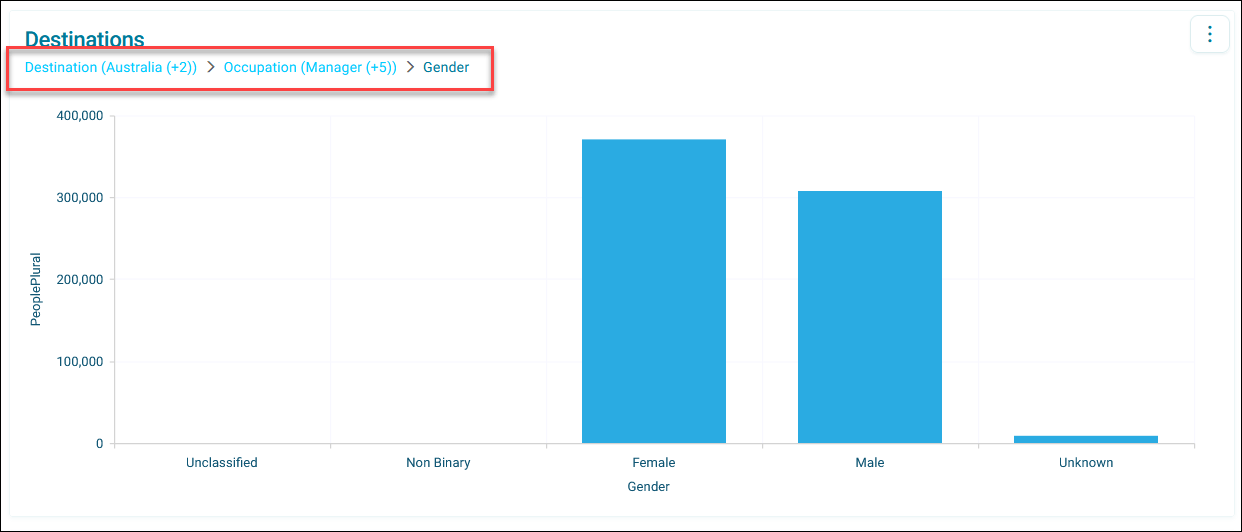
To go back, select an earlier level in the breadcrumb trail below the tile's title.
Add a drilldown to your filters
To make the whole dashboard match what a drilled-down tile shows, add it to your filters.
To add a drilldown to your filters:
- On the drilled-down tile, select one or more categories.
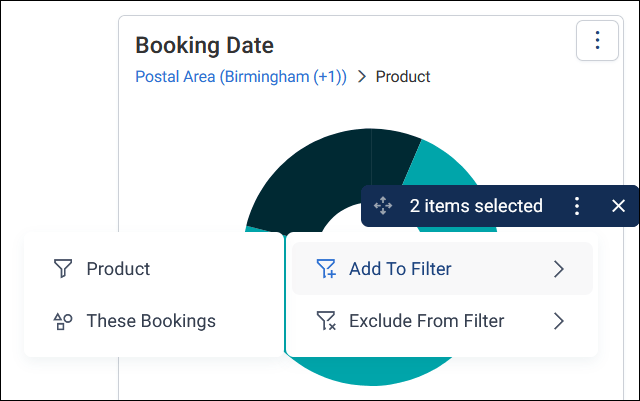
- Expand the option menu on the selection box, and select Add To Filter, or Exclude From Filter to leave those records out.
-
Choose These, followed by a table, such as These Bookings. This filters by the records the tile shows, including every level you've drilled through and any tile filter.
To filter by only the categories you selected, without the levels above them, choose the tile's dimension, such as Product, instead.
See User filters for how the filters you add work.