Dashboard tiles
A tile is a single display on a dashboard, such as a number, a chart, a map, or a table. Each tile shows its own view of your data, and you combine tiles to build a dashboard that tells the story you need.
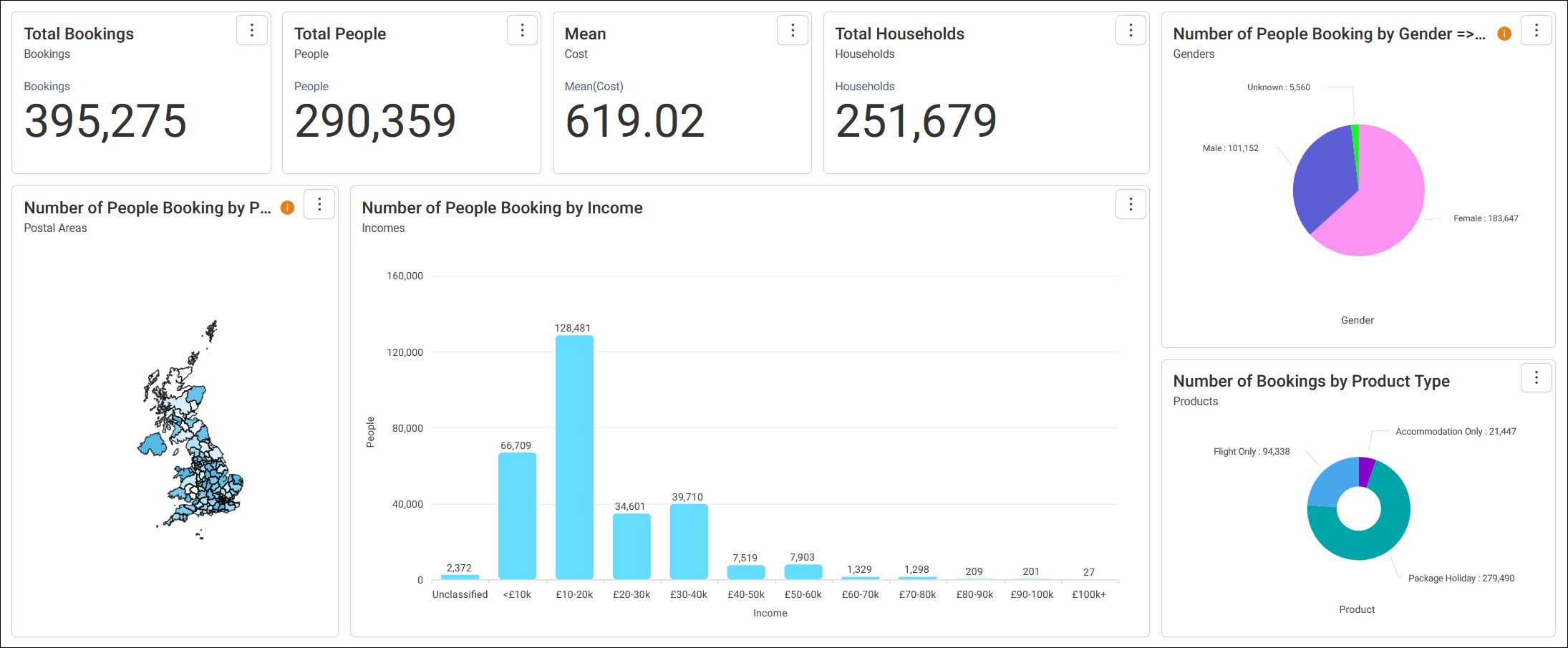
Add and arrange tiles
You add tiles to a dashboard in edit mode.
Once a tile is on your dashboard, you can:
Each dashboard tab can hold up to 15 tiles. To show more, add another tab.
Choose a tile type
The tile type decides how your data appears. Orbit has these kinds of tile:
- Basic tiles: Text, number, and ROI number tiles
- Charts: Single and multi dimension charts, such as column, pie, and line charts
- Tables and cubes: Rows and columns of figures
- Maps: Your data shaded by area
- Venn diagrams: The overlap between groups of records
- Data grids: Lists of individual records
- Pareto charts: Your top contributors, such as the supporters who give the most
- Profile tiles: What makes an audience different from your wider customer base
See Tile types for every type and its page.
Set up a tile
You set up a tile in the tile editor: what it shows, how it counts, and how it looks. Measures explains what a tile can count or calculate.
A tile can also have:
- Drilldowns, so viewers can explore further levels of detail
- Tile filters, which apply to that tile only
Use a tile
While you view a dashboard, you can:
- Change how a chart tile displays, such as its data labels or sort order
- Select categories on a tile to filter the whole dashboard
- Export a chart, cube, table, or data grid tile as a file
- Analyse a chart, cube, or data grid tile in an audience workbook