URN files in dashboard filters
You can filter a dashboard by a URN file, a file of reference keys such as household or supporter numbers. You upload the file in a user filter, and choose whether Orbit keeps it permanently or only while you need it.
Upload a file to a user filter
You upload a URN file through a reference variable, such as Household URN.
To upload a URN file:
-
Under User Filters, select + Add Filter and choose the reference variable, or use a predefined filter for it if the dashboard has one.
-
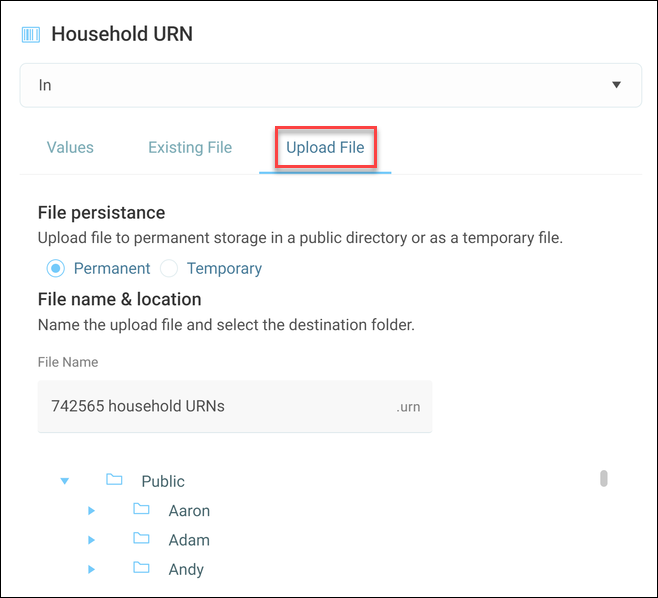
Select the Upload File tab and choose your file.
-
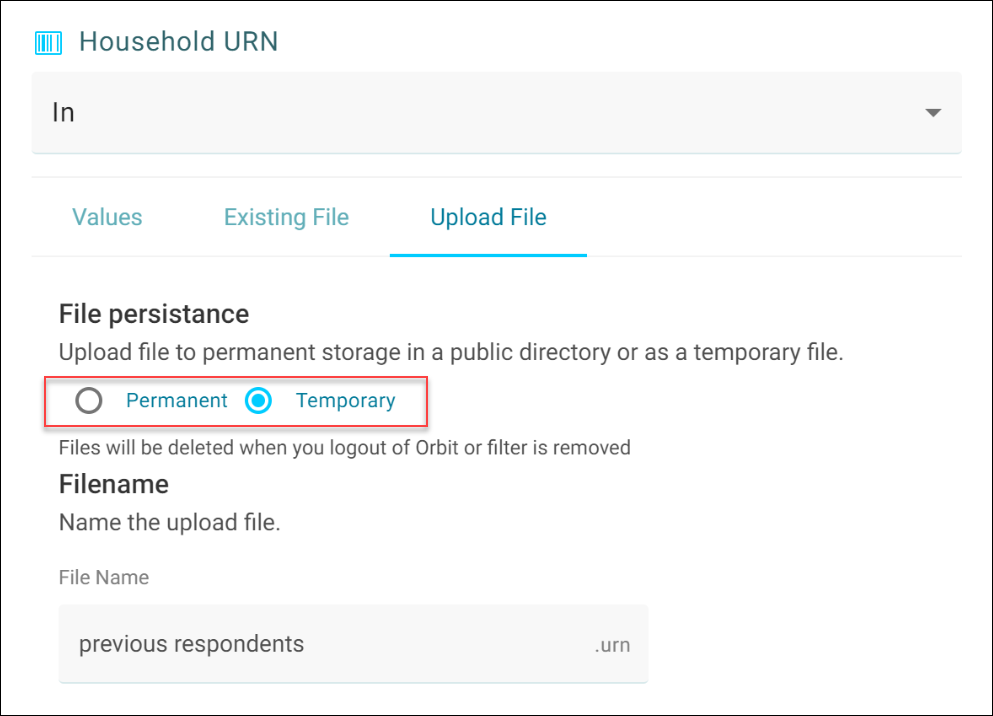
Choose how Orbit keeps the file:
- Permanent: Stores the file in a folder you choose in the public directory
- Temporary: Deletes the file when you remove the filter, log out of Orbit, or log in to a new session
-
Enter a File Name. For a permanent file, also choose its folder.
You don't need to choose a location for a temporary file, because Orbit manages it.
Organise permanent files in folders
When you upload a permanent URN file, you can create folders in the public directory to organise your uploads. A preview shows the first five lines of each file.
If you can't choose Permanent
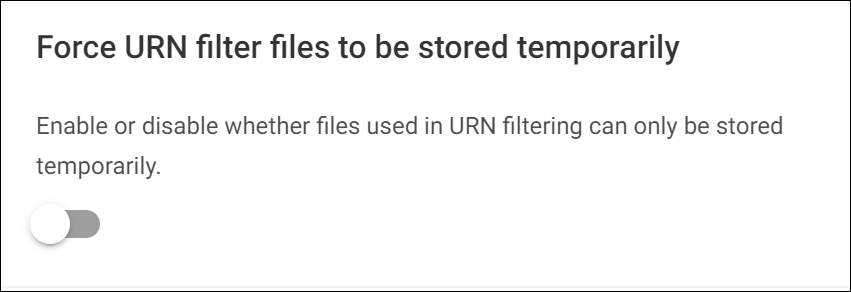
If Permanent is greyed out, an admin has made all URN files in user filters temporary.

Admins control this with the Force URN filter files to be stored temporarily application setting.