Groups
A group is a collection of users who are similar in some way. Granting identical permissions individually to many users takes a long time. Granting one set of rights to one group and then adding many users is quicker and less error prone. Groups exist to simplify and speed administration.
Roles & Rights let a user be a member of more than one group. This lets each group have a more defined purpose. Some groups grant access to certain data, while other groups may grant access to specific communication channels. A user may need to be a member of several groups to perform their role.
Note
The concepts used in Groups are similar to Microsoft Active Directory's Groups, so experience in administering AD helps.
Groups landing page
The Groups landing page is similar to the User Landing page.
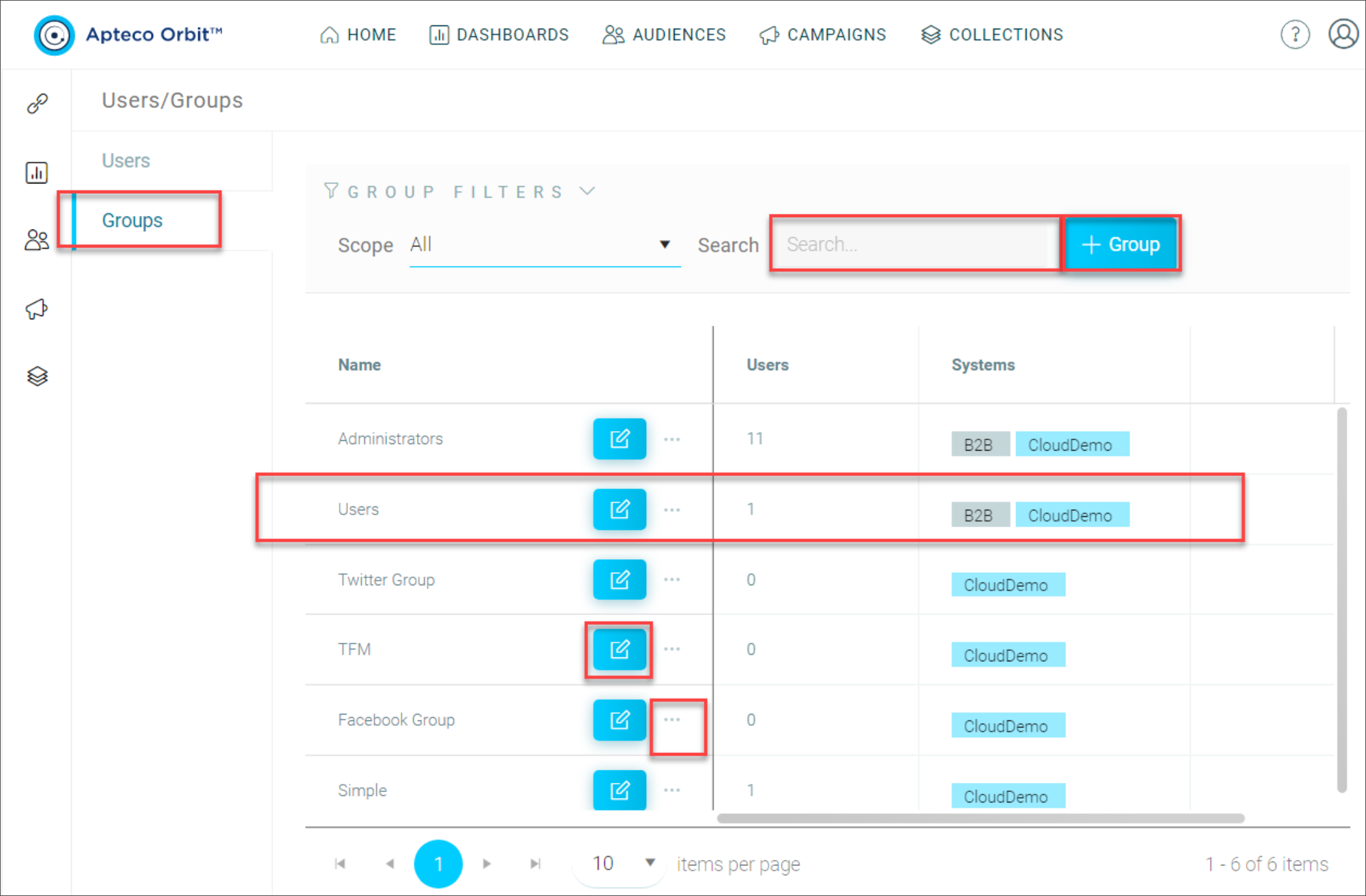
To access the Groups landing page:
- Select the Groups tab in the left hand column.
- Select the Search box to search for a group by using any part of its name.
-
Select the Add Group button to add a new group to this system.
Note
The grid below the search bar displays information about groups in this system.
-
Each group appears as a horizontal line.
- Select the Edit Group button to edit an existing group's name and membership.
- Select the options menu to access Advanced Options.
Adding and editing a group
Adding and editing a Group uses the same dialog. The Add Group button brings up an empty dialog. The Edit Group button brings up the same dialog, but it's pre-populated with the group's name and membership details.
To add or edit a group:
- Enter a unique name for the group in the Name Box.
- Select in the User Membership box and add the Users that need to be in this Group.
Note
You can search for users by typing a few letters from their name in the User Membership box.
Note
Remove a user from a group by selecting the small x beside the user name.
When you select a user, a small chiplet appears in the User membership box. You can add any user available in this system to this group. This is the quickest way to add many users to a single group. The quickest way to add a single user to many groups is via Group membership on the user settings dialogue.