Features settings
The following settings enable specific features in Orbit.
Collections feature
Enable or disable the Collections area. If enabled, users that have sent collections to Orbit or have had collections shared to them will be able to view them.
Change the drop-down to Enable or Disable to switch this feature on or off, and select Save.
Campaigns feature
If you have campaigning configured, choose how the Campaigns area appears for users without the Orbit Campaigns Viewer role. Either show example data, or disable the feature altogether.
If campaigning isn't configured, choose to show example data or disable the feature.
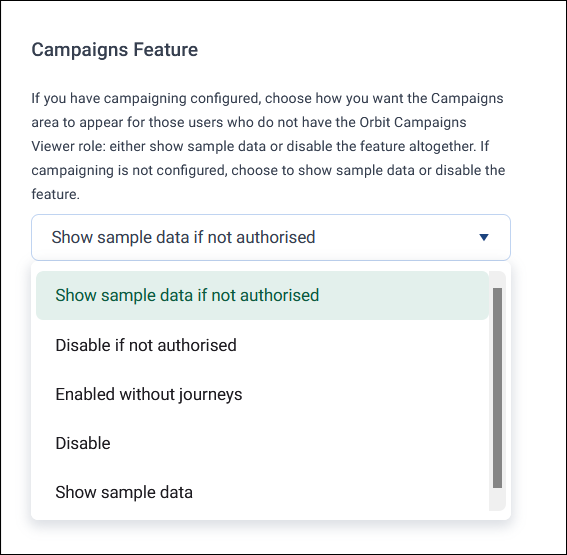
The available options are:
- Show sample data if not authorised: shows the Campaigns area with example data to users without the Orbit Campaigns Viewer role
- Disable if not authorised: hides the Campaigns area entirely from users without the Orbit Campaigns Viewer role
- Enabled without journeys: hides the main Campaigns tab for everyone, but channels set up in Channel Editor remain available when exporting an audience, so you can still broadcast to those channels without exposing campaign journey building to your users
- Disable: hides the Campaigns area entirely (systems without campaigning configured)
- Show sample data: shows the Campaigns area with example data only (systems without campaigning configured)
Audiences feature
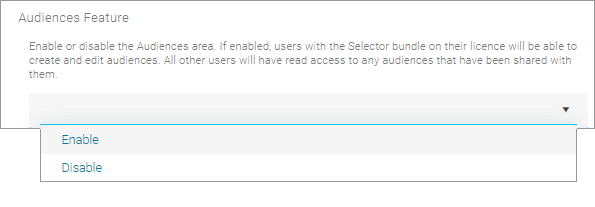
Use this to let users with the Selector Bundle in their licence create and edit audiences.
Enabled by default. Set to Disable if you want to hide the Audiences page.
Export audience to campaign feature
Set this to Enable to use the Email Broadcast to ESP feature.
Change the drop-down to Enable or Disable to switch this feature on or off, and select Save.
Dashboards feature
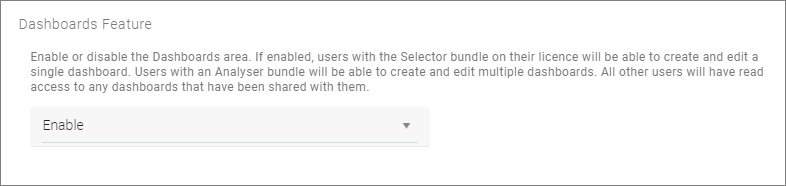
Enable or disable the Dashboards area. If enabled, users with the Selector bundle on their licence can create and edit a single dashboard. Users with an Analyser bundle can create and edit multiple dashboards. All other users have read access to any dashboards shared with them.
Enabled by default. Set to Disable if you want to hide the Dashboards page.
You can also manage your Dashboard Themes, and Logos from this page.
Advanced sharing feature
Enable or disable Advanced Sharing. If enabled, users can share with other users and groups on the system. If disabled, users can only share to custom email addresses.
Change the drop-down to Enable or Disable to switch this feature on or off, and select Save.
Export as zip file
Enable or disable the ability to export and download files as zip-compressed files. If enabled, users can choose to zip the file and password protect it if required.
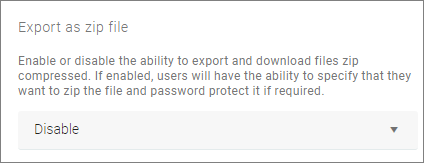
When enabled, this affects the Audience Export Download option.
Force export as a password-protected zip file
Enable or disable the ability to force export and download of password-protected zip files. If enabled, users have to enter a password to download their exported file.
When enabled, this affects the Audience Export Download option.
You won't see an option to zip the file. You must add a password, then select Export. Orbit then downloads the file as a protected zip file.
Tip
You need a third-party zip compression tool. Right-click the exported file, select Open archive, then Extract to use the password dialogue.
Multi-factor authentication enrollment prompt
Enable or disable the Multi-Factor Authentication (MFA) setup reminder. Enabled by default, this prompts users to set up MFA if your system hasn't enforced it.
Note
Requires the Q2 2026 Apteco software release or later.
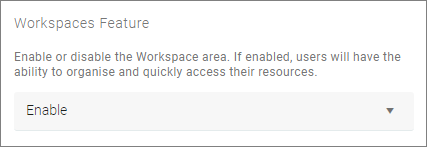
Enable workspaces
Enable or disable the Workspaces feature.
Enabled by default, set to Disabled, if you want to hide the feature.