Audience splits
An audience split lets you divide your audience into segments and send each segment down different paths in your campaign journey. This allows you to tailor content, timing, and messaging based on different customer behaviours or preferences, increasing engagement and campaign effectiveness.
Example use case
A subscription service wants to manage responses to a membership cancellation request:
- Opt out – Customers who confirm they no longer wish to receive communications are removed from future marketing messages
- Cancelled – Customers who cancel their membership receive a follow-up survey and an offer to rejoin at a discounted rate
- Everyone else – Customers who neither opt out nor cancel continue receiving standard engagement messages
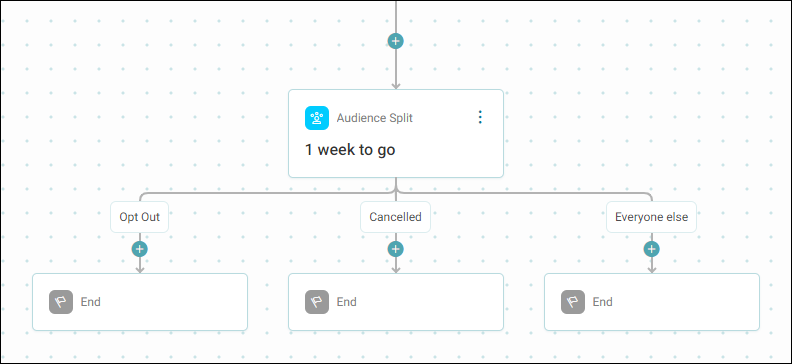
Adding an audience split
To add an audience split:
-
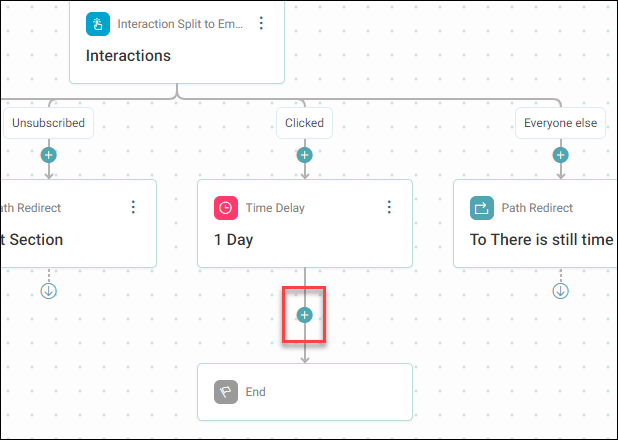
In your Orbit journey, click the + icon where you want to create different paths.
Tip
An audience split is often positioned below a Time Delay step.
-
Under Controls, click Audience Split. A new step appears in your journey.
-
Select your new audience split step. Enter a name, then click Create.
Note
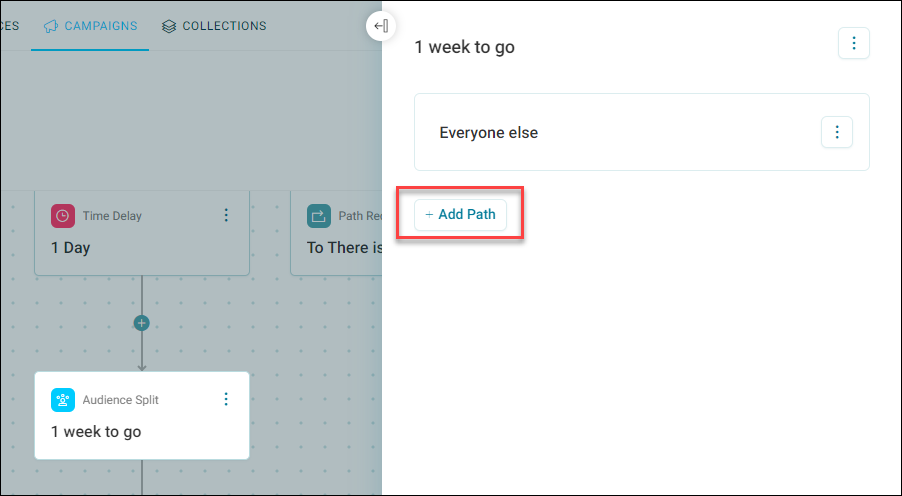
The Everyone else path appears by default. You can rename this path if needed.
-
Click + Add Path.
-
Enter a descriptive name for the path.
Your new path appears in the side panel above your default audience.
Note
Paths are hierarchical. The topmost path appears on the left. You can rearrange them as needed.
-
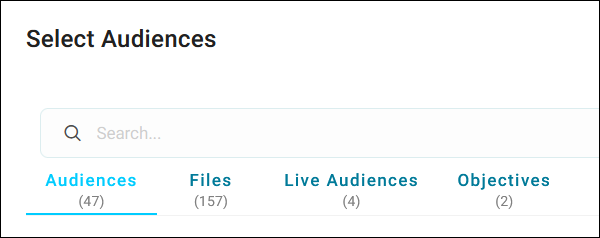
Under the new path, click + Add Audience.
-
Search for and select your preferred audience.
Note
To split your audience based on message objectives, see Audience splits by message objective.
-
Add your preferred split paths, then click Apply.
Note
By default, audience split paths exit the journey immediately. To keep segments in the journey, add steps like time delays or additional communications.
You’ve now set up an audience split in your campaign journey.
Delaying a path
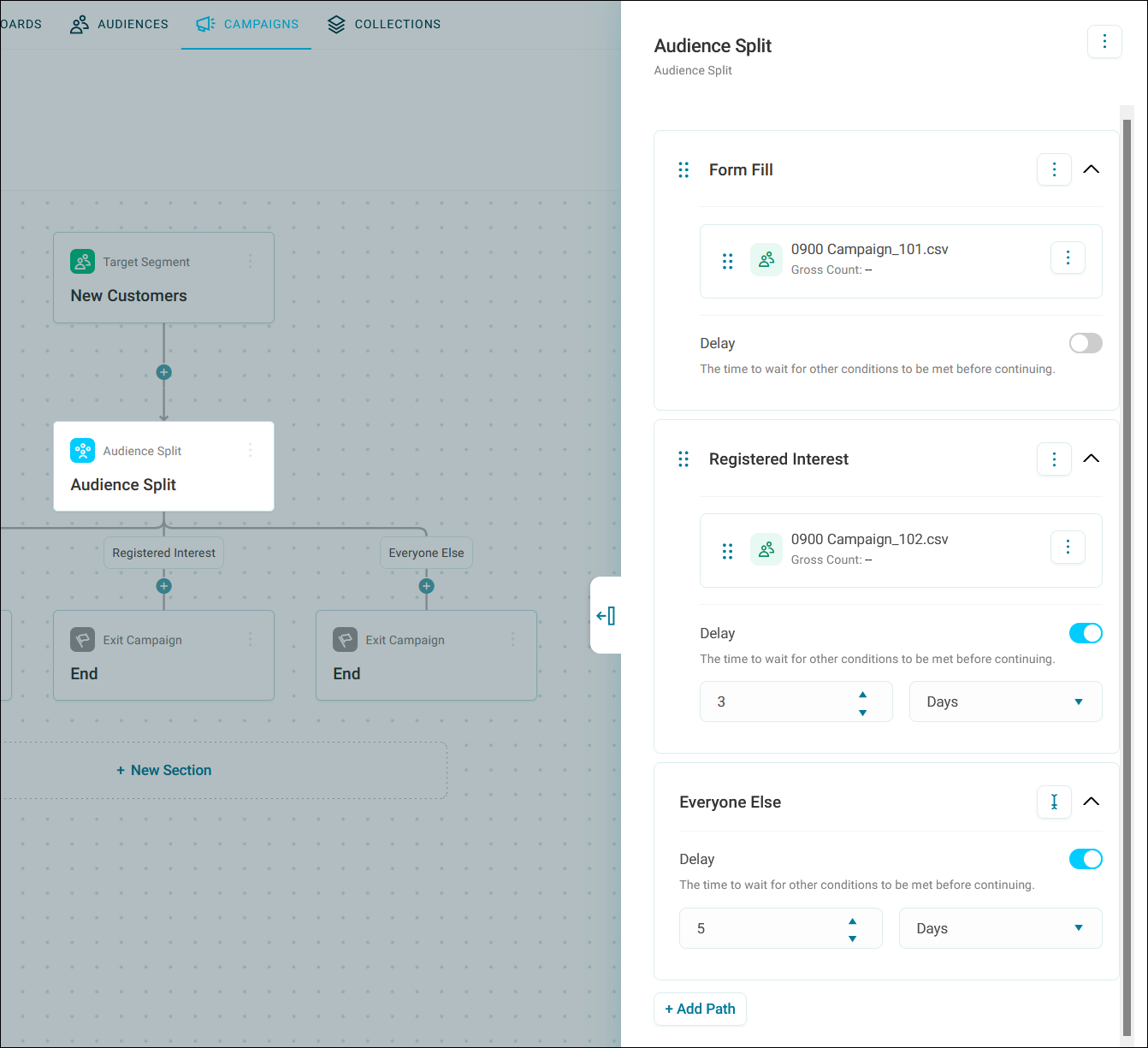
Every path in an audience split, including Everyone Else, has a Delay toggle. Use it to wait a set time for other, higher-priority path conditions to be met before continuing recipients down that path.
To delay a path:
-
Under the path, switch on Delay.
-
Enter a quantity, then choose a time unit.
- Click Apply.
Example
If Registered Interest waits 3 days and Everyone Else waits 5 days, recipients get the full 3 days to register interest before Orbit moves them into Everyone Else.
Note
If you delay any path, add a repeating time delay step above the audience split. Orbit needs this to periodically re-check whether the delayed conditions have been met, and won't let you publish the journey without it.
Deleting a path
To delete a path:
- Expand the option menu on the path you want to remove.
- Click Delete, then confirm.
Deleting a path also deletes every journey step on that path, even if it leads into further sections, splits, or other steps further down the journey.
Tip
If you delete a path by mistake, use undo to bring it back.