Interaction splits
Interaction splits let you to personalise customer journeys based on how your recipients engage with messages. You can automatically route contacts through different campaign paths for more targeted follow-ups by setting up rules based on specific behaviours, such as opening, clicking, or bouncing emails.
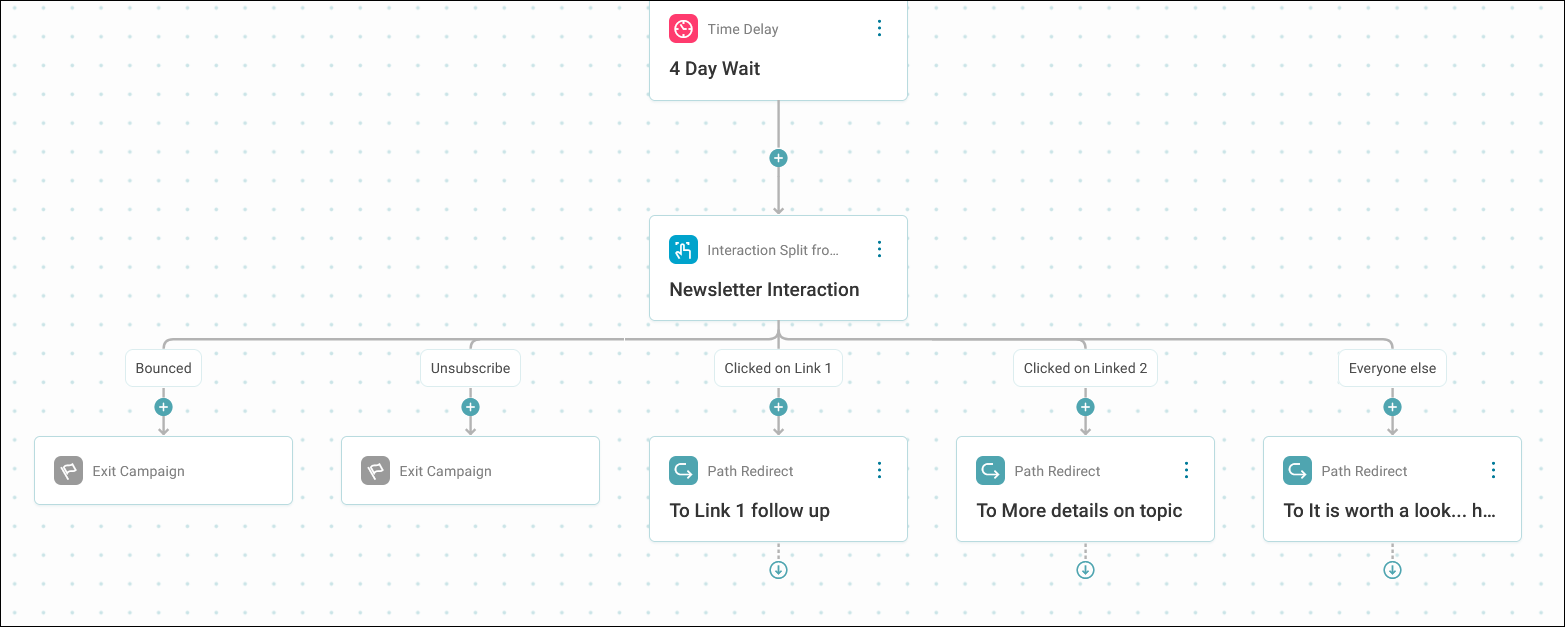
Interaction splits evaluate recipient actions within a defined timeframe and branch your journey accordingly. You can reference any of the preceding message steps in your journey to base the split upon.
Example use cases
Event attendance follow-up
You're promoting a show and want to identify cancellations whilst monitoring engagement from those still attending. Combine an audience split to identify cancellations with an interaction split to measure engagement with your initial promotion email. This lets you route:
- Engaged prospects towards purchase reminders
- Unengaged contacts towards re-engagement campaigns
Lead nurturing with message-specific engagement
You've sent an introductory email and now want to segment responses based on interaction. Set up an interaction split referencing that email, with paths for clicked, opened, and unopened recipients. Route clickers to a sales conversation, openers to a follow-up educational email, and unopened contacts to a re-engagement sequence. Later in the journey, you can reference a different message step to measure engagement with subsequent sends.
Info
Interaction splits can reference the following message step types: Email, SMS, and WhatsApp. You can't base an interaction split on a message step within a triggered event.
Setting up an interaction split
To add an interaction split:
-
Open your campaign journey or create a new one. See Creating a campaign.
-
Click the + where you want to add your interaction split in your journey.
-
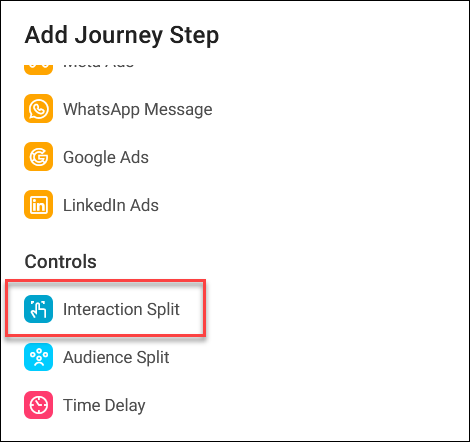
Under Controls, click Interaction Split.
-
Click your new Interaction Split step.
-
Enter an Interaction Split Name, and click Create.
-
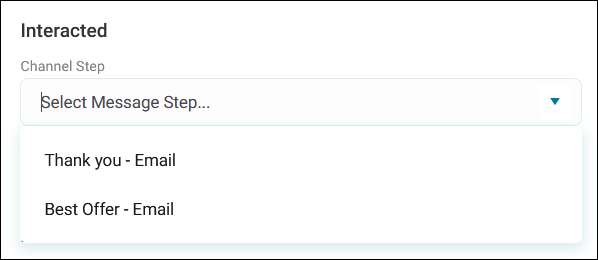
Select which Channel Step to base the split on.
Note
You can select any channel step above your interaction split in the journey.
-
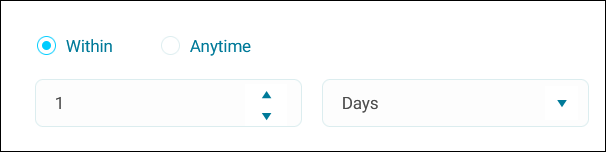
Set the timeframe for capturing interactions.
Tip
Add a time delay before your interaction split to allow recipients time to engage with the message.
-
Click + Add Path to create different routes based on recipient behaviour.
- Give your path a name, then click Create.
- Once you’ve added all your paths, click Apply.
You’ve now set up your interaction split.
Path hierarchy and interaction options
Orbit evaluates paths in hierarchical order. The top path has priority, with importance decreasing as you move down. This means the first path matching a recipient's behaviour determines their route. You can reorder paths in the side panel.
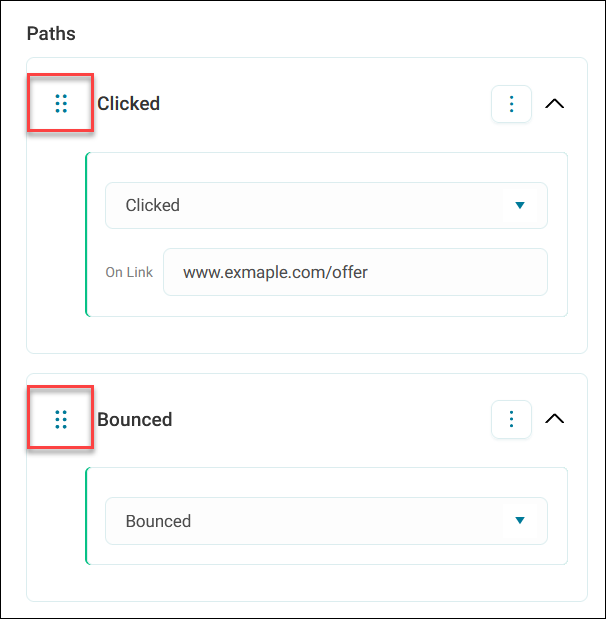
The interaction options available depend on your channel type:
- Sent: The total number of messages successfully delivered and accepted by the recipient's server
- Clicked: The total number of recipients who clicked a link in the message (you can segment by specific links clicked)
- Opened: The total number of recipients who opened the message
- Bounced: Hard and soft bounces combined
- Unsubscribed: The number of recipients who confirmed they wished to unsubscribe
Setting effective path order
We recommend applying this hierarchy when ordering your paths:
- Handle bounces first
- Then unsubscribes, since further messaging is unnecessary
- Then focus on engagement metrics like clicks and opens to prioritise follow-ups
Delaying a path
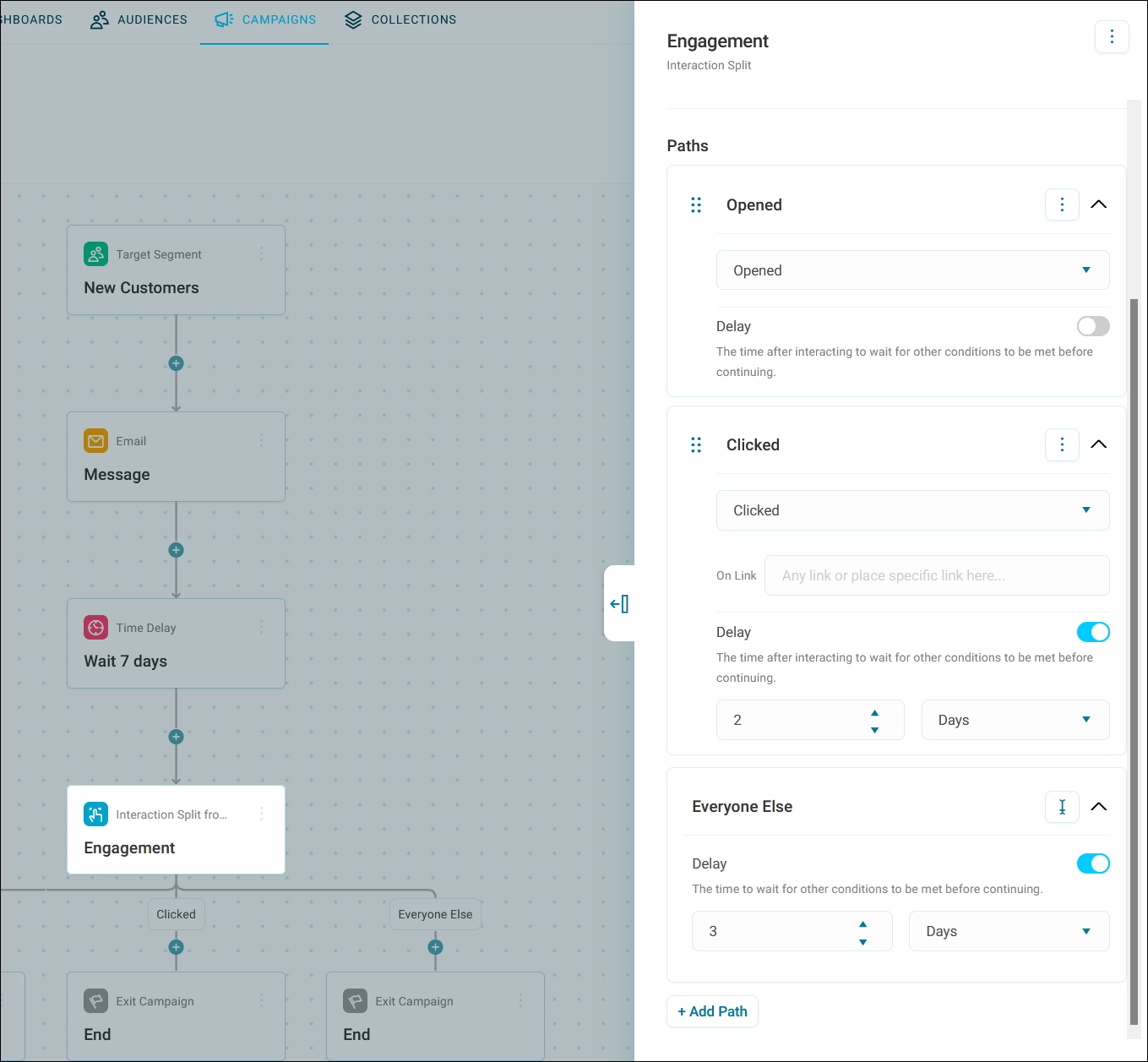
Every path in an interaction split, including Everyone Else, has a Delay toggle. Use it to wait a set time for other, higher-priority path conditions to be met before continuing recipients down that path.
To delay a path:
-
Under the path, switch on Delay.
-
Enter a quantity, then choose a time unit.
- Click Apply.
Example
If Clicked isn't delayed but Everyone Else waits 3 days, recipients get 3 days to click before Orbit moves them into Everyone Else.
Deleting a path
To delete a path:
- Expand the option menu on the path you want to remove.
- Click Delete, then confirm.
Deleting a path also deletes every journey step on that path, even if it leads into further sections, splits, or other steps further down the journey.
Tip
If you delete a path by mistake, use undo to bring it back.
Troubleshooting
Interactions disappeared after switching channel types
When you change a channel step type (for example, from email to WhatsApp), some interaction types may not be supported by the new channel. Supported interactions persist; unsupported ones are removed. For example, if you switch from email (with bounced and sent paths) to WhatsApp (which doesn't support bounce detection), then the system removes the bounced path but sent persists.