Build an expression
You build an expression on the Expression tab of the data picker, wherever you need it: in a filter, a measure, a data grid column, or a personalised message. For what expressions are and the rules they follow, see Expressions.
Before you begin
Check that you can use expressions, and that you have what you need:
- Licence: The Expression tab isn't available with a Selector licence. Expressions in message personalisation need the Analyser bundle or higher.
- Variable names: Use the exact names of variables in your FastStats system, in square brackets, such as
[Surname]. A name that doesn't match gives an error. - Knowledge: You'll need to know how to write Apteco expressions. See the FastStats expression reference, or start from an example expression. The rules for expressions explain what Orbit doesn't support.
Write an expression
The steps are the same wherever you open the data picker.
To write an expression:
-
Open the data picker where you want to use the expression. For example, select + Add Filter, + Add Measure, or + Add Column. In message personalisation, add an Expression content field, then select + Add Expression.
-
Select the Expression tab. If there's no Expression tab, you can't use an expression in this place, or your licence doesn't include expressions.
-
Enter a Name for the expression. Orbit uses it to identify the expression wherever you use it.
-
Choose the Table to calculate a value for. The expression works out one value for each record of this table, and can use variables from it or from any table above it.
-
Write the Expression. For example, to work out each supporter's age:
-
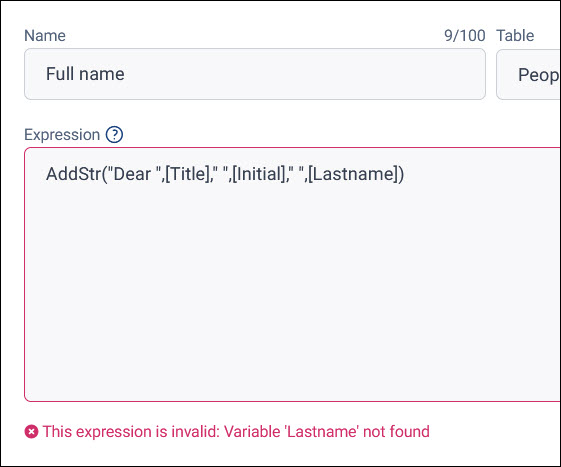
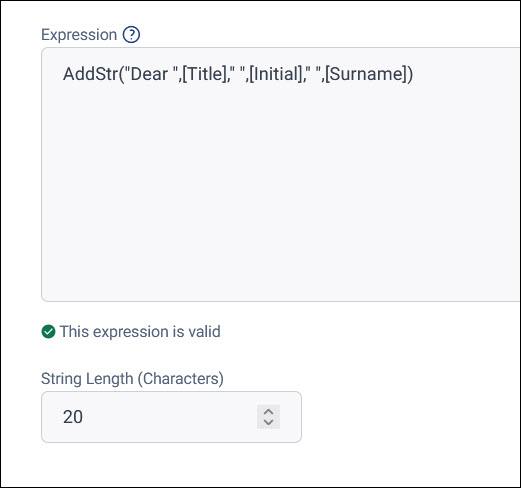
Check the message under the expression. Orbit checks the expression as you type. When it's valid, Orbit shows This expression is valid. When it isn't, Orbit says what's wrong, so you can correct it.
-
For a text expression in a data grid column, set the String Length (Characters). The default is 20 characters, and the maximum is 32,767.
-
Select Apply.
Tip
Test an expression on a small audience or a single tile before you rely on it, to check it returns the values you expect.
What happens next
What you do after you select Apply depends on where you're using the expression:
-
In a filter: Orbit opens the same dialogue as for a variable of the expression's output type. For a numeric expression, you set ranges of values, such as more than 20. For a text expression, you choose how to match text, such as Is or Contains, with Match case. For a date expression, you set a date range.
-
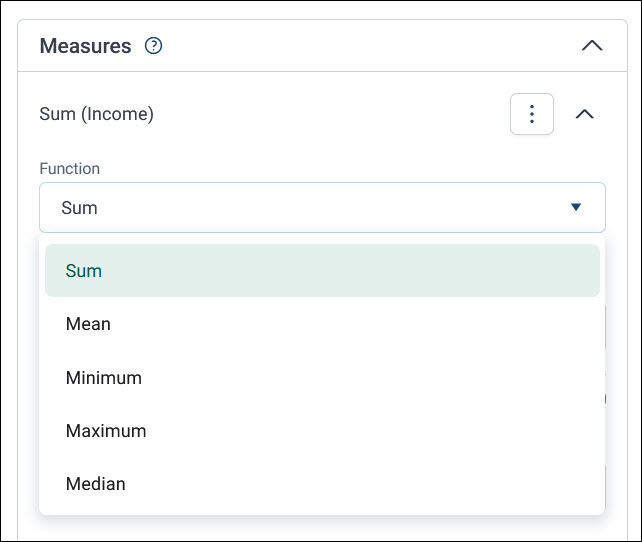
As a measure: Choose a Function to summarise the values, such as Mean or Sum. The measure functions explain each one.
-
As a data grid column: Give the column a title, then select Apply in the tile editor's side panel.
-
In message personalisation: The value becomes a column in your campaign's output file, headed with the content field's name. Once you've added it, you can't view the expression in Orbit. Find out more about expressions in message personalisation.
Example
To show how far supporters in each region live from your head office, add a cube tile with Region as its dimension. For the measure, write a numeric expression that calculates each supporter's distance in miles from the office's postcode:
Then choose the Mean function. The cube shows the average distance for each region.