Behaviours
Behaviours give you recency, frequency, and value (RFV) statistics for each contact, straight from your transaction data. Rather than building complex audiences before you can analyse your data, you create a behaviour in the data picker wherever you need it, in your dashboards, audiences, and campaigns.
Note
You can't save a behaviour to reuse elsewhere. You create it where you use it, and it belongs to that filter, measure, or content field.
Each type of behaviour answers a different question about how your contacts engage with you:
| Type | What it gives you |
|---|---|
| Recency | The most recent, or earliest, value of a transaction variable for each contact |
| Frequency | The number of transactions each contact has, optionally limited to a subset |
| Value | A summary of a numeric variable across each contact's transactions, such as their total |
Behaviours give you evidence rather than assumptions. For example, they show whether supporters are giving less, whether they give as often as you expect, or how long it's been since they last gave. You see this on a dashboard without building any audiences.
Group your contacts into cohorts
A common starting point is to group your contacts into cohorts by how engaged they are. A typical grouping looks like this:
- First-time contacts: Contacts making their first transaction, and what it was worth
- Active contacts: Contacts transacting within the frequency and value you expect
- Lapsing contacts: Active contacts whose recency, frequency, or value has started to drop
- Lapsed contacts: Contacts who haven't transacted for a long time, and need a re-engagement campaign
What counts as lapsing or lapsed depends on how often your contacts usually give or buy. Behaviours give you the data to set your own thresholds.
Examples
For a charity:
- A supporter who gives once a year to an annual appeal might go 18 months between gifts without being lapsed
- A regular giver who misses two monthly gifts is a warning sign
Example use case
Once you've found your lapsing supporters, you can route them into a nurture campaign. When they give again, they move back into your active cohort.
Tip
Use frequency and value behaviours together to split your active supporters further. For example, supporters who give rarely but generously need different messages from those who give often in small amounts, even if their total giving is similar.
How Orbit works out a behaviour
When you apply a behaviour, Orbit performs an on-the-fly aggregation:
- It finds every transaction, such as each donation, that belongs to each contact, such as each person or household.
- It applies any transaction filter you've set.
- It works out one result for each contact.
That result is what you see in charts, filters, and audience counts.
Table hierarchy requirement
Behaviours need a parent-child relationship between tables in your data. The table of transactions must sit below the table of contacts in the hierarchy.
Note
If the Behaviours tab doesn't appear in the data picker, the table you're working with may not have a child table of transactions. Ask your system administrator.
Transaction filters
Any behaviour can have a transaction filter, to choose which transactions count before Orbit works out each contact's result. For example, you might count only donations to one appeal, or only those from the last year.
Note
A transaction filter only affects the behaviour it belongs to. It doesn't affect other filters in your audience, or other behaviours on the same dashboard.
Recency behaviours
Use recency to find the most recent, or earliest, value of a variable for each contact, such as the appeal each supporter last gave to.
Create a recency behaviour
You create a recency behaviour in the data picker, wherever you want to use it.
To create a recency behaviour:
-
Open the data picker, for example with + Add Filter or + Add Measure.
-
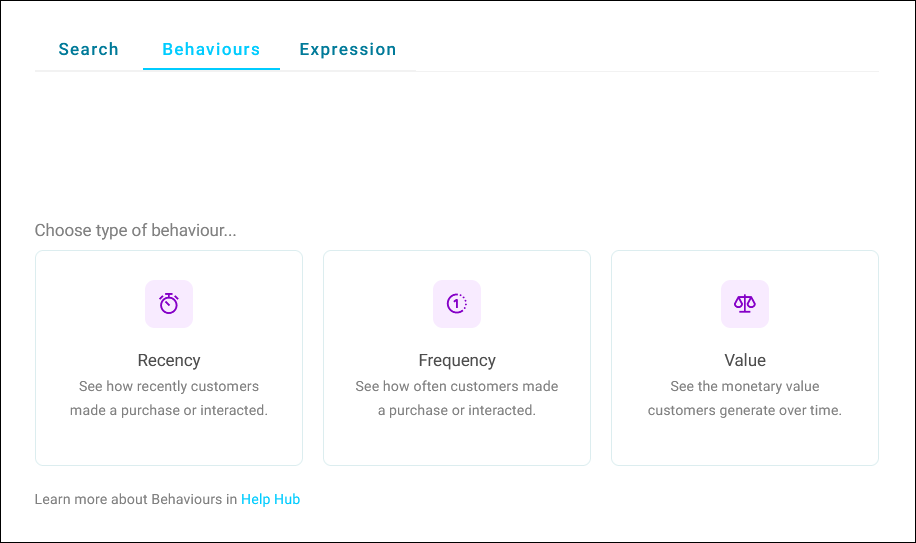
Select the Behaviours tab.
-
Select Recency.
-
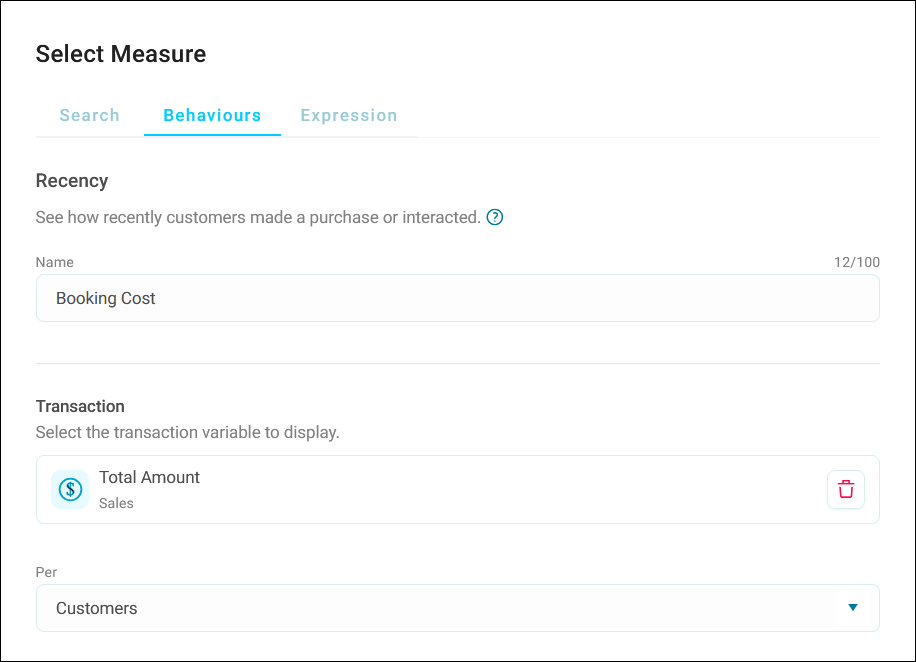
Enter a Name for the behaviour.
-
Under Transaction, select + Add Variable, and choose the variable whose value you want.
-
Under Per, select the table to work it out for, such as People.
-
Under Order by, select + Add Variable, and choose a date or numeric variable to order the transactions by.
-
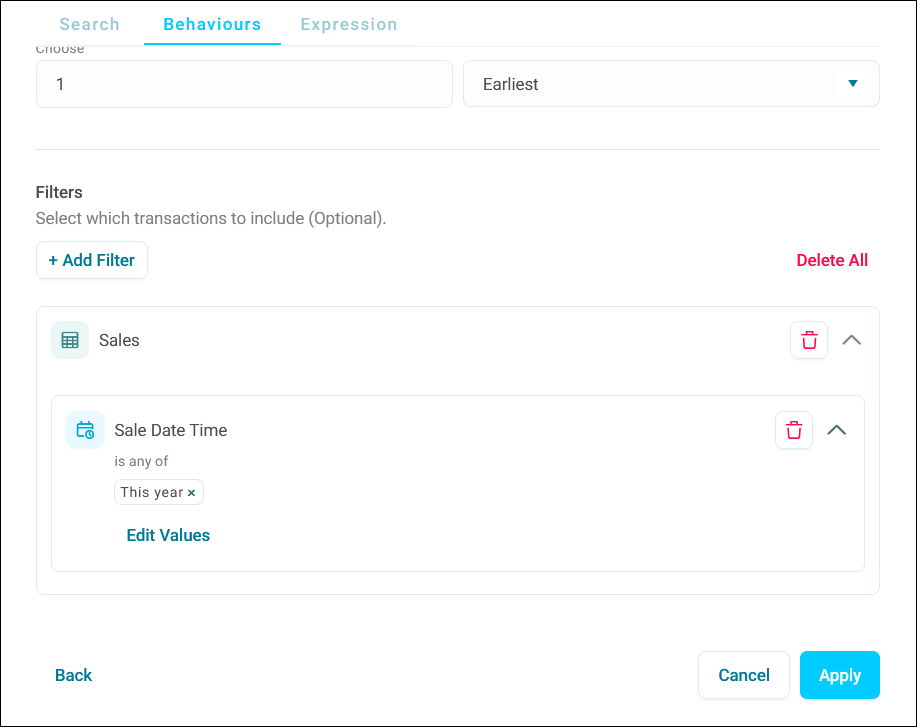
Under Choose, enter how many transactions to use, and select Earliest or Latest.
-
Optionally, select + Add Filter to choose which transactions count.
Tip
Use a date range in the filter to look at a specific window, such as donations from two years ago to one year ago. You can then compare cohorts across time periods without building separate audiences.
-
Select Apply.
Note
The transaction variable and the variable you order by must both belong to the same table of transactions.
Frequency behaviours
Use frequency to count how many transactions each contact has. Frequency isn't limited to donations or purchases. You can count any repeated event, such as event bookings, calls to your supporter care team, or abandoned online donations.
Create a frequency behaviour
You create a frequency behaviour in the data picker, wherever you want to use it.
To create a frequency behaviour:
-
Open the data picker, for example with + Add Filter or + Add Measure.
-
Select the Behaviours tab.
-
Select Frequency.
-
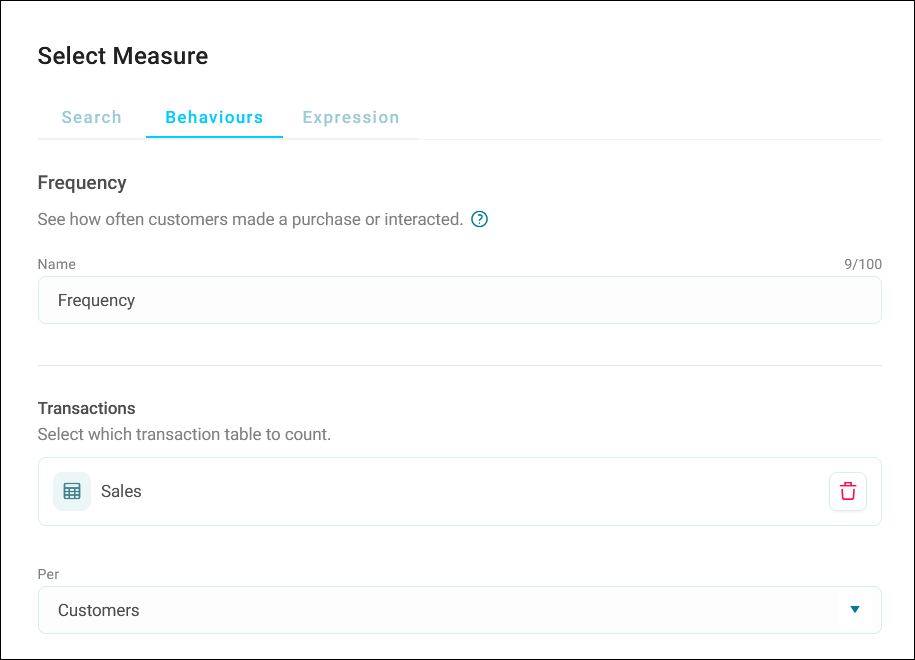
Enter a Name for the behaviour.
-
Under Transactions, select + Add Table, and choose the table of transactions to count.
-
Under Per, select the table to work it out for, such as People.
-
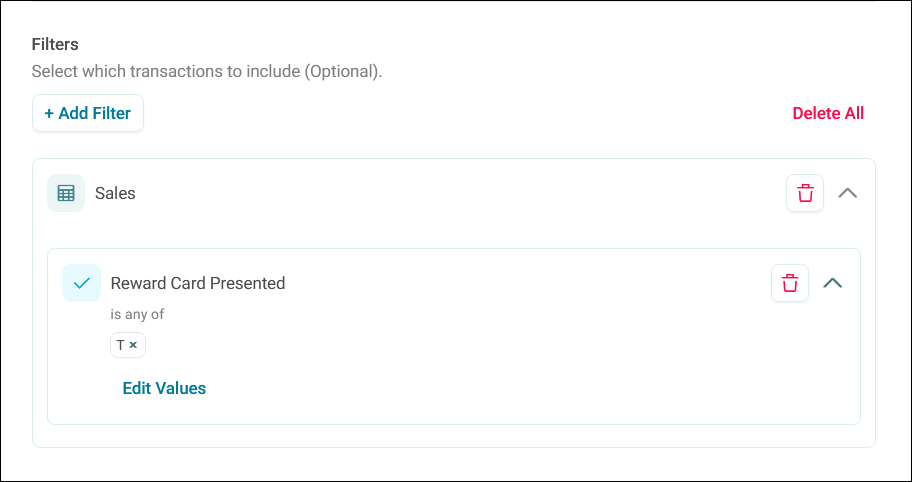
Optionally, select + Add Filter to choose which transactions count.
Tip
A filter is especially useful with frequency, because a count of every transaction ever is rarely useful. Counting only regular gifts, or only donations to one appeal, answers a real question, such as how many regular gifts each supporter has made.
-
Select Apply.
Value behaviours
Use value to summarise a numeric or currency variable across each contact's transactions, such as:
- Total given
- Average gift
- Largest single gift
Create a value behaviour
You create a value behaviour in the data picker, wherever you want to use it.
To create a value behaviour:
-
Open the data picker, for example with + Add Filter or + Add Measure.
-
Select the Behaviours tab.
-
Select Value.
-
Enter a Name for the behaviour.
-
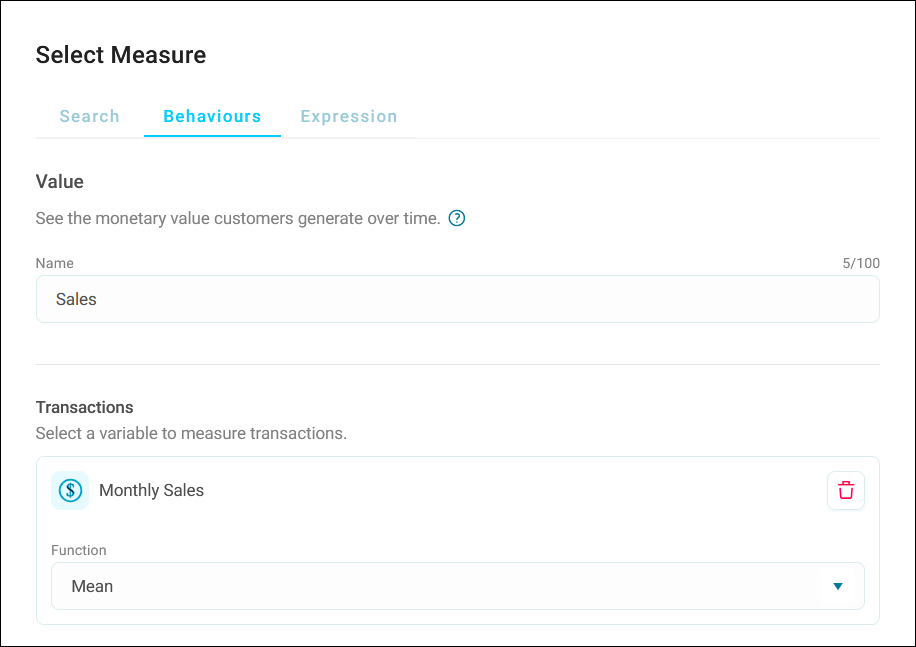
Under Transactions, select + Add Variable, and choose a numeric or currency variable.
-
Under Function, select how to summarise it. See Functions for value behaviours.
-
Under Per, select the table to work it out for, such as People.
-
Optionally, select + Add Filter to choose which transactions count.
-
Select Apply.
Functions for value behaviours
You can summarise a value behaviour with any of these functions:
| Function | What it gives you |
|---|---|
| Sum | The total of all the values |
| Mean | The average value |
| Maximum | The largest single value |
| Minimum | The smallest single value |
| Median | The middle value, when the values are sorted |
| Variance | How widely the values are spread around the mean |
| Standard Deviation | The square root of the variance, in the same units as the values |
| Rank Coefficient | The correlation between the rank order of two variables across transactions |
| Mode | The most common value |
| Count Distinct | The number of different values |
Where you can use behaviours
You can use a behaviour in many places across Orbit. What's available depends on what you're adding it to. See where the data picker opens. You can use a behaviour:
- As a dimension: On charts and cubes, to group your data by each contact's result. For example, a recency behaviour on a column chart can group supporters by the appeal they last gave to.
- As a data grid column: On a data grid tile
- As a measure: On charts, cubes, and number tiles, summarised with a function, such as the average number of regular gifts per supporter. See Measures.
- In a calculated measure: To build proportional or comparative figures, such as each supporter's number of gifts in their first year divided by their gifts overall
- As a Venn set: To define the sets on a Venn tile. You can't use a behaviour as a Venn tile's measure.
- In dashboard filters: As user filters, dashboard filters, predefined filters, tile filters, and analysis filters
- In an audience: As a filter when you build an audience. Orbit shows an RFV icon next to the filter, for recency, frequency, or value. Behaviours aren't available in measure filters or compare filters within audiences.
- In audience workbooks: As a dimension or measure on workbook cubes and charts
- In message personalisation: As a content field, to personalise a message with a value such as a supporter's most recent donation
- In a custom variable: To define the categories of a combine audiences variable, such as supporters whose lifetime giving is above a threshold
Example
An RFV summary dashboard has three user filters: one on recency (the date of each supporter's most recent donation), one on frequency (their number of donations in the last 12 months), and one on value (their total giving). Together, they let you explore your supporter base interactively.
Example
To include every supporter whose most recent donation was to your emergency appeal, create a recency behaviour on Appeal, ordered by Donation Date, and choose that appeal as the value to include.
Improving behaviour performance
Orbit can recalculate the same behaviour many times, for example when several people view the same dashboard, or when you duplicate an audience that uses a behaviour. To speed this up, ask an Orbit administrator to turn on the Cache Behaviour Results preview feature. Orbit then reuses a cached result for identical behaviours instead of working them out again.
Note
Caching doesn't change any behaviour results, only how quickly Orbit returns them.