Variables
A variable is a field in your data, such as a supporter's region, date of birth, or the amount of each donation. Each variable belongs to a table, and you find it on the Variables tab of the data picker, in the folders set up for your system.
Types of variables
Every variable has a type, which decides what it holds and what you can do with it. The data picker shows the type as an icon next to each variable's name.
| Type | Icon | What it holds | Example |
|---|---|---|---|
| Selector | A tick | One category for each record, from a fixed list | Region, Occupation |
| Multi-response (array) | Two ticks | Any number of categories for each record | Contact permissions, Newspapers read |
| Text | ABC | Free text | Surname, Postcode, Email Address |
| Numeric | 123 | Numbers | Age, Holiday Length |
| Currency | A currency symbol, such as £ | Amounts of money | Donation Amount, Cost |
| Date | A calendar | Dates | Date of First Donation |
| DateTime | A calendar with a clock | Dates with a time of day | Time of a website visit |
| Reference | A barcode | A unique reference for each record | Household URN, Supporter ID |
Filter by a variable
When you choose a variable for a filter, in an audience or on a dashboard, you then choose which of its values to include or exclude. The options depend on the variable's type:
- Selector and multi-response variables: Tick the categories you want
- Text variables: Enter values to match exactly, or by how they start, end, or what they contain, including wildcards
- Numeric and currency variables: Set ranges of values, such as more than £100
- Date and DateTime variables: Set a date range, which can move with today's date
- Reference variables: Enter the references of specific records
For most types, the steps follow the same pattern:
-
Choose how to match from the dropdown, such as Is any of or Is none of.
-
Choose the values. Where the type supports files, you can use any of these tabs:
- Values: Tick the values in a list, or type or paste them, depending on the type
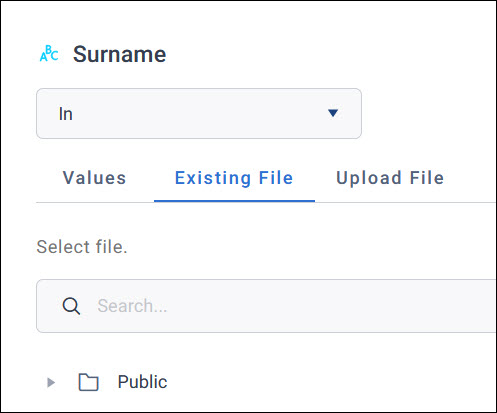
- Existing File: Use a file of values that's already saved in your FastStats system
- Upload File: Upload a file of values from your computer
-
Select Apply.
Tip
Select the expand icon in the top-right corner to view the values full-screen.
Use a file of values
A file of values saves you choosing or typing many values by hand. For example, you could upload a list of postcode sectors for an ad hoc sales territory, or a list of email addresses. You can use a file for selector, multi-response, text, and reference variables.
To upload a file of values:
-
Select the Upload File tab.
-
Select Select File, and choose the file on your computer.
-
If the preview is as you expect, select Next.
-
Choose where to save the file in your FastStats system, and optionally change its name.
-
Select Upload, then Apply.
The file must have:
- No header row
- A single column of values
- No quotes around the values
Each type has its own rules too, such as which file types it accepts. See the rules for selector, text, and reference variables.
To use a file that's already saved in your FastStats system, select the Existing File tab, search for or browse to the file, select it, and select Apply. It's also available on the Files tab of the data picker.
Codes and descriptions
The categories of selector and multi-response variables each have a code and a description, such as the code NW for the description North West. You'll see them in a few places:
- In the list of categories when you filter, where View lets you show codes, descriptions, or both
- In message personalisation, where you choose whether a message shows the description or the code
- In the data picker, where Include codes in search matches categories by their codes or descriptions
Variables on dashboard tiles
How a variable works on a tile also depends on its type:
- As a dimension: Selector and text variables split a tile's data by their categories. Date and numeric variables split it into bands, such as years or ranges of values.
- As a measure: Numeric and currency variables give a summary of their values, such as the total or average donation, using a function such as Sum or Mean.
Custom variables
As well as the variables built into your system, you can create your own in Orbit, from your existing data or from a file you upload. A custom variable then behaves like any other variable, and you find it in the data picker in the same way.
Example
Ahead of a year-end appeal, a charity combines its major donors, regular givers, and lapsed donors into one selector variable, "Supporter value". As the dimension of a dashboard tile, it shows how the supporter base breaks down. See the combine audiences example.
Organise and describe your variables
Variables are easier to find and use when they're well organised and clearly described:
- Folders: In an Orbit Connect system, you can choose which folders your variables appear in. See Folder structure.
- Descriptions: Variable names don't always say what a variable holds, such as
CuMaritafor marital status. Add a description in the data dictionary, for your team and for the Orin AI assistant.