Date and DateTime variables
Date variables hold dates, such as a donation date, and the data picker shows them with a calendar icon. DateTime variables also hold a time of day, and show a calendar with a clock.
Date filters select records from a specific time period, such as donations in the last year. You can use fixed dates, ranges relative to today, and financial dates such as years, halves, and quarters, where your system supports them.
Filter by a date or DateTime variable
You filter by a date range in the same way in audiences and dashboard filters.
To filter by a date or DateTime variable:
-
Choose how to use the date range:
- Is: Selects only the records in the date range
- Is not: Leaves out the records in the date range
-
Choose a type of date range, and set the range.
-
Select Apply.
Choose a type of date range
You can set a date range in three ways.
Fixed range
A fixed range has a start date and an end date that don't change. Choose the start and end dates of the range.
Dynamic range
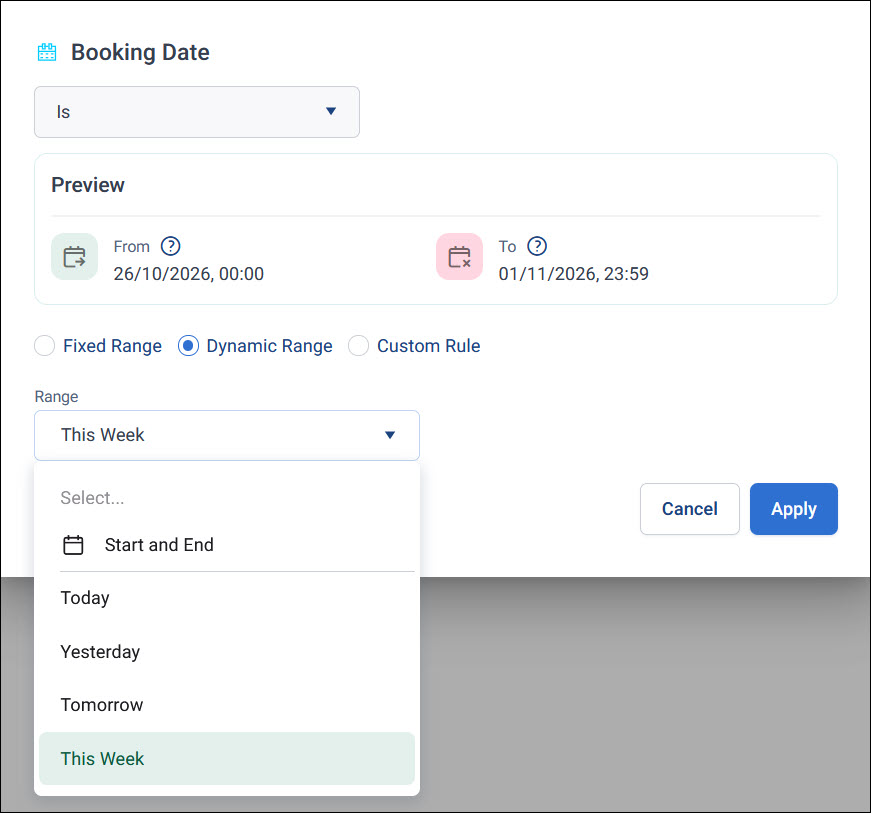
A dynamic range uses a predefined range, such as The Last Year, which moves with the current date.
Last Year and The Last Year are listed separately, as are Next Month and The Next Month. Ranges that start with "The" are relative to today. So The Last Year goes back a year from today, up to yesterday. Last Year is the whole of the previous calendar year: in 2026, it's every day of 2025.
You can also mix a fixed start or end date with a relative date, such as 1 January 2023 to today.
Tip
Use a dynamic range, such as This Month or The Last Quarter, where you can. It updates as time passes, so a dashboard or audience stays current without you changing it.
Custom rule
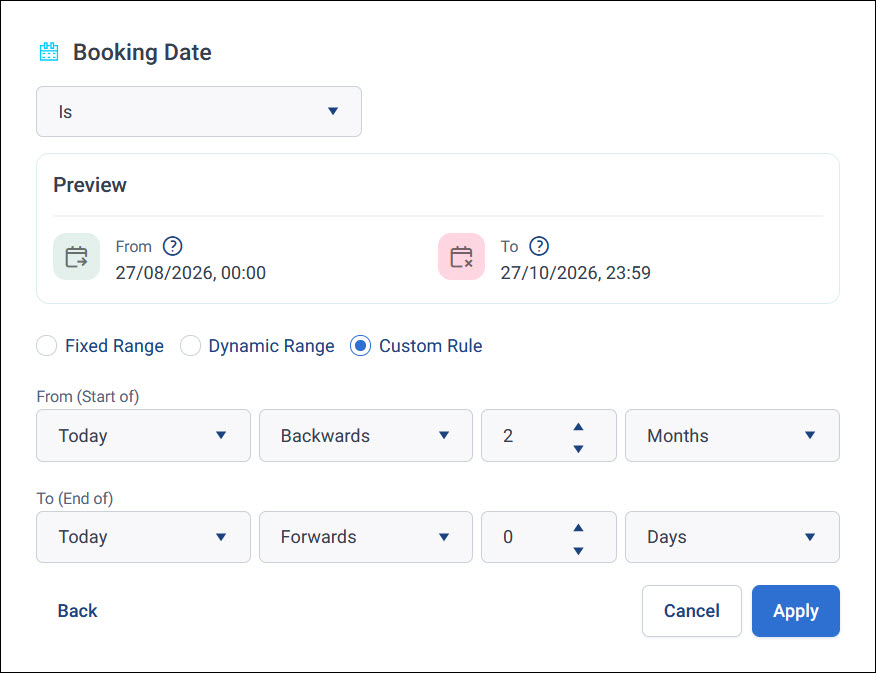
A custom rule builds a range from a starting point and an amount of time, which gives you the most flexibility.
Set From (Start of) and To (End of) to one of:
- Today
- Tomorrow
- Yesterday
- This week
- This month
- This quarter
- This year
Then choose to move Backwards or Forwards by a number of days, weeks, months, quarters, or years.
Example
To look at donations over the last two months, set From (Start of) to Today, moving Backwards by 2 Months, and To (End of) to Today.
Preview the date range
After you set a date range, a preview shows what the range covers today.
Note
Relative ranges, such as tomorrow, change with each passing day. Fixed dates stay the same.
Edit a date range
When you apply the date range, a summary of it appears in the filter. Select the summary to edit the range. The dialogue opens with the current range.