Dashboard themes editor
The Dashboard Themes page lets you control how interface elements look on each dashboard. Orbit includes built-in System Themes, marked Not editable, and you can create Custom Themes to match your brand colours.
Deep Blue is the default theme for new dashboards. You can set any published theme as the default instead, which also changes every dashboard that uses the current default. See Setting a default theme.
To open the Dashboard Themes page, select Application Settings from the User Menu in the top right, then select Dashboard Themes.
Note
The Application Settings page is only visible if you have admin permissions.
Creating a theme
You can create a theme to use a different look than the default design for interface elements, or to match your company brand colours.
To create a theme:
- Under Custom Themes, select + Theme.
- Enter a Theme Name.
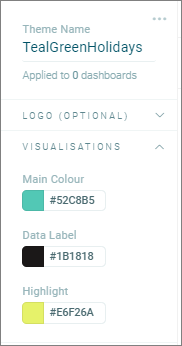
- Change the colour settings for Visualisations and Fonts.
-
Enter a hex value for each element, or select the colour icon to open the colour picker.
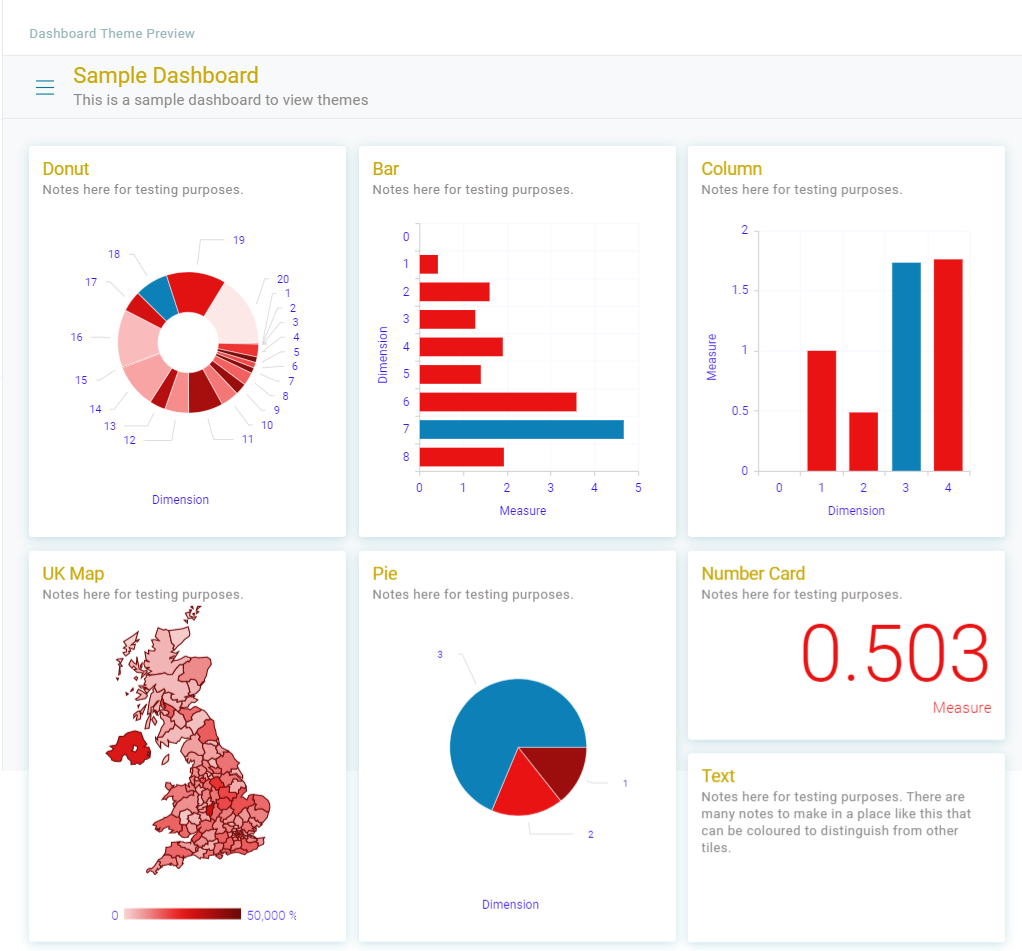
In the preview area, you can see how each element looks.
-
Select Save Draft.
Multiple colours
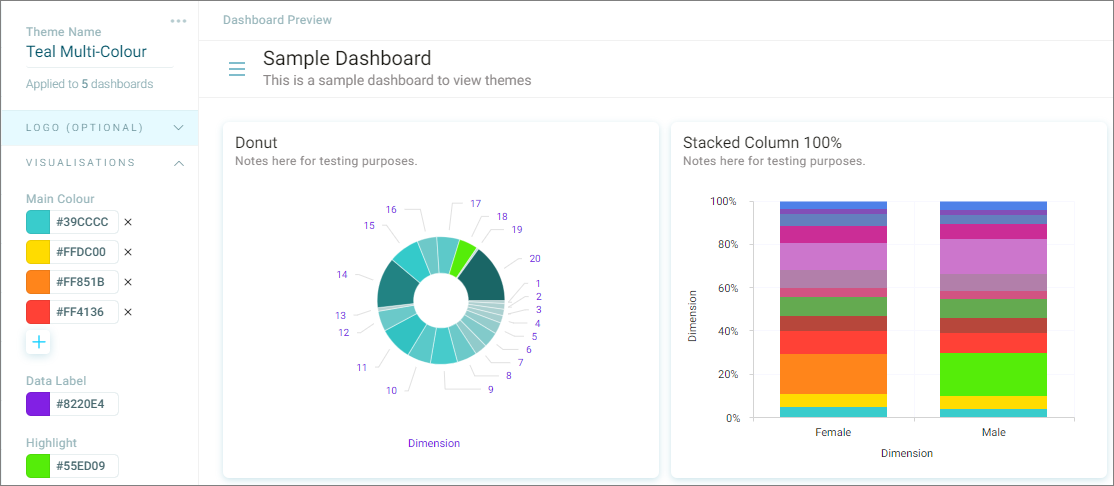
You can apply more than one visualisation colour to a dashboard theme.
These help differentiate the categories on a dashboard.
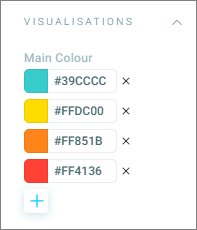
- Select the + sign to select additional colours
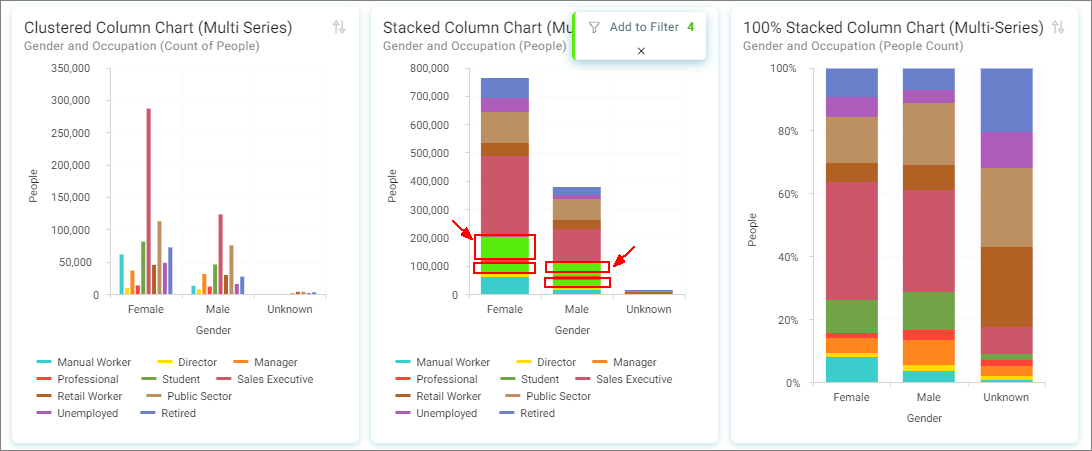
Note
You need to experiment with the choice of colours so the Highlight colour stands out.
Theme fonts
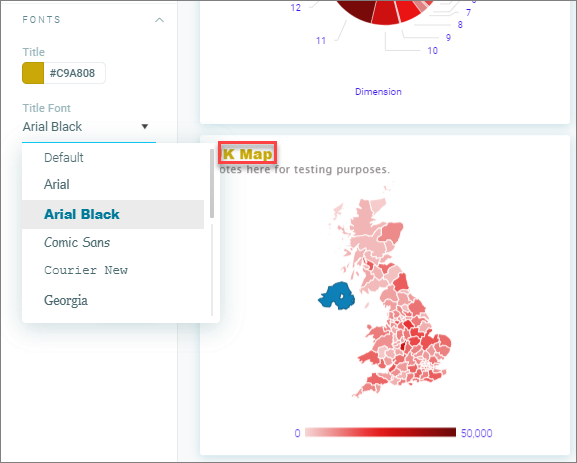
You can change the font used for the following Tile elements on a Custom Theme:
Tile title
Tile note
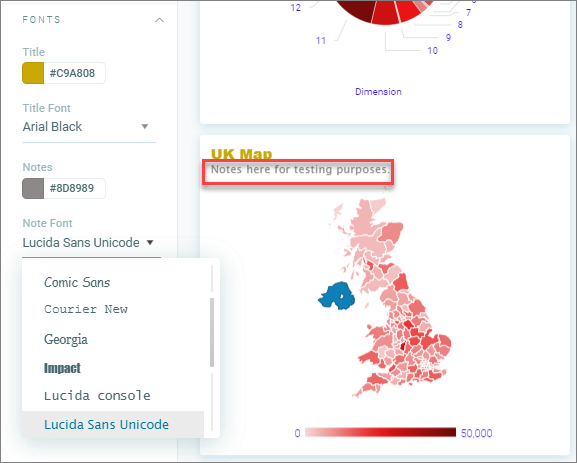
- Selecting Save Draft or Publish applies any changes
The theme stays in [DRAFT] mode until you select Publish to make the theme available.
Theme logo
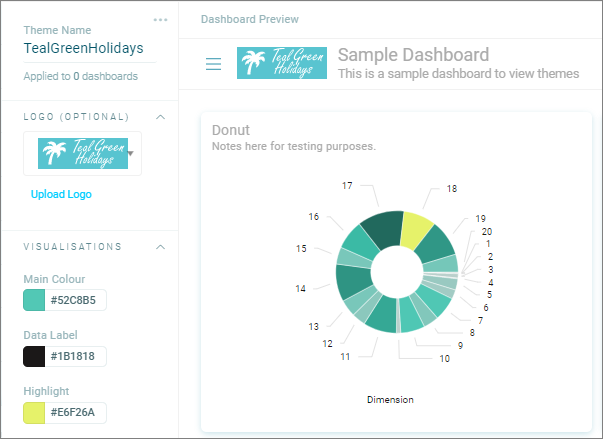
You can apply a logo to a theme. First upload the logo, then from the Dashboard Themes page select the logo to use.
- Expand the Logo section and select the Choose logo button to select a logo
Orbit applies the selected logo to the theme.
Setting a default theme
In the theme selector panel, a check mark shows the current default theme. The number next to each theme shows how many dashboards use it.
Setting a new default changes every dashboard that uses the current default theme.
To set a default theme:
- Select the theme from the theme selector panel.
-
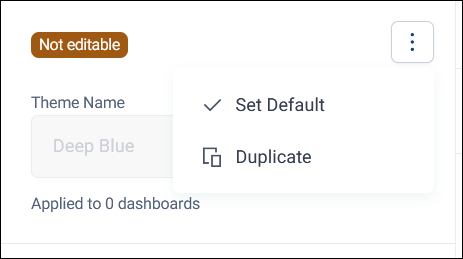
In the options menu, select Set Default.
-
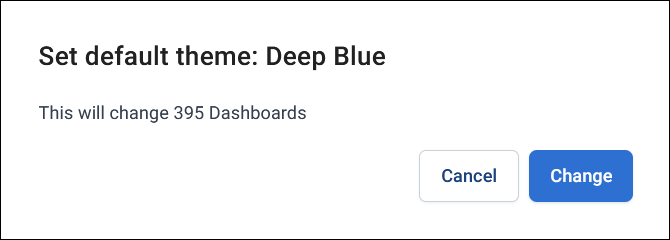
Orbit shows how many dashboards the change affects. Select Change to confirm.
Note
You can only set a published theme as the default theme.
Duplicating a theme
You might want to duplicate an existing theme if you want to create a new one with some of its settings.
To duplicate a theme:
- Select the theme from the theme selector panel.
-
In the options menu, select Duplicate.
-
Enter a Theme Name, then select Save Draft or Publish.
Deleting a theme
If you no longer need a theme that you created, you can delete it.
To delete a theme:
- Select the theme from the theme selector panel.
- In the options menu, select the delete (bin) icon.
Note
Orbit displays a confirmation prompt showing how many dashboards this action affects.