Selector and multi-response variables
Selector and multi-response variables hold categories from a fixed list, such as income bands or contact permissions. You filter by them by ticking the categories to include or exclude. There are two kinds:
- Selector variables have one category for each record, such as a supporter's income band. The data picker shows them with a tick.
- Multi-response variables, also called arrays, can have several categories for each record, such as all the ways a supporter has agreed to be contacted. The data picker shows them with two ticks.
Filter by a selector variable
Each record has only one category, so a record matches if its category is one you tick.
To filter by a selector variable:
-
Choose an option from the dropdown:
- Is any of: Includes records in any of the categories you tick
- Is none of: Excludes records in any of the categories you tick
-
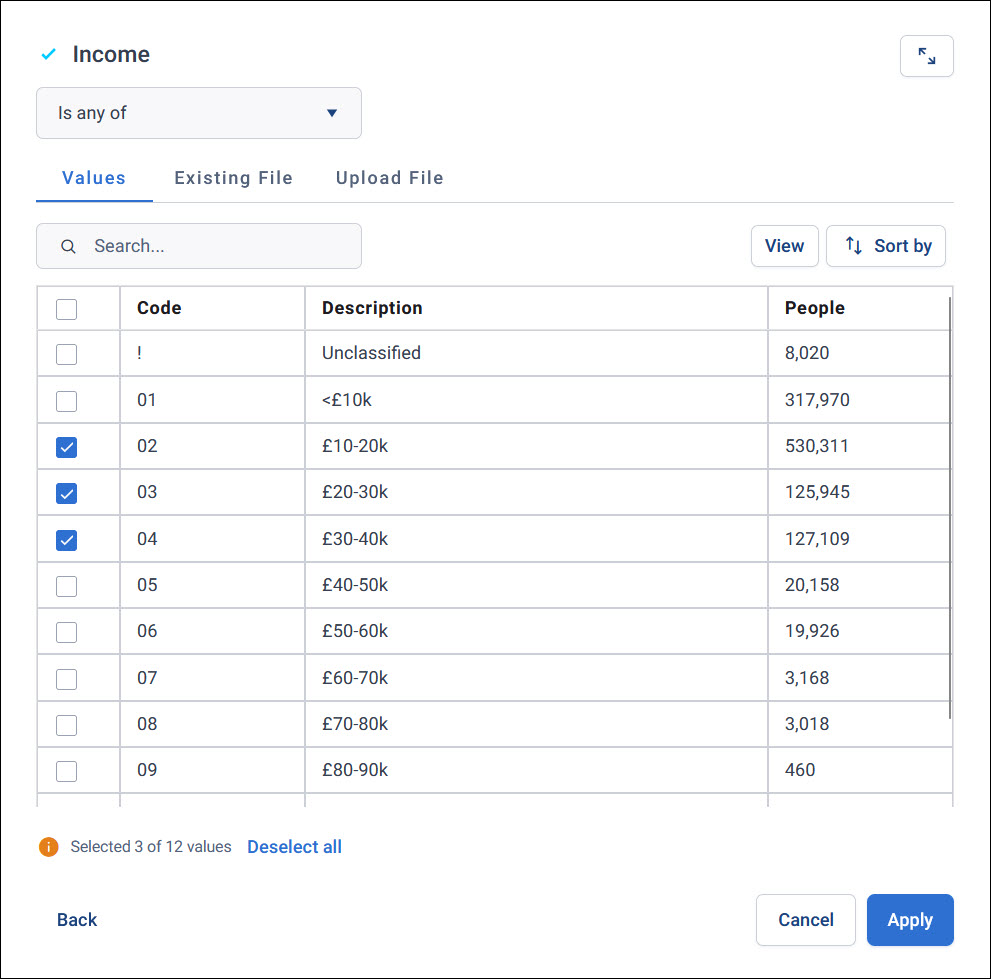
On the Values tab, tick the categories. To use a file of category codes instead, see Use a file of categories.
-
Select Apply.
Example
To find supporters who earn £10,000 to £40,000 a year, filter by an Income variable, choose Is any of, and tick the £10-20k, £20-30k, and £30-40k bands.
Filter by a multi-response variable
A record can have several categories, so you also choose whether it must match any or all of the categories you tick.
To filter by a multi-response variable:
-
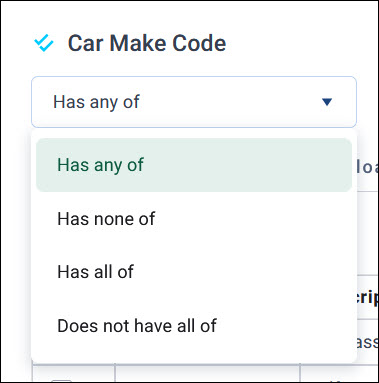
Choose an option from the dropdown:
- Has any of: Includes records with at least one of the categories you tick
- Has none of: Excludes records with any of the categories you tick
- Has all of: Includes only records with every category you tick
- Does not have all of: Excludes records with every category you tick
-
On the Values tab, tick the categories. To use a file of category codes instead, see Use a file of categories.
-
Select Apply.
Example
To find supporters who've agreed to both email and SMS, filter by a Contact Permissions variable, choose Has all of, and tick Email and SMS. With Has any of, you'd also include supporters who've agreed to only one of them.
Find and choose categories
A variable can have hundreds of categories. On the Values tab, you can:
- Search: Find a category by its code or description
- Sort by: Choose Selected First to bring the categories you've ticked to the top
- Select all: Tick the box in the header row. Categories load as you scroll, and this only works once they've all loaded.
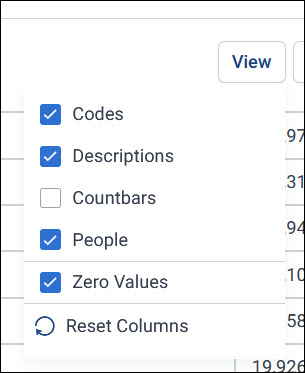
Select View to choose what the list shows:
- Codes: The category codes
- Descriptions: The category descriptions
- Countbars: A bar showing how many records each category has, compared with the others
- The table's name, such as People: The number of records in each category, counted on that table
- Zero Values: Categories with no records
To go back to the default columns, select Reset Columns.
Tip
Turn on Countbars to see at a glance which categories hold the most records.
Use a file of categories
To include or exclude many categories, such as a list of postcode sectors for an ad hoc territory, use a file of their codes. Use the Upload File or Existing File tab, as described in Use a file of values.
For a selector or multi-response variable, the file must:
- Be a
.TXTfile, up to 25 MB - Hold each category's code exactly as it appears in FastStats, not its description
Tip
To create a file of codes in FastStats, export a fixed file with no headers.