Resolve tables
Every tile that shows data counts through one table, called its resolve table. By default, it's the parent table of the tile's dimensions. When a dashboard has tiles built from different tables, Orbit keeps your filters for each table separate, and combines them into the right filter for each tile.
How filters work across tables
When you select categories on tiles, the user filters panel groups your filters by table. Each tile then applies every block through its own table.
Filters on two tables
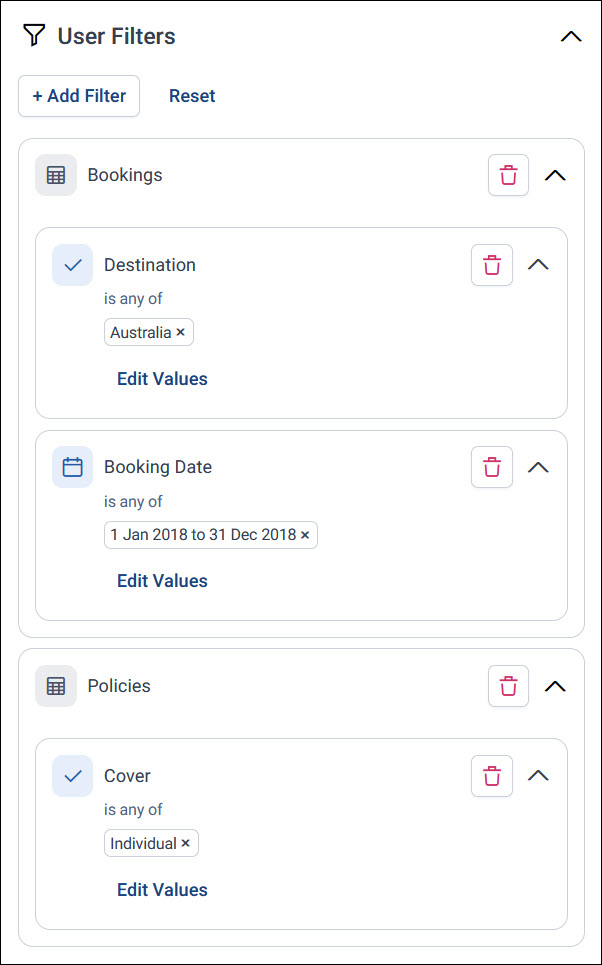
A dashboard has a Booking Destination chart and a Booking Date chart, both from the Bookings table, and a Policy Cover chart from the Policies table. Select Australia on Booking Destination, 2018 on Booking Date, and Individual on Policy Cover. The user filters panel shows a Bookings block with two filters and a Policies block with one.
See the filter a tile uses
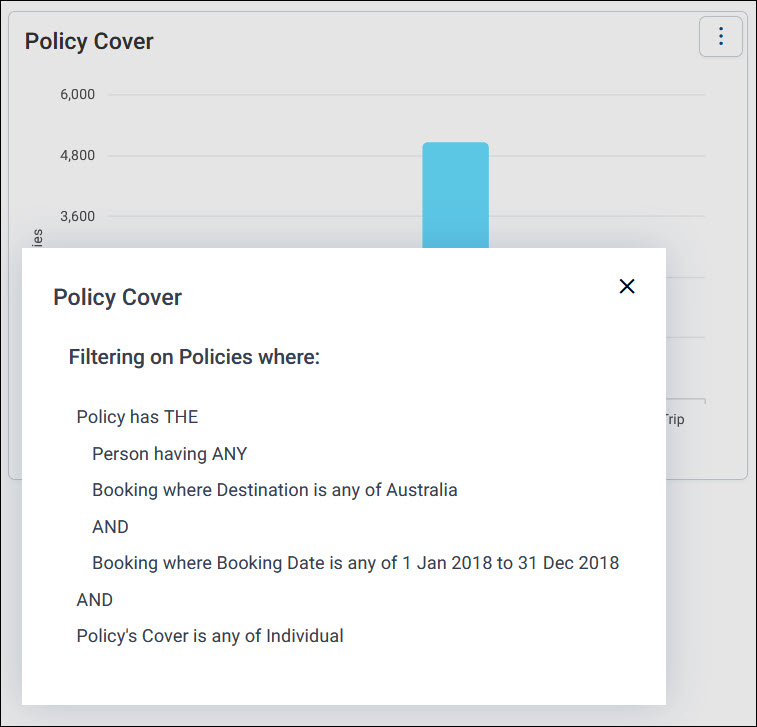
Underlying Filter shows the full filter for a tile, including filters from other tables, written out for the table the tile counts through.
To see a tile's filter, expand the option menu on the tile and select Underlying Filter.
Filter on pairs of values
When you select categories on a multi dimension chart, each selection pairs a category from each dimension, such as a year and a destination. The pairs stay together in one filter block, so you can build filters that single dimension tiles can't.
France in 2017 or Germany in 2018
To find people who booked France in 2017 or Germany in 2018, you could select France and Germany on the Booking Destination chart, and 2017 and 2018 on the Booking Date chart. That gives two separate filters, which also select people who booked France in 2018 or Germany in 2017.
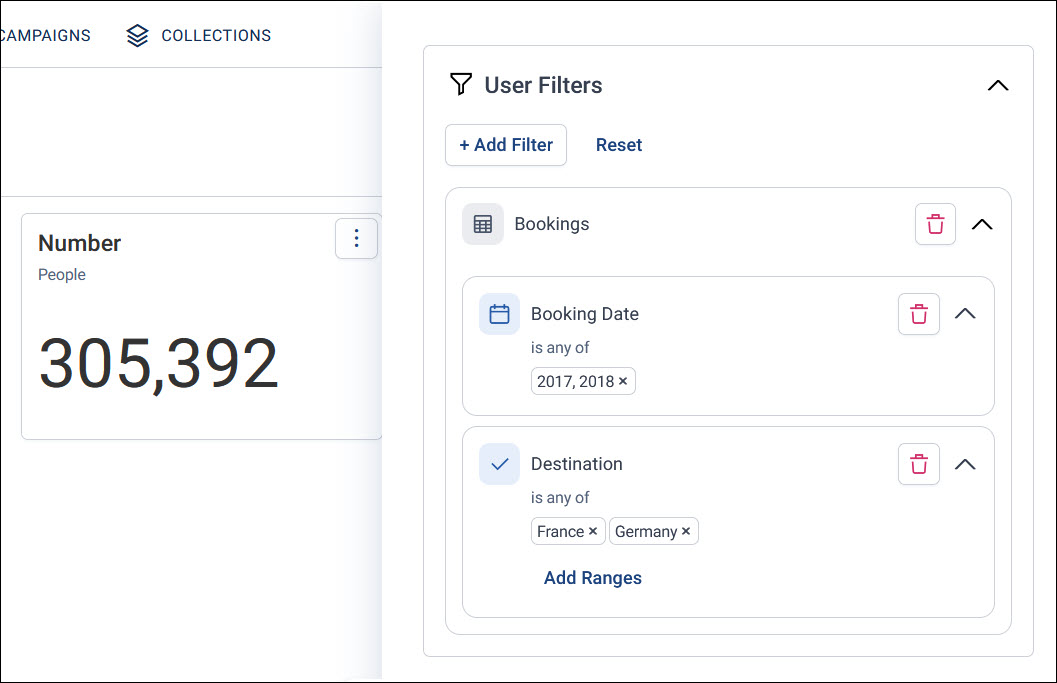
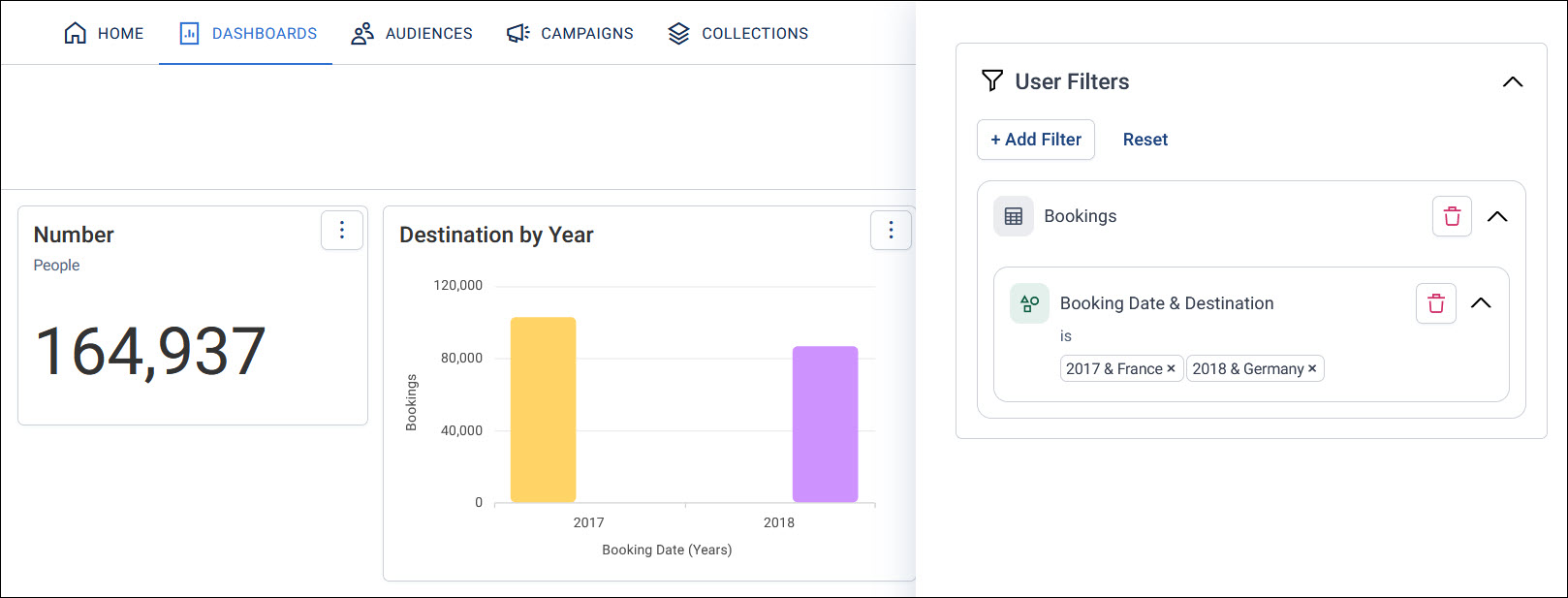
Instead, use a multi dimension chart with Booking Date and Destination as its dimensions. Select the France column in 2017 and the Germany column in 2018, and add them to your filters. One Booking Date & Destination block holds the pairs 2017 & France and 2018 & Germany, and selects only the people you wanted. The count drops from 305,392 people to 164,937.
When to change Select Via
You can make a tile count through a different table with its Select Via setting. Changing the table changes what a filter means for the tile, so the same filter can answer a different question.
Booking destinations through People
A Booking Destinations chart counts bookings by destination. With Select Via on Auto (Bookings), filtering the dashboard to United States leaves only the United States bookings on the chart.
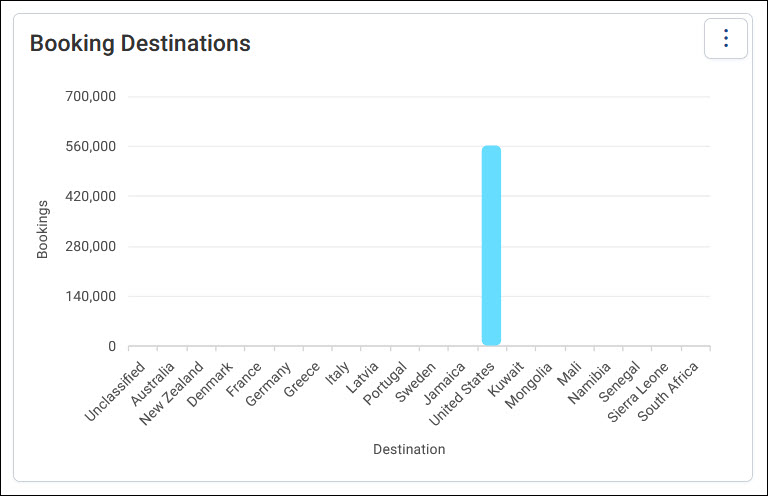
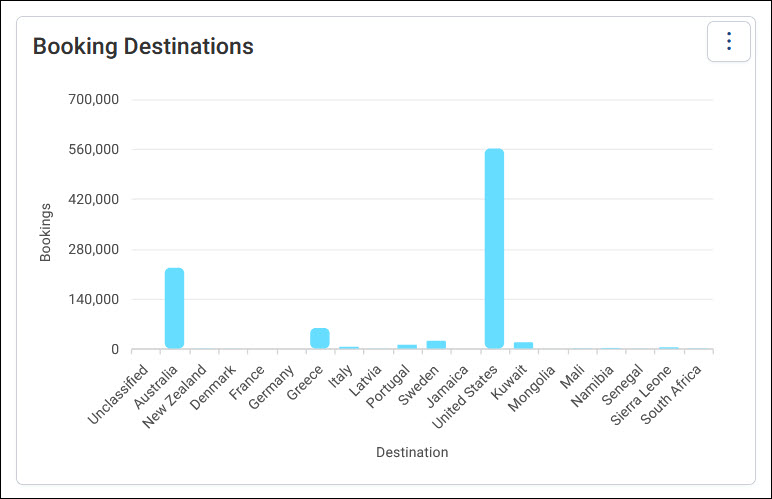
Set Select Via to People and the same filter selects the people who booked a trip to the United States. The chart then shows every destination those people have booked, not only the United States.
Change the Select Via table
Select Via is in the Data Settings of every tile type except text and profile tiles.
To change the table a tile counts through:
- With your dashboard in edit mode, expand the option menu on your tile and select Edit Tile.
- Expand Data Settings.
-
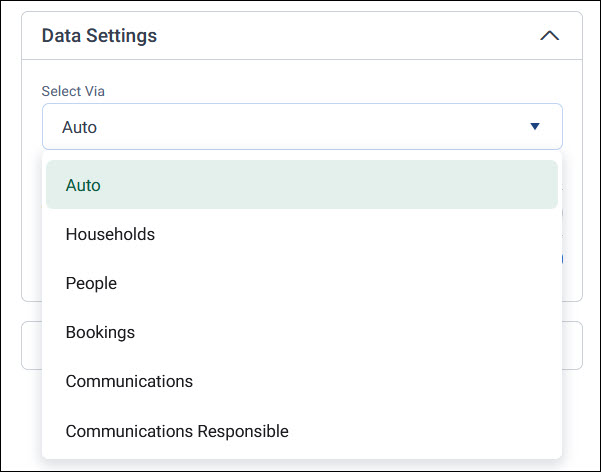
Select a table from the Select Via dropdown. Auto uses the parent table of your dimensions, shown in brackets, for example Auto (Bookings).
-
Select Apply, then Save the dashboard.
The tile now counts through the table you chose whenever a filter applies.
Tip
Add a note to the tile to tell viewers which table it counts through, so its numbers don't surprise them.
Include records with no matches
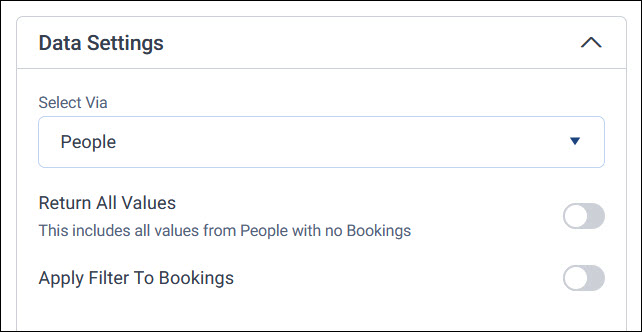
When you choose a table above the tile's own table, such as People for a tile that counts bookings, Data Settings shows two more toggles:
- Return All Values: Includes records from the Select Via table that have no matching records, for example people with no bookings
- Apply Filter To, followed by the tile's table, for example Apply Filter To Bookings