Dashboard filters
Dashboard filters apply to every tile on the dashboard. Dashboard editors set these up to remain active for all users across all sessions.
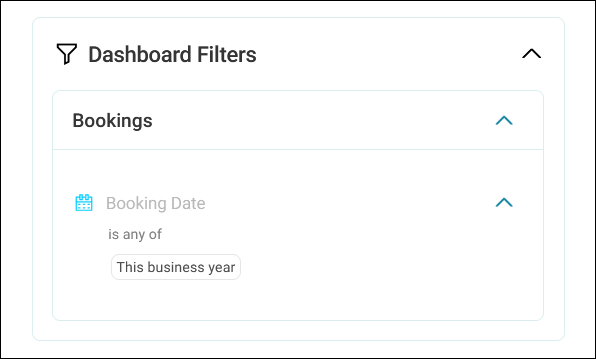
With these filters, you can create focused dashboards for specific audiences or purposes and ensure all tiles show data from the same filtered subset.
Example
Apply a dashboard filter to show only data from the current financial year, ensuring every tile on the dashboard reflects this time period without requiring individual tile filters.
Create a dashboard filter
To add a dashboard filter:
- Open your dashboard and select Edit.
- Select Filters to open the filters side panel.
-
Under Dashboard Filters, select + Add Filter.
-
In the Select filter dialogue, add your filter values using variables, audiences, or files. See Working with filters.
- Select Apply.
- To add more filters, select + Add Filter again.
-
To let viewers see the dashboard filters in view mode, turn on Show Filter Details In View Mode.

Note
Even when hidden to viewers in the side panel, dashboard filters remain active.
Tip
If you hide dashboard filters, consider documenting them in the dashboard description so viewers understand why certain data isn't visible.
-
You can modify existing dashboard filters. See Editing existing filters.
- Select Close.
- Save your dashboard.
The dashboard filter applies immediately to all tiles.
Dashboard filters stay active whatever other filters viewers use. For how they work with user, tile, predefined, and search filters, see How filters combine.