Search filters
A search filter adds a search box to a dashboard. Viewers type a value, and Orbit searches one or more variables you've chosen and filters the dashboard to the matching records. Viewers can find a record without knowing which variable holds the value.
Example use cases
Supporter lookup
Create a search filter labelled Supporter ID that searches both a supporter reference number and a URN variable, so your supporter care team can find a supporter whichever number they have to hand.
Name search
Create a search filter labelled Supporter Name that searches the Forename and Surname variables, so viewers can find a supporter from either name.
Prerequisites
To create search filters, you need:
- Dashboard Search Filters turned on in Application Settings > Dashboard Settings
- Edit permission on the dashboard
Create a search filter
You create a search filter in the dashboard's filters side panel.
To create a search filter:
- Open your dashboard and select Edit.
- Select Filters to open the filters side panel.
-
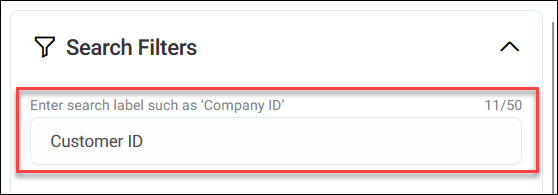
Under Search Filters, enter a label for the search box, up to 50 characters, so viewers know what to search for.
Tip
Choose a label that says what to search for, such as Supporter Email, rather than just Search.
-
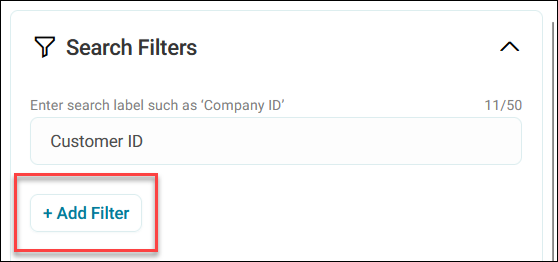
Select + Add Filter.
-
In the Select filter dialogue, search for one or more variables and select their check boxes. See Working with filters.
Note
Search filters only accept variables.
Tip
Group related variables in a single search filter, such as Forename and Surname in a Supporter Name search filter.
-
Select Add.
- To add more variables, select + Add Filter again. To remove a variable, select its bin icon.
-
To show the search filter's details to viewers in view mode, turn on Show Filter Details In View Mode.

-
Select Close.
- Save your dashboard.
A search box with your label appears in the top right of the dashboard.
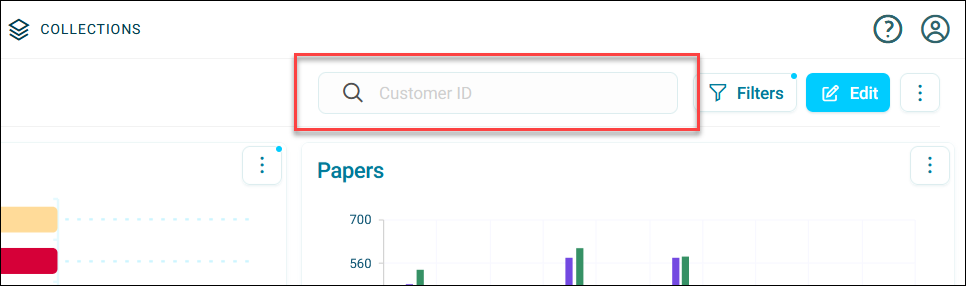
When viewers search, Orbit searches every variable in the filter and returns records that match any of them.
Use a search filter
Viewers use the search box in view mode.
To search:
- Enter your search term in the search box.
- Press Enter, or wait a few seconds.
The dashboard shows only records that match the search term in any of the filter's variables. To clear the search, select the X.
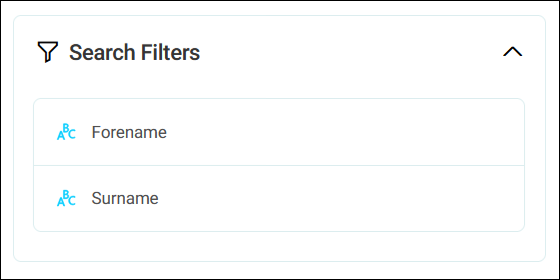
If the editor has turned on Show Filter Details In View Mode, you can see which variables a search filter uses: select Filters and expand Search Filters in the side panel.
Note
An admin can turn off search filters for your system with the Dashboard Search Filters application setting.