Tile settings
On the tile editor, you can use the options menu to open Tile Settings, where you can set the background colour of your tiles, and add or format notes and images.
Renaming a tile
Click directly on the tile title to edit it in place, then click away or press Enter to confirm.
Tile background colour
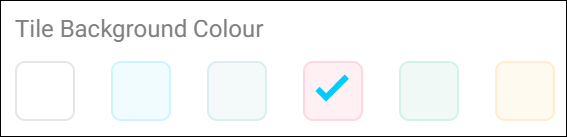
You can set dashboard tile background colours via the Tile Editor, under Tile Settings. This setting allows you to make subtle colour changes to the background of a tile and create visual separation between different areas on the dashboard.
Tile notes
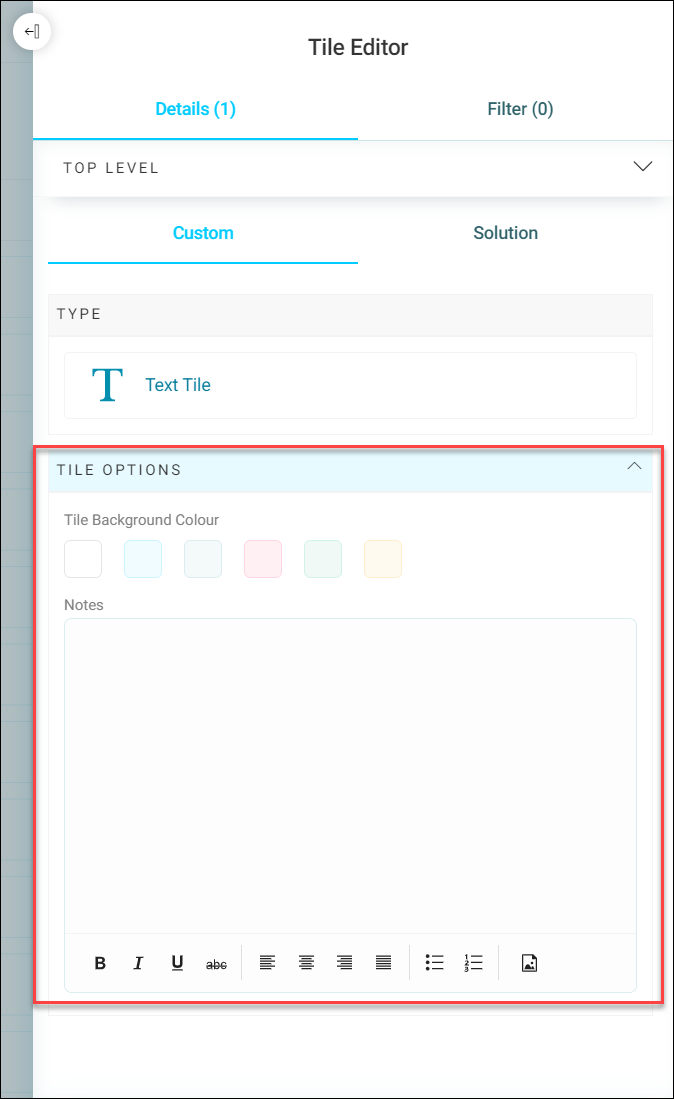
In Tile Settings, you can add and edit notes using a selection of rich text formatting options. You can also apply HTML formatting and images to your tiles.
-
Expand the options menu and select Tile Settings.
-
Enter your content in the Notes field.
Using the Notes formatting options menu, you can:
- Add text
-
Change text emphasis:
- Bold
- Italic
- Underline
- Strikethrough
-
Align your content:
- Left
- Centre
- Right
- Justified
-
Add bulleted or numbered lists
-
Insert an image, with the following options:
- Web address
- Alternate text
- Width (px)
- Height (px)
-
When you’ve added, edited, and formatted your content, add a Title and click Apply.
Note
For security reasons there are limitations on the HTML you can use. Therefore, the notes editor does not allow the introduction of any malicious code.