Exporting a dashboard tile
Export individual dashboard tiles as image, document, or spreadsheet files to share your insights with others or save for offline reference. You can also send the records in a data grid tile to an FTP site, a file server folder, or a campaign channel.
Note
You must be in view mode to export a tile.
The option you select, and the file formats available, depend on the type of tile:
| Tile type | Option menu entry | File formats |
|---|---|---|
| Chart | Export Chart | PDF, PNG, SVG |
| Cube | Export Cube | PDF, XLSX, TXT |
| Table | Export Table | PDF, XLSX, TXT |
| Data grid | Export Data Grid | PDF, CSV, XLSX, DBF, URN |
To export a chart, cube, or table tile:
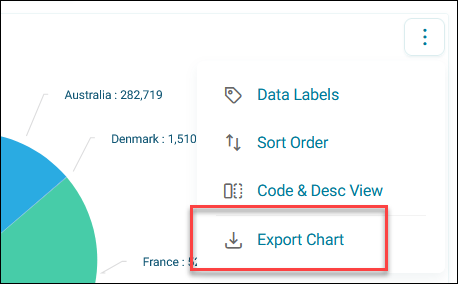
- Select the option menu on your tile.
-
Select the export option for your tile type, for example Export Chart.
-
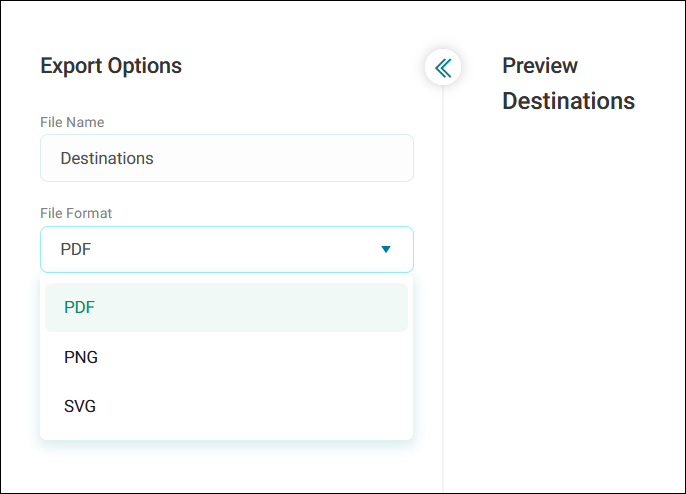
Edit the File Name as appropriate.
-
Expand the File Format dropdown and select the file type. For a chart, choose:
- PDF: Best for documents and presentations
- PNG: Best for images with transparent backgrounds
- SVG: Best for scalable graphics that maintain quality at any size
For a cube or table, choose PDF, XLSX, or TXT.
-
For a cube or table, to export the complete data set, including data hidden by category or value limits, select Export Full Cube. Use XLSX or TXT to access all the data.
- For a cube or table, review the Preview of your export.
- Select Export.
A confirmation message appears and your file downloads, ready to use or share.
Exporting a data grid tile
When you export a data grid tile, you can download the records, send them to an FTP site or file server folder, or send them to a campaign channel.
Note
If the tile's editor has restricted export, you can only use the export type they've chosen, or you can't export the tile at all. See Restricting export.
To export a data grid tile:
- Select the option menu on your tile, then select Export Data Grid.
-
Choose an Export Type:
- Download
- FTP
- Public File Server Folder
- Private File Server Folder
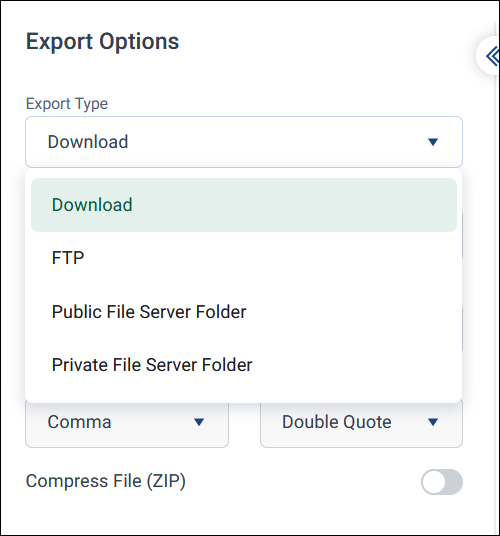
If your system has channels set up in the Channel Editor, they also appear in this list. You only see channels you have permission to use.
The destinations available depend on how your administrator set up your system.
-
Edit the File Name as appropriate.
- Choose a File Format: PDF, CSV, XLSX, DBF, or URN. PDF is only available when you download the file. If you're exporting to a channel, the channel sets the format, so you don't choose one, but you may need to complete fields for that channel, such as a message template.
- If you chose CSV, choose a Delimiter (Comma, Tab, Semicolon, Pipe, or Other) and an Encloser (Double Quote, Single Quote, None, or Other).
-
Optionally, turn on Compress File (ZIP) and enter a Password to protect the file.
Note
Your administrator controls whether you can compress exports, and whether a password is required. See Compressing and password-protecting exports.
-
Select Export.
You can't schedule an export from a dashboard tile. To schedule a data grid export, analyse the tile in an audience workbook, then see Scheduling an export.
Note
To work with a tile's data in more detail, for example to change its settings, analyse it in an audience workbook. See Analysing a dashboard tile.