Change how a tile displays
While you view a dashboard, you can change how a chart tile displays from its option menu, without editing the dashboard. You can show or hide data labels, sort the categories, switch between codes and descriptions, and change how many categories the tile shows.
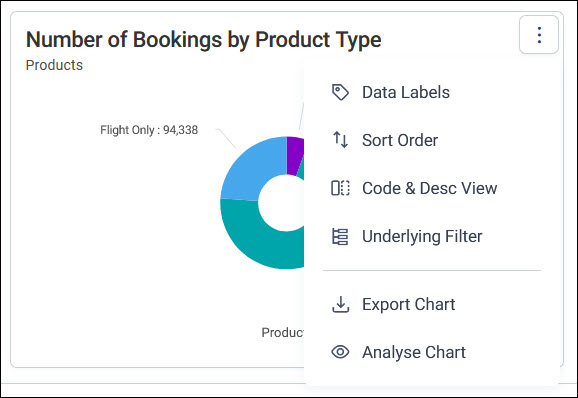
The chart updates as soon as you make a change. These changes only affect how you see the tile. They don't change the dashboard for anyone else. To change a tile for everyone, edit it in the tile editor.
The menu also has Export Chart, to save the chart as a file. See Exporting a dashboard tile. Analyse Chart opens the chart's data in an audience workbook. See Analysing a dashboard tile. Underlying Filter shows every filter that applies to the tile, including filters from other tables.
Show data labels
Data labels show each value on the chart.
To show or hide data labels:
- Expand the option menu on your chart tile and select Data Labels.
- If the tile has more than one measure, choose the Measure.
-
Choose a Display option:
- Show: Shows every label
- Hide: Hides the labels
- Auto Hide: Hides labels when there isn't room for them
Sort the categories
Sort the categories by the value of a measure, to put the largest or smallest first.
To change the sort order:
- Expand the option menu on your chart tile and select Sort Order.
- If the tile has more than one measure, choose the Measure.
-
Choose a Sort Order:
- Natural: Shows categories in their default order
- Ascending: Arranges categories from lowest to highest value
- Descending: Arranges categories from highest to lowest value
Show codes or descriptions
Categories can show their codes, their descriptions, or both, for example a region's code and its name.
To change the category labels:
- Expand the option menu on your chart tile and select Code & Desc View.
- If the tile has more than one dimension, choose the Dimension.
- Choose a Display Style: Codes, Descriptions, or Codes & Descriptions.
Change the category limit
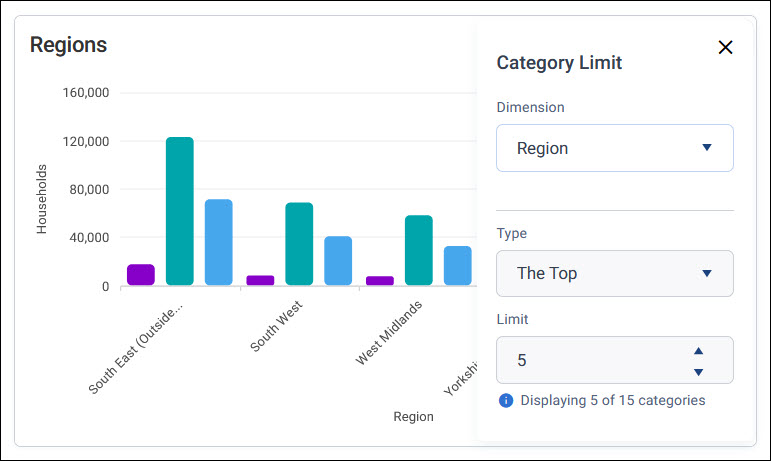
A category limit shows only some of a dimension's categories, such as the top five. Category Limit isn't on every chart's menu: a dashboard editor can let viewers adjust the limit by turning on Allow the user to adjust this limit. See Dimension settings.
To change the category limit:
- Expand the option menu on your chart tile and select Category Limit.
- If the tile has more than one dimension, choose the Dimension.
- Choose a Type, such as All or The Top, and a Limit.
The panel shows how many categories the tile is displaying, for example Displaying 5 of 15 categories. If Type and Limit are greyed out, the dashboard's editor hasn't allowed viewers to change the limit.