Copying dashboards, tabs, and tiles
You can copy content from one dashboard to another, to reuse it and edit it there. In edit mode, you can copy:
- A whole dashboard, which adds all its tabs and tiles to another dashboard
- A tab, with all its tiles
- A single tile
Note
To copy a dashboard, tab, or tile, you need permission to create dashboards. See Roles and rights.
Copy a dashboard
Copying a dashboard adds all of its tabs to the end of another dashboard.
To copy a dashboard:
- Open your dashboard and select Edit.
-
Expand the dashboard's option menu and select Copy Dashboard to.
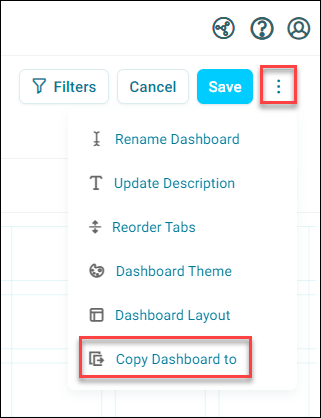
-
Search for and select the dashboard to copy to, then select Make a Copy.
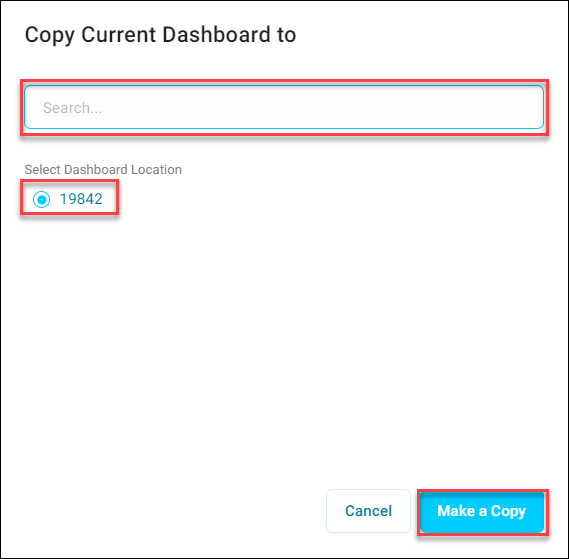
-
A notification shows which dashboard you copied to. To open it, select View Dashboard.
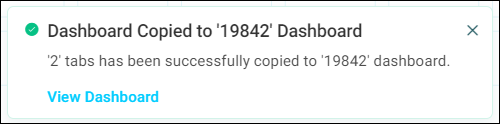
The copied tabs have "(Copy)" after their names, so you can tell them apart. You can rename them.
Copy a tab
Copying a tab adds it, with all its tiles, to the end of another dashboard.
To copy a tab:
- Open the tab and select Edit.
-
Expand the tab's option menu and select Copy Tab to.
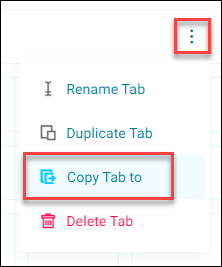
-
Search for and select the dashboard to copy to, then select Make a Copy.
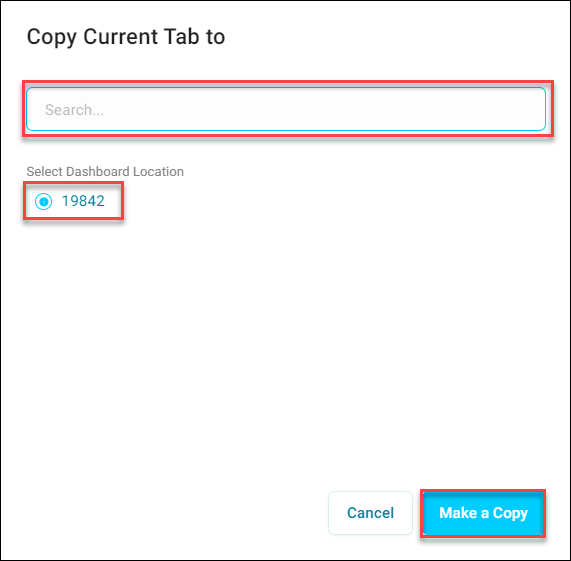
-
A notification shows which dashboard you copied to. To open it, select View Dashboard.
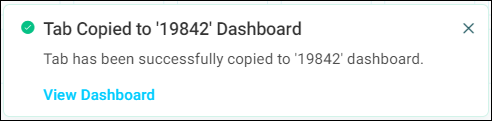
The copied tab has "(Copy)" after its name. You can rename it.
Copy a tile
You can copy a tile to any tab of another dashboard.
To copy a tile:
- Open your dashboard and select Edit.
-
Expand the tile's option menu and select Copy Tile to.
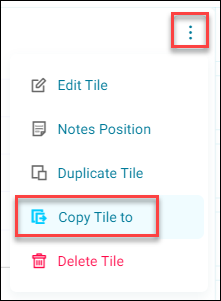
-
Under Select Dashboard Location, choose the dashboard. Under Select Tab Location, search for and select the tab, then select Make a Copy.
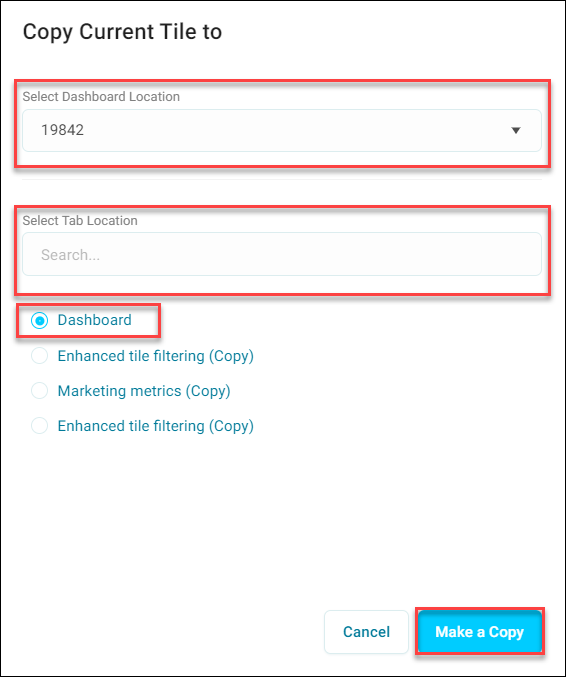
-
A notification shows which dashboard you copied to. To open it, select View Dashboard.
The tile is added to the tab you chose.