Working with tabs
Every dashboard can use tabs to distribute your data across multiple views, with each tab displaying up to fifteen tiles. This increases your data analysis capacity from a single dashboard.
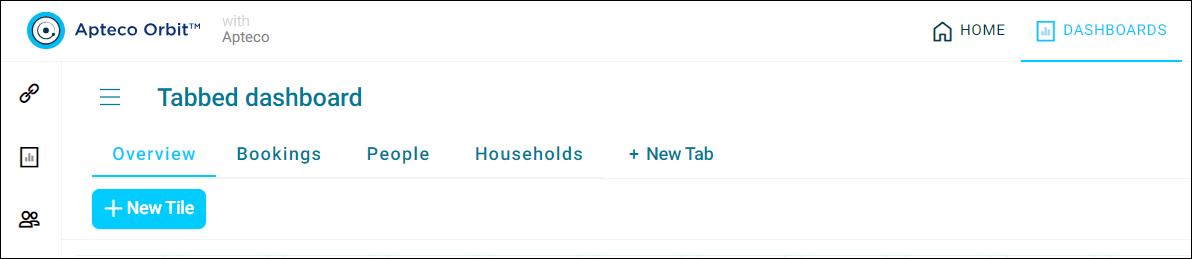
You can add new, duplicate, rename, edit, and delete these tabs as required. Any dashboard filters that you select are also applied across all tabs.
Example
Using multiple tabs on the same dashboard allows you to have varying views of the same data. An example of this would be using the first tab as an executive summary, with more detailed views on subsequent tabs.
Note
You can add as many dashboard tabs as you want to a dashboard, but each tab has a 15 tile limit.
Add a new dashboard tab
To add a new dashboard tab:
-
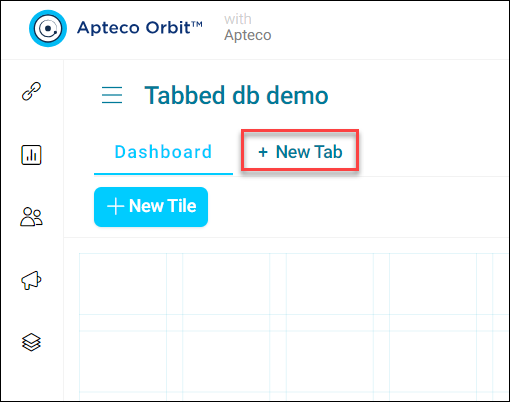
Click + New Tab.
-
Add your Tab Name and click Create.
- Click + New Tile, and add tiles as required.
-
Click Apply.
You’ve now created a new dashboard tab.
Note
You need edit permission on the dashboard to create, duplicate, rename, or delete a tab. See Roles and rights.
Duplicate a dashboard tab
To duplicate a dashboard tab:
-
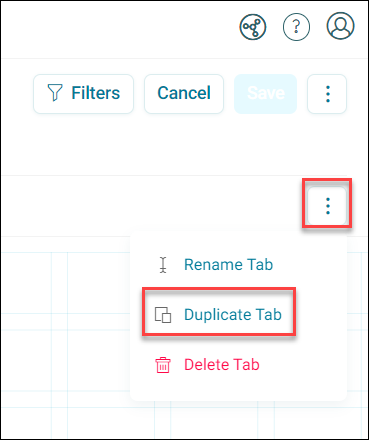
Open the Options dropdown on right side of an existing tab and click Duplicate Tab.
-
Add a Tab Name and click Create.
-
Click Save.
You’ve now duplicated a dashboard tab and renamed it to create a new tab.
Rename a dashboard tab
To rename a dashboard tab:
- Open your dashboard and click Edit.
-
Rename the tab using either method:
- Click directly on the tab name, then click away or press Enter to confirm.
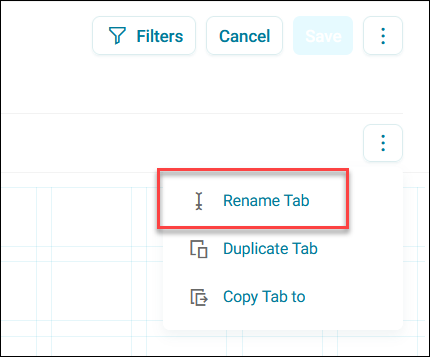
- Click the tab, expand the option menu to the right of it, click Rename Tab, enter a new Tab Name, and click Rename.
-
Click Save.
Your tab name updates immediately.
Delete a dashboard tab
To delete a dashboard tab:
- Open your dashboard and click Edit.
- Click the tab, expand the Options dropdown to the right of it, and click Delete Tab.
- Click Save.
Your tab is removed once you save.
Reordering tabs
To reorder your tabs:
- Open your dashboard.
-
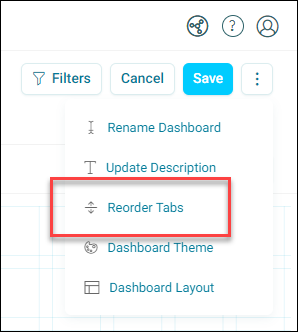
Click the options menu in the top-right corner, then click Reorder Tabs.
-
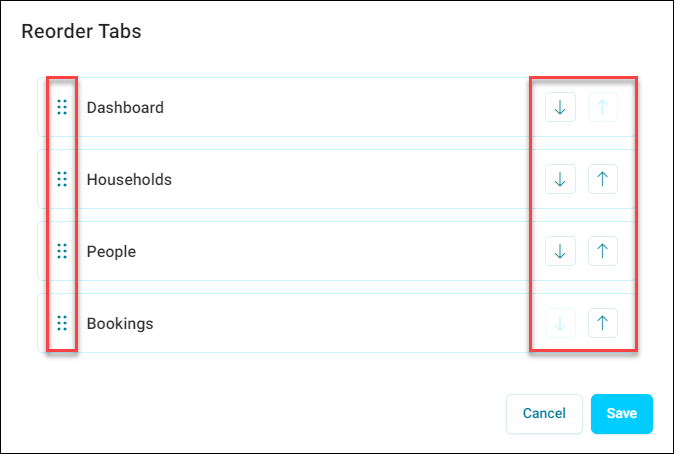
A list of your tabs appears. To reorder them, either:
- Click and drag the dotted area to move the tabs
-
Use the arrows on the right to cycle the tabs up or down
-
When you're happy with the new tab order, click Save.
You've now reordered your dashboard tabs.
Filters across tabs
Any filters you apply to a dashboard affect all its tabs. If you filter a tile on one tab, the filter carries over automatically when you switch to another tab. Each tab counts on its own, so switching tabs triggers a short loading sequence while the filtered data recalculates.
Note
Filters applied to a dashboard only affect that dashboard and its tabs. These filters don't affect any of your other saved dashboards.
Tip
If you need different audiences to see different filtered views, use separate dashboards instead of tabs. A dashboard's filters always apply across all its tabs.
For more information on filters, see Filtering.