Dashboard name, theme, and layout
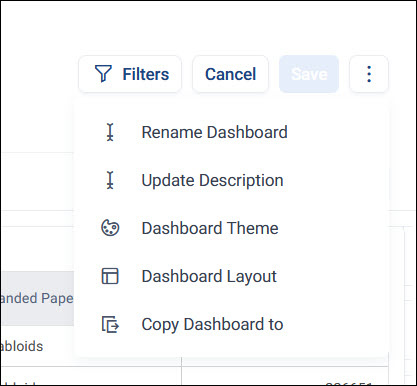
While editing a dashboard, use its options menu to rename it, update its description, and configure its theme, logo, and layout.
Rename a dashboard
To rename a dashboard:
- Open your dashboard and select Edit.
-
Rename it using either method:
- Select the dashboard name and edit it, then press Enter or select outside the name to confirm.
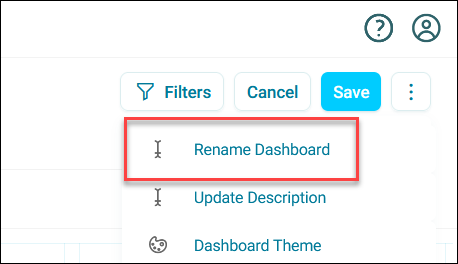
- Open the options menu in the top-right corner, select Rename Dashboard, enter a new Dashboard Name, then select Rename.
-
Select Save.
Your dashboard name updates immediately.
Update the description
A dashboard's description appears directly below its name when the dashboard is open.
To update it:
- Open your dashboard and select Edit.
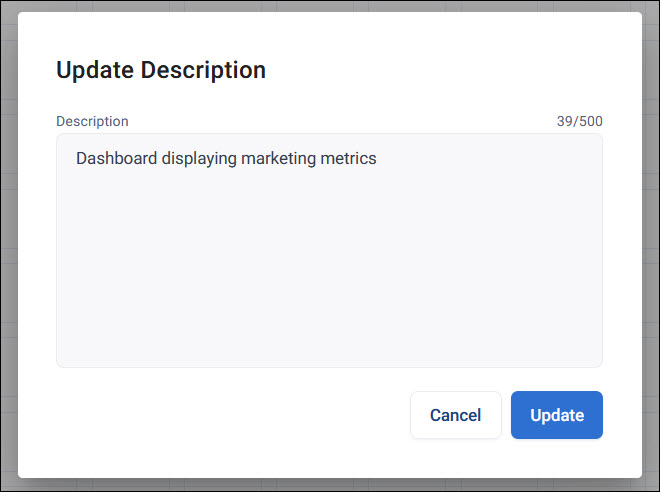
- Open the options menu in the top-right corner and select Update Description.
-
Enter a Description, up to 500 characters, and select Update.
-
Select Save.
Change the theme and logo
New dashboards use your system's default theme, which is Deep Blue unless an admin has changed it.
To set a dashboard's theme and logo:
- Open your dashboard and select Edit.
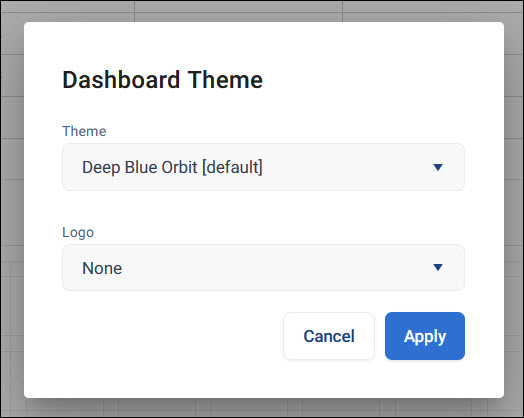
- Open the options menu in the top-right corner, then select Dashboard Theme.
- Choose a Theme from the drop-down list, or create a custom theme. See Dashboard themes editor.
-
Choose a Logo, or select None. See Dashboard logos for how to upload and manage logos.
-
Select Apply.
Change the layout
To adjust a dashboard's layout settings:
- Open your dashboard and select Edit.
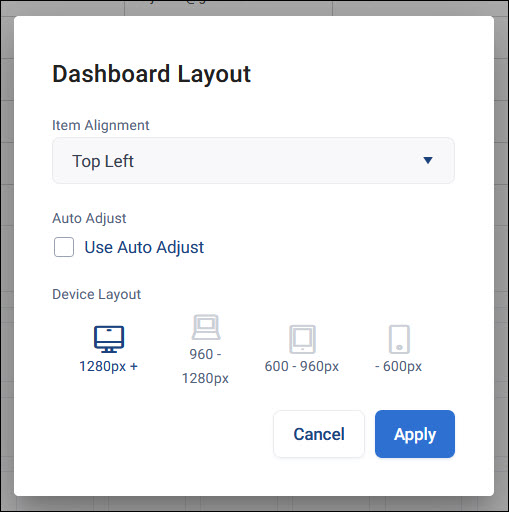
- Open the options menu in the top-right corner, then select Dashboard Layout.
- Set your Item Alignment.
- Turn on Use Auto Adjust to automatically arrange tiles, or leave it off to position them manually.
-
Choose which Device Layout you're configuring: Desktop (1280px and above), Laptop (960-1280px), Tablet (600-960px), or Mobile (below 600px).
-
Select Apply.
You can configure a different layout for each device type, so your dashboard displays well regardless of screen size.
Note
You need edit permission on the dashboard to change any of these settings. See Roles and rights.
For renaming, duplicating, deleting, or reordering a dashboard's tabs, see Working with tabs.