Venn diagrams
A Venn tile shows how groups of records overlap. Each group is a set, drawn as a coloured ellipse, and each overlap shows the measure, such as a count, for the records in more than one set. Use a Venn to find segments for a campaign, such as supporters who give to both your winter and summer appeals, or to filter the rest of the dashboard to one of those segments.
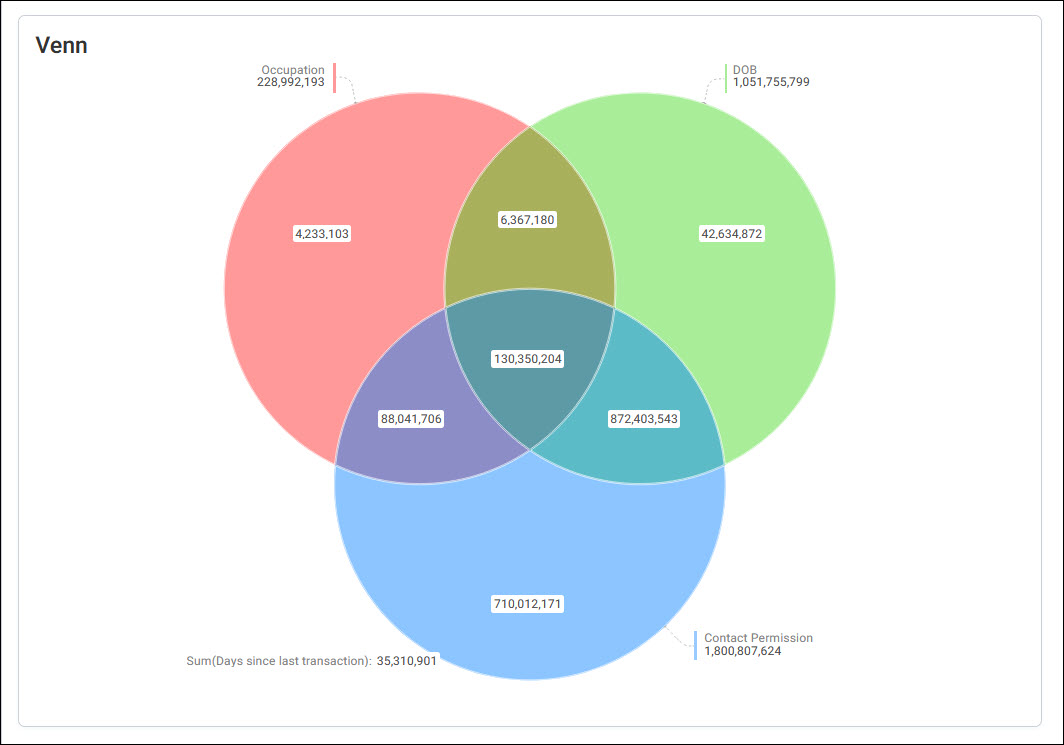
A Venn tile can have up to five sets and up to two measures. It also shows the records that aren't in any set, and you can select that part too.
Add a Venn tile
You define each set with filters, in the same way as anywhere else in Orbit.
To add a Venn tile:
- Add a tile and choose Venn as the Tile Type. It's in the Other group.
-
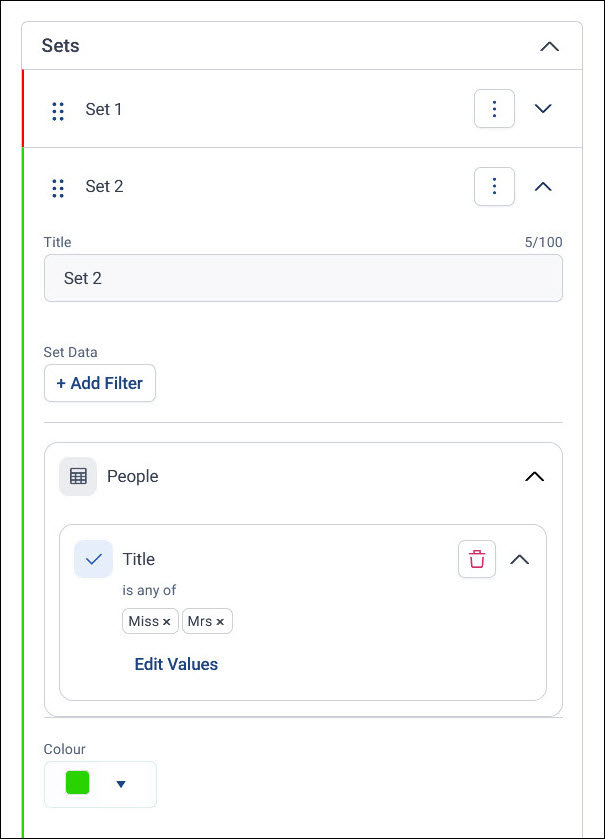
Under Sets, set up the first set:
- Title: Name the set, up to 100 characters
- Set Data: Select + Add Filter and choose the records in the set, such as people with a particular title, or an audience
- Colour: Choose the set's colour
-
Select + Add Set to add each further set, up to five.
- Under Measures, select + Add Measure to choose what the Venn counts, such as the People table. You can add up to two measures. For what you can measure, see Measures.
- Select Apply, then Save the dashboard.
For the tile's other settings, such as Select Via, see Tile editor. You can't use a behaviour as a measure on a Venn tile, but you can use one to define a set. See Behaviours.
Tip
Add notes to the tile to explain what each set contains.
Filter the dashboard by a subset
You can select parts of the Venn and add them to your user filters, to filter the whole dashboard to those records.
To filter by a subset:
- Select the count in a subset to zoom in and see its details. Select Close to zoom out.
- Select the subsets you want. Select a subset again to deselect it.
- Select Add to filter.
A Filter from Venn block appears in your user filters, and the rest of the dashboard shows only those records. The Venn tile itself shows counts only for the sets in the filter.
Note
You can't edit a Venn filter. To change the subsets, delete the filter and make a new selection.
Compare two measures
With two measures, a Venn shows both counts for every set and subset, such as the number of supporters and the number of donations. For example, if two sets are your supporters of Brand A and Brand B, defined by existing audiences, a Venn counting both people and donations lets you compare the two brands, and filter the dashboard to either one.