Cube tiles
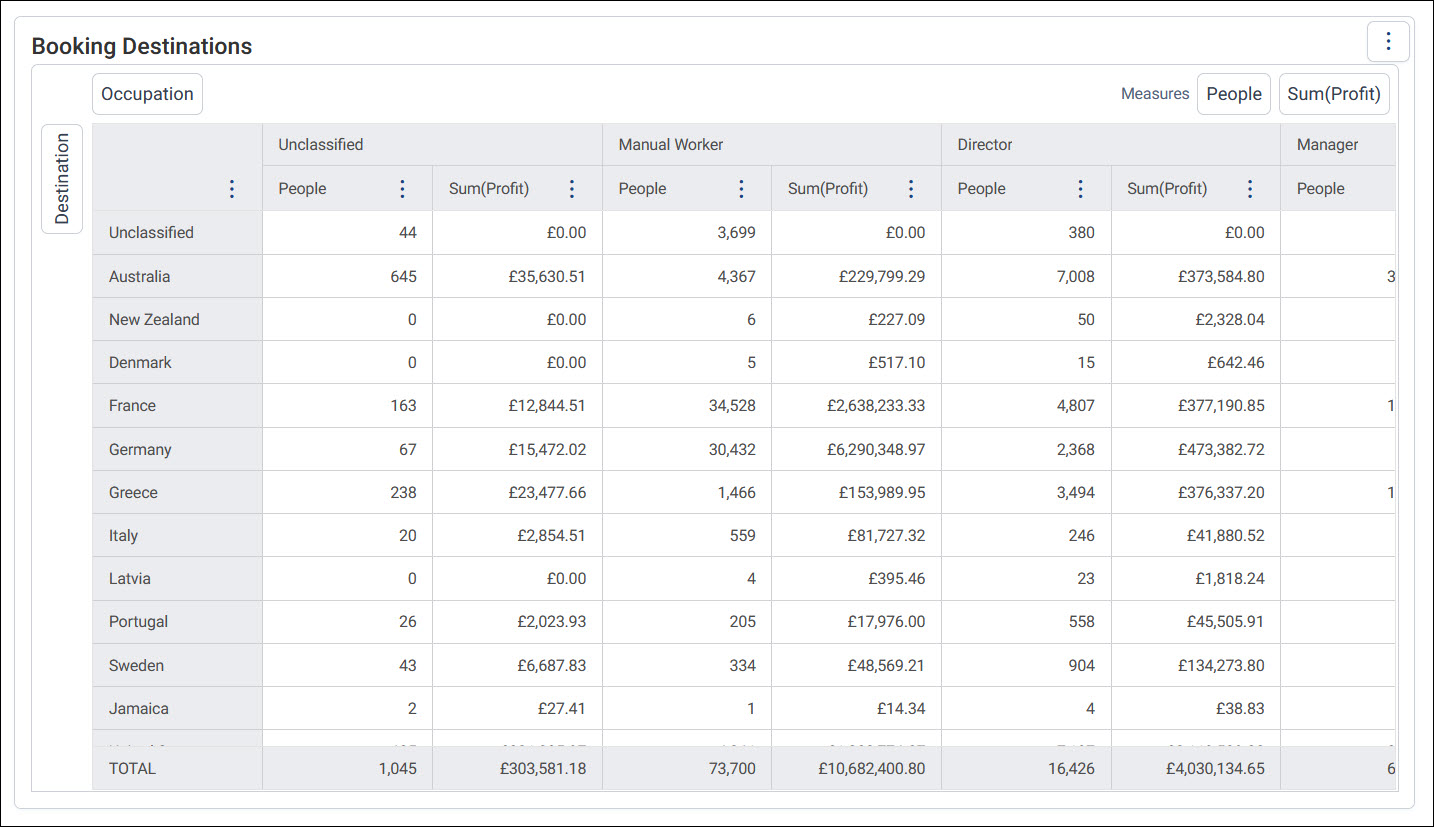
A cube tile crosses two or more dimensions in rows and columns, with your measures in the cells. For example, a cube could show the number of supporters in each region, split by age band.
Add a cube tile
A cube needs at least two dimensions and at least one measure.
To add a cube tile:
- Add a tile and choose Cube as the Tile Type. It's in the Multi Dimension Charts group.
- Under Dimensions, add the variables for the Rows and the Columns.
- Under Measures, select + Add Measure for each value you want in the cells. For what you can measure, see Measures.
- Select Apply, then Save the dashboard.
To switch the rows and columns, select Swap Axes between them. When the cube has both row and column dimensions, they all swap positions.
For every setting in the tile editor, see Tile editor. These Data Settings are especially useful on tables and cubes:
- Colour Scale, to shade each cell by its value
- Display Totals, to add totals
Note
When a category limit filters the results, subtotals are recalculated where possible.
Sort and filter columns
Select a column header's options menu to sort or filter the column.
Sorting applies as soon as you select it. Select Sort Natural to reset a column to its default sort order.
You can filter numeric columns. Choose a comparison, such as Is equal to, Is greater than, or Is less than or equal to, then enter a value. Select Apply, which stays disabled until you enter a value. Selecting Apply applies the filter and closes the menu. Select Clear to reset the filter.
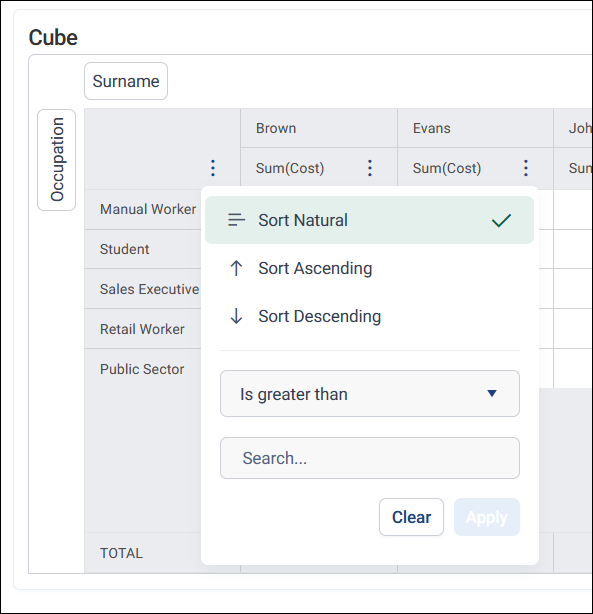
Filtering only affects the data shown on screen, and isn't applied when you export the cube.
Note
Sorting and filtering columns works the same way for a cube in an audience workbook. Data grid tiles use the same menu, and can also filter text and date columns.
Export the cube
In view mode, select Export Cube from the tile's option menu to export it as a PDF, XLSX, or TXT file. See Exporting a dashboard tile.