Find look-alikes
Look-alikes are people in your data who share the characteristics of an audience, such as your best customers, but aren't in it yet. The Find Look-alikes solution works out which characteristics set your audience apart, scores everyone else by how closely they match, and creates a new audience of the closest matches for you to target.
Example
Your most loyal supporters are in an audience. Find Look-alikes shows that their age band, region, and how they first came to you set them apart. It then creates an audience of the 5,000 other supporters who match those characteristics most closely, for your next regular giving appeal.
Before you begin
To find look-alikes, you need:
- At least two look-alikes variables, which your administrator chooses. See Look-alikes variables.
- A saved audience of the people you want more of. You can also create one from a dashboard's filters.
Find what sets your audience apart
Orbit compares your audience with a comparison audience, and tests the variables you choose to find the ones that set your audience apart.
To find what sets your audience apart:
- In your audience, select + New Page, and name the page. Under Solutions, select Add on Find Look-alikes.
- Optionally, select + Add Comparison Audience and choose the audience to compare with. Without one, Orbit compares your audience with every record in your system.
- Under Variables, tick at least two variables to test. You can only choose the variables your administrator has set up.
-
Select Run.
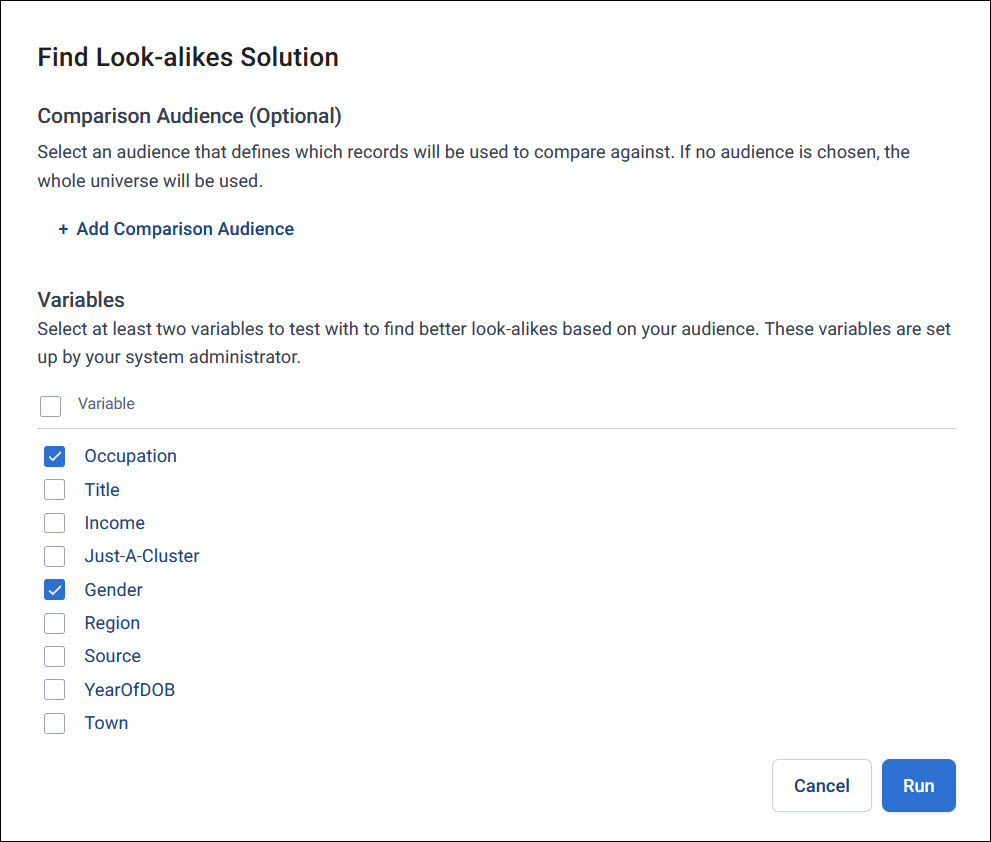
Orbit analyses your audience in the background and notifies you when it's finished.
Choose the variables to use
Orbit ranks the variables by the insight each one adds. The longer a variable's bar, the more it sets your audience apart.
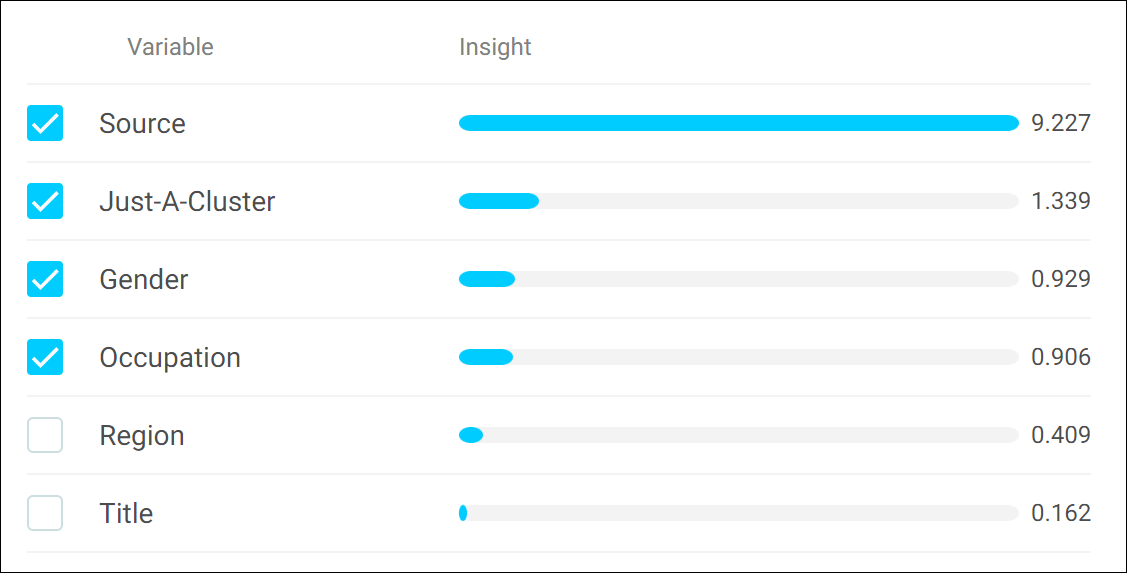
Tick the variables to use. When you tick a variable, Orbit also ticks every variable ranked above it, so the model always uses the best ones. Then select Save.
To change the comparison audience or the variables you tested, change them here and run the analysis again.
How Orbit ranks the variables
Orbit ranks the variables using Incremental Insight, which favours variables that are both predictive and different from each other, rather than several that tell you the same thing:
- Orbit sorts the variables by Insight PWE, which measures how much each one sets your audience apart. The top variable is ranked first.
- Orbit then reduces each remaining variable's insight by how closely it correlates with the variables already ranked. The variable with the highest remaining insight is ranked next.
- Orbit repeats this for each remaining variable. A variable that mostly repeats what higher-ranked variables tell you drops down the list.
Caution
Once a variable is in the model, Orbit scores it with its original insight, not its reduced one. So if you use several variables that tell you much the same thing, they can dominate your look-alikes between them. Where two variables are closely related, such as income band and occupation, consider using only the higher-ranked one.
Note
Orbit can't rank transactional variables and flag arrays with Incremental Insight. They hold several values for each record, so their correlation with other variables can't be calculated.
For more about Incremental Insight, see Incremental insight in the FastStats help.
Create a look-alikes audience
Once you've chosen your variables, create an audience of the people who match them most closely.
To create a look-alikes audience:
-
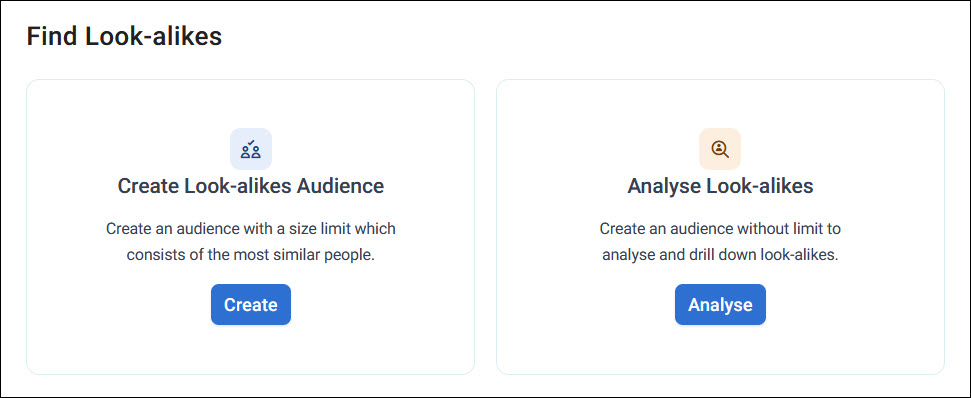
Select Find Look-alikes, then select Create on Create Look-alikes Audience.
-
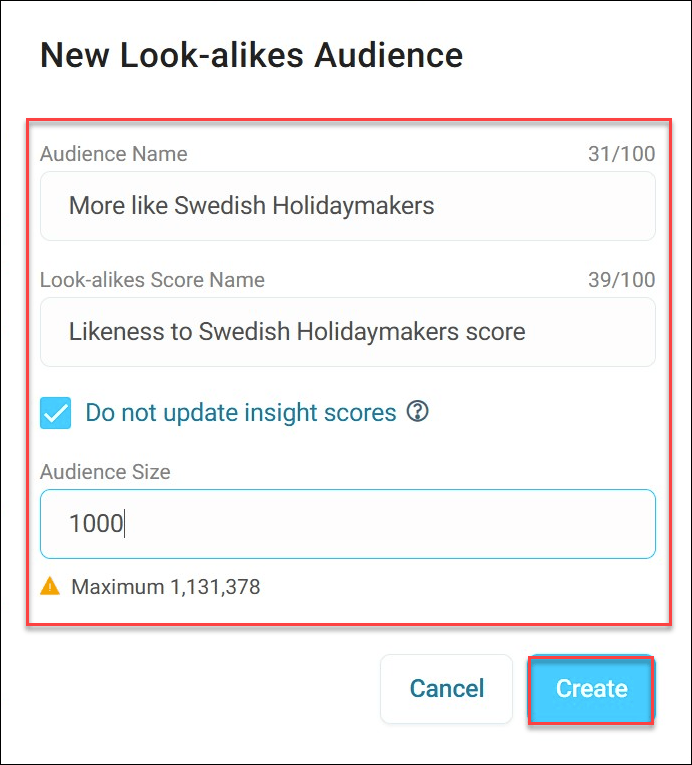
Enter an Audience Name. Orbit fills in a Look-alikes Score Name, which you can change.
-
Under Audience Size, enter how many people you want. Orbit shows the maximum you can choose.
-
Select Create.
Orbit creates the audience in the background, and notifies you when it's ready. Select the notification to open it.
To analyse everyone's score instead, without a size limit, see Analyse look-alikes.
What's in a look-alikes audience
A look-alikes audience shows a Look-alikes badge in your list of audiences.
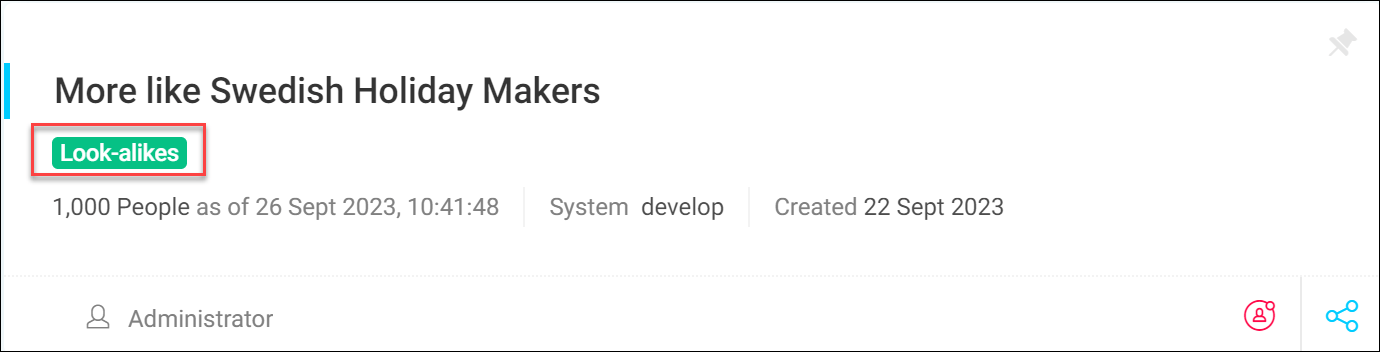
Orbit sets the audience up for you:
- Excludes holds your original audience, so the look-alikes audience only has new people
- A limit keeps the people with the highest look-alike scores, up to the size you chose
- A score variable, named after the score name you chose, gives each person's score. The higher the score, the more closely they match. You can use it like any other variable in this workbook. If you remove it from the audience and want it back, you'll find it at the top of the variable list in the data picker.
Your original audience is locked once you've used it to find look-alikes, so the settings behind your look-alikes audience can't change.
Note
If you ask for more look-alikes than there are people with a positive score, the audience can include people with a score below zero.
Use your look-alikes
Use your look-alikes audience anywhere you'd use another audience: