Text tiles
A text tile adds formatted text to a dashboard, such as a heading, a summary of what the dashboard shows, or instructions for the people viewing it.
To add notes to a tile that shows data, use its Notes setting instead.
Add a text tile
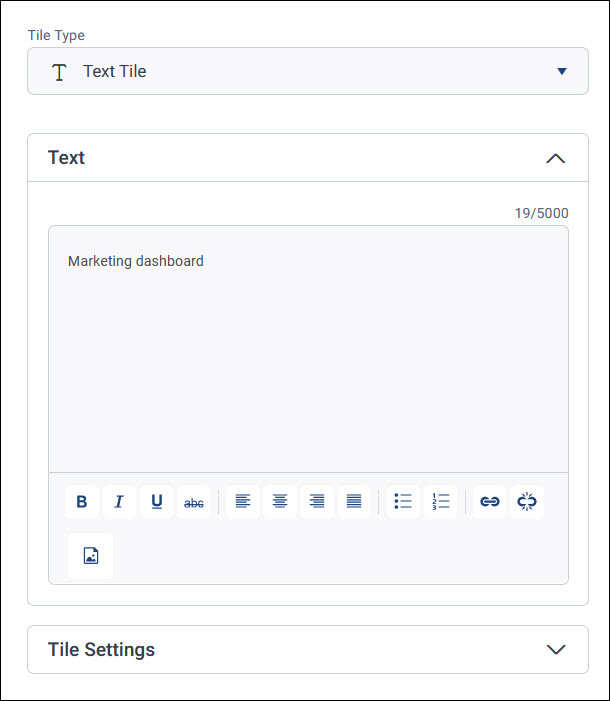
You write a text tile's content in the Text section of the tile editor, which holds up to 5,000 characters.
To add a text tile:
- Add a tile and choose Text Tile as the Tile Type. It's in the Basic group.
-
Under Text, enter your content.
-
Use the toolbar to format your text. You can:
- Make text bold, italic, underlined, or struck through
- Align text left, centre, right, or justified
- Add bulleted or numbered lists
- Add or remove links
- Insert an image from a web address, with alternative text, a width, and a height
-
Select Apply, then Save the dashboard.
To change the tile's background colour, turn on Custom Background Colour under Tile Settings.
Note
For security, the text editor only allows some HTML, so you can't add code that could harm your system.